In today’s fast-paced digital world, managing appointments efficiently is crucial for businesses, freelancers, and service providers. Whether you run a consulting firm, a salon, or an online coaching business, scheduling can quickly become overwhelming without the right tools.
This is where a Shared Booking Page becomes a game-changer. It simplifies scheduling, reduces back-and-forth communication, and enhances the overall customer experience. In this comprehensive guide, we’ll explore everything you need to know about shared booking pages, how they work, and how to use them effectively.
What Is a Shared Booking Page?
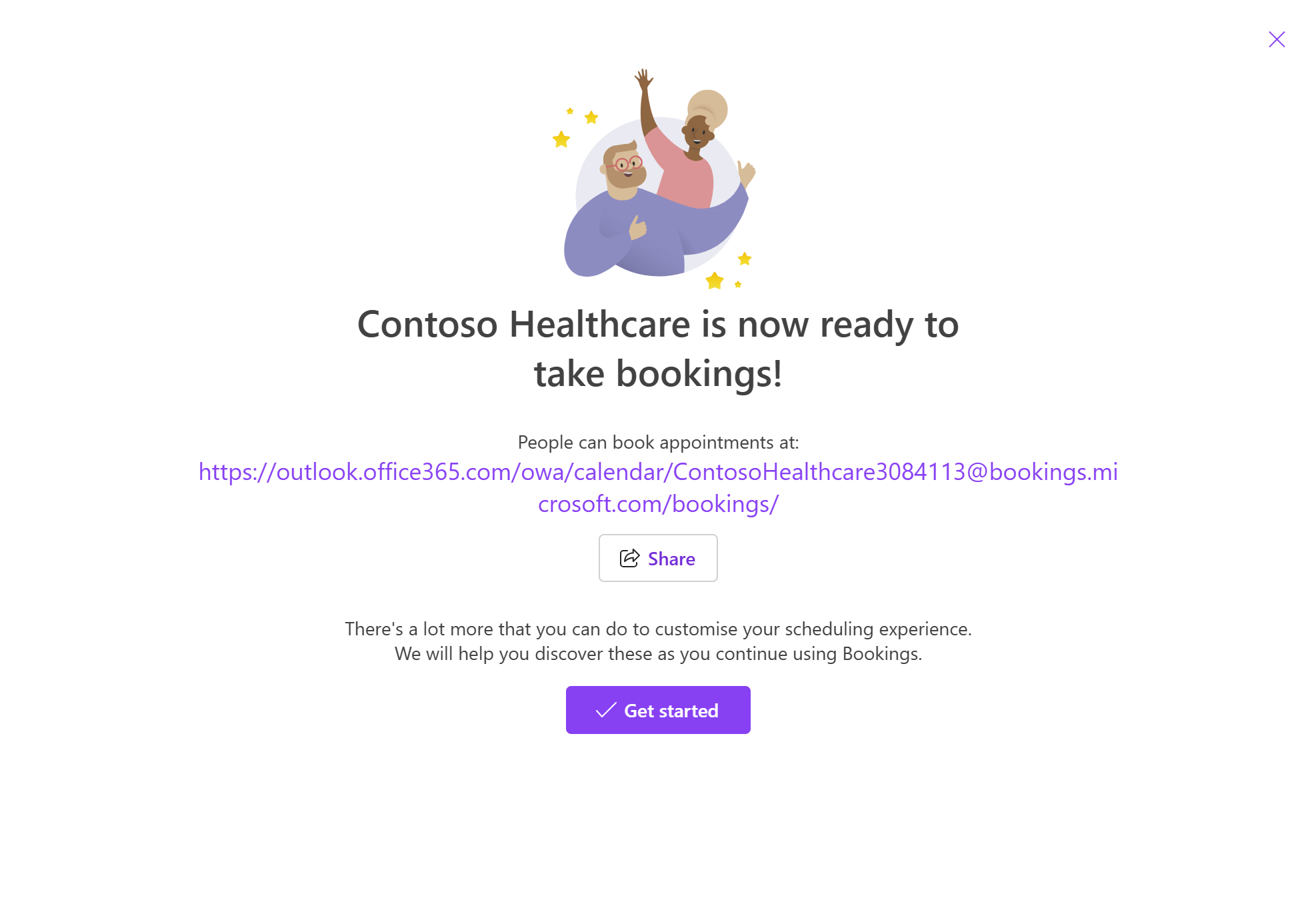
A shared booking page is an online scheduling interface that allows clients or customers to view your availability and book appointments directly. Instead of manually coordinating times via email or messages, you simply share a link where users can select a time slot that works for them.
These pages are commonly used by:
- Consultants and coaches
- Healthcare professionals
- Freelancers and agencies
- Service-based businesses
Why Use a Shared Booking Page?
A shared booking page offers multiple advantages that can transform your workflow.
1. Saves Time
Eliminates endless email exchanges to find suitable meeting times.
2. Reduces Scheduling Errors
Automates time slot selection and prevents double bookings.
3. Improves Customer Experience
Clients can book instantly at their convenience.
4. Increases Productivity
Frees up time to focus on core business activities.
5. Enables Global Scheduling
Automatically adjusts for time zones.
How Shared Booking Pages Work
The process is simple yet powerful:
- Set your availability
- Share your booking link
- Clients choose a time slot
- Appointment is confirmed automatically
Many tools also send reminders and integrate with calendars like Google Calendar or Outlook.
Key Features of a Shared Booking Page
To maximize efficiency, a good booking page should include the following features:
Calendar Integration
Syncs with your existing calendar to avoid conflicts.
Automated Notifications
Sends confirmation and reminder emails or SMS.
Custom Availability
Set working hours, breaks, and buffer times.
Payment Integration
Accept payments during booking.
Time Zone Detection
Automatically adjusts times for global clients.
Benefits for Businesses
Streamlined Operations
Automation reduces administrative workload.
Increased Bookings
Easy scheduling encourages more appointments.
Professional Image
A polished booking page enhances credibility.
Data Insights
Track bookings, cancellations, and trends.
Benefits for Customers
Convenience
Book anytime without waiting for responses.
Transparency
See available slots clearly.
Faster Service
Instant confirmation improves satisfaction.
Popular Use Cases
Shared booking pages are versatile and used across industries.
Healthcare
Doctors and therapists manage patient appointments efficiently.
Education
Tutors and coaches schedule sessions easily.
Corporate Meetings
Teams coordinate meetings across time zones.
Freelancers
Designers, developers, and consultants streamline client bookings.
How to Create a Shared Booking Page
Creating a booking page is straightforward.
Step 1: Choose a Tool
Select a scheduling platform that suits your needs.
Step 2: Set Availability
Define working hours and availability rules.
Step 3: Customize Your Page
Add branding, services, and descriptions.
Step 4: Share the Link
Send the booking link via email, website, or social media.
Best Practices for an Effective Booking Page
Keep It Simple
Avoid clutter and make booking easy.
Offer Clear Time Slots
Use logical intervals (e.g., 30 or 60 minutes).
Add Buffer Time
Prevent back-to-back appointments.
Use Automated Reminders
Reduce no-shows with notifications.
Optimize for Mobile
Ensure your page works smoothly on smartphones.
SEO Benefits of Shared Booking Pages
A shared booking page can also support your SEO strategy.
Increased Engagement
Users spend more time interacting with your site.
Reduced Bounce Rate
Easy navigation keeps visitors engaged.
Improved Conversions
Streamlined booking increases leads and sales.
Keyword Optimization
Include relevant keywords like “book appointment online.”
Integrating Booking Pages with Your Website
You can integrate your booking page in several ways:
- Embed it directly on your website
- Add a “Book Now” button
- Share links on landing pages
This improves accessibility and user experience.
Common Mistakes to Avoid
Overcomplicated Setup
Too many options can confuse users.
Lack of Availability Updates
Outdated schedules cause frustration.
Ignoring Time Zones
Leads to missed appointments.
No Confirmation System
Users need reassurance after booking.
Security and Privacy Considerations
When using a shared booking page:
- Protect customer data
- Use secure payment gateways
- Follow privacy regulations
Trust is essential for online scheduling.
Advanced Features to Consider
Group Bookings
Allow multiple participants in one session.
Recurring Appointments
Enable repeat bookings automatically.
Custom Forms
Collect client information before appointments.
Analytics Dashboard
Monitor performance and optimize scheduling.
Shared Booking Page vs Traditional Scheduling
| Feature | Shared Booking Page | Traditional Scheduling |
|---|---|---|
| Speed | Instant | Slow |
| Convenience | High | Low |
| Errors | Minimal | Common |
| Automation | Yes | No |
The difference is clear—automation wins.
Future of Shared Booking Systems
The future of scheduling is evolving rapidly.
AI Integration
Smart scheduling suggestions based on behavior.
Voice Booking
Schedule appointments using voice assistants.
Deeper Integrations
Seamless connection with CRM and productivity tools.
Real-World Example
Imagine a freelance consultant who spends hours coordinating meetings via email. After switching to a shared booking page, clients can book instantly, reducing scheduling time by 80%.
This allows the consultant to focus more on delivering value rather than managing logistics.
How to Promote Your Booking Page
To maximize usage:
- Add links to email signatures
- Share on social media
- Include on your website homepage
- Use call-to-action buttons
Visibility drives bookings.
Frequently Asked Questions
Is a shared booking page free?
Many tools offer free plans with basic features.
Can I customize my booking page?
Yes, most platforms allow branding and customization.
Does it work globally?
Yes, time zone detection ensures accurate scheduling.
Conclusion
A Shared Booking Page is an essential tool for modern businesses and professionals. It simplifies scheduling, improves efficiency, and enhances customer experience. By automating appointment management, you can save time, reduce errors, and increase productivity.
Whether you’re a freelancer, business owner, or part of a large organization, implementing a shared booking page can transform how you manage appointments. With the right setup and best practices, you’ll create a seamless scheduling experience that benefits both you and your clients.
Keywords Used
Shared Booking Page, online scheduling system, appointment booking tool, shared calendar booking, booking page benefits, scheduling automation