The Hosts file in Windows 11 and Windows 10 is a small yet powerful system file that plays a critical role in how your computer connects to websites. While most users never interact with it, this file can significantly impact your browsing experience, system security, and network behavior.
Unfortunately, the Hosts file is also a common target for malware and unwanted modifications. If compromised, it can redirect legitimate websites to malicious ones, block access to important services, or slow down your system. The good news is that you can easily reset the Hosts file back to its default state and regain control.
In this comprehensive guide, you’ll learn what the Hosts file does, how it gets compromised, and step-by-step instructions to safely reset it in Windows 11 and Windows 10.
What Is the Hosts File?
The Hosts file is a plain text file used by your operating system to map hostnames (like websites) to IP addresses. Before your system queries DNS servers, it checks the Hosts file first.
Example:
If the Hosts file contains:
127.0.0.1 example.com
Your computer will redirect any request for “example.com” to your local machine instead of the actual website.
Why Is the Hosts File Important?
The Hosts file acts as a local DNS override. It can be used for both legitimate and malicious purposes.
Legitimate Uses:
- Blocking specific websites (e.g., ads or trackers)
- Testing websites locally
- Speeding up domain resolution
- Redirecting domains for development purposes
Malicious Uses:
- Redirecting banking sites to fake pages
- Blocking antivirus updates
- Preventing access to security websites
- Injecting unwanted ads
Signs Your Hosts File Has Been Compromised
If your Hosts file has been altered by malware or unauthorized programs, you may notice:
- Websites redirecting to unknown pages
- Security or antivirus websites not loading
- Frequent browser warnings
- Unexpected ads or pop-ups
- Slow or failed internet connections
These symptoms indicate that it’s time to inspect and possibly reset your Hosts file.
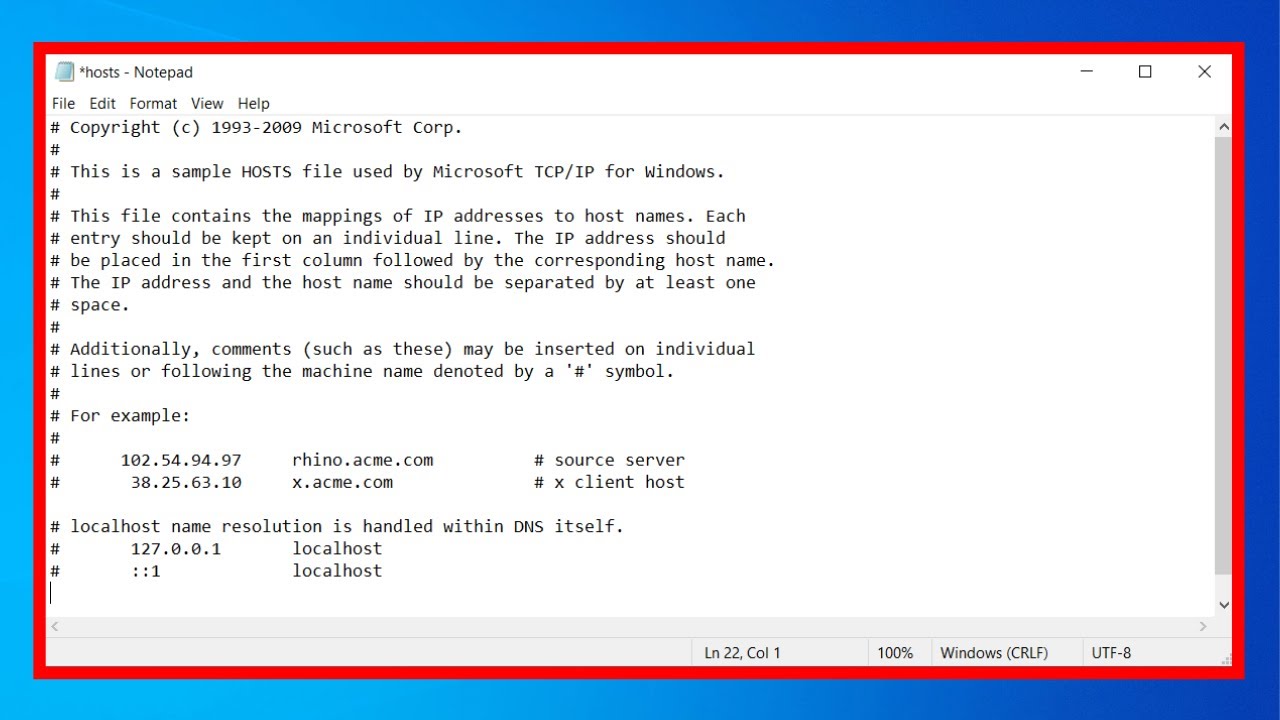
Default Hosts File in Windows 11/10
By default, the Hosts file in Windows contains minimal entries. A clean Hosts file typically looks like this:
# Copyright (c) Microsoft Corp.
# This is a sample HOSTS file used by Microsoft TCP/IP for Windows.

127.0.0.1       localhost
::1             localhost
Any additional entries should be carefully reviewed.
Location of the Hosts File
The Hosts file is located in the following directory:
C:\Windows\System32\drivers\etc
It does not have a file extension and is simply named “hosts”.
How to Reset Hosts File in Windows 11/10
Resetting the Hosts file is straightforward. Follow the steps below carefully.
Method 1: Manually Reset Hosts File
This is the most reliable method.
Step 1: Open Notepad as Administrator
- Click Start
- Search for “Notepad”
- Right-click and select “Run as administrator”
Step 2: Open the Hosts File
- In Notepad, click File > Open
- Navigate to:
C:\Windows\System32\drivers\etc - Change file type to “All Files”
- Select “hosts”
Step 3: Replace Content
Delete everything and paste the default content:
# Copyright (c) Microsoft Corp.
# This is a sample HOSTS file used by Microsoft TCP/IP for Windows.

127.0.0.1       localhost
::1             localhost
Step 4: Save the File
- Click File > Save
- Ensure it is saved as “hosts” (no extension)
Method 2: Reset Hosts File Using Command Prompt
You can also reset the file using command-line tools.
Steps:
- Open Command Prompt as Administrator
- Run the following command:
echo # Copyright (c) Microsoft Corp. > %windir%\System32\drivers\etc\hosts
echo 127.0.0.1 localhost >> %windir%\System32\drivers\etc\hosts
echo ::1 localhost >> %windir%\System32\drivers\etc\hosts
This will overwrite the existing Hosts file with default entries.
Method 3: Replace with Backup
If you have a backup of your Hosts file:
- Navigate to the Hosts file location
- Delete the current file
- Copy your backup into the folder
- Rename it to “hosts”
Important Tips Before Resetting
1. Backup Your Current Hosts File
Before making changes, create a backup:
- Copy the file
- Rename it (e.g., hosts_backup)
2. Check for Useful Custom Entries
Some programs (like development tools) may add legitimate entries.
3. Scan for Malware
If your Hosts file was compromised, your system might still be infected.
How to Protect Your Hosts File
After resetting, take steps to prevent future tampering.
Enable Antivirus Protection
Keep your antivirus updated and run regular scans.
Set File to Read-Only (Optional)
You can prevent unauthorized changes:
- Right-click the Hosts file
- Select Properties
- Check “Read-only”
- Click Apply
Note: You’ll need to disable this to make future edits.
Monitor Changes Regularly
Check the file periodically for unknown entries.
Use Firewall Protection
A firewall can block malicious programs from modifying system files.
Common Mistakes to Avoid
Editing Without Admin Rights
You must run your editor as administrator.
Saving with Wrong Extension
Ensure the file is not saved as “hosts.txt”.
Deleting Entire File
Always replace content instead of removing the file completely.
When Should You Reset the Hosts File?
Consider resetting if:
- You suspect malware infection
- Websites behave abnormally
- Security tools are blocked
- You want to restore default settings
Advanced Use Cases of Hosts File
Even after resetting, you can use the Hosts file for:
Blocking Websites
127.0.0.1 facebook.com
Blocking Ads
Add known ad server domains and redirect them to localhost.
Local Development
Map domains to local servers:
127.0.0.1 mysite.local
Troubleshooting After Reset
If issues persist:
Flush DNS Cache
Run:
ipconfig /flushdns
Restart Your Computer
Ensures changes take effect.
Check Browser Extensions
Some extensions can override DNS behavior.
Frequently Asked Questions
Is it safe to reset the Hosts file?
Yes, restoring it to default is completely safe.
Will resetting affect internet access?
No, unless you relied on custom entries.
Can malware return after reset?
Yes, if the root cause isn’t removed.
Do I need technical skills?
Basic computer knowledge is enough.
Final Thoughts
The Hosts file is a powerful but often overlooked component of Windows. While it can be used for legitimate purposes like blocking websites or testing environments, it can also become a security risk if compromised.
Resetting the Hosts file in Windows 11 or Windows 10 is a quick and effective way to eliminate malicious entries and restore normal system behavior. By following the steps outlined in this guide and adopting preventive measures, you can keep your system secure and running smoothly.
Always remember: if your Hosts file was altered without your knowledge, it’s essential to investigate further and ensure your system is free from malware.
Taking control of your Hosts file is a simple step that can make a big difference in your overall digital security.
Stay safe, stay secure, and keep your system optimized!