The PDF Preview Handler is a small yet essential component in Windows that allows users to preview PDF files directly in File Explorer or Outlook without opening them. When it stops working, productivity can take a hit—especially for users who rely heavily on quick document checks. Fortunately, reinstalling the PDF Preview Handler is a straightforward process that can resolve most preview-related issues.
In this guide, you’ll learn what the PDF Preview Handler is, why it might stop working, and step-by-step instructions to reinstall it for smooth and efficient file viewing.
What Is a PDF Preview Handler?
A PDF Preview Handler is a feature in Windows that enables preview functionality in the preview pane. When you click on a PDF file, the system displays its contents instantly without launching a separate application.
This feature is commonly integrated with PDF readers such as Adobe Acrobat or other third-party tools. If the handler is missing, corrupted, or disabled, the preview pane will either show an error or remain blank.
Common Causes of PDF Preview Issues
Before diving into the reinstallation process, it helps to understand what might be causing the problem:
- Corrupted application files
- Outdated or incompatible PDF reader
- Disabled preview handler settings
- Registry errors
- Windows updates causing conflicts
Identifying the cause isn’t always necessary, but knowing these factors can help prevent future issues.
Signs You Need to Reinstall the PDF Preview Handler
Here are some clear indicators:
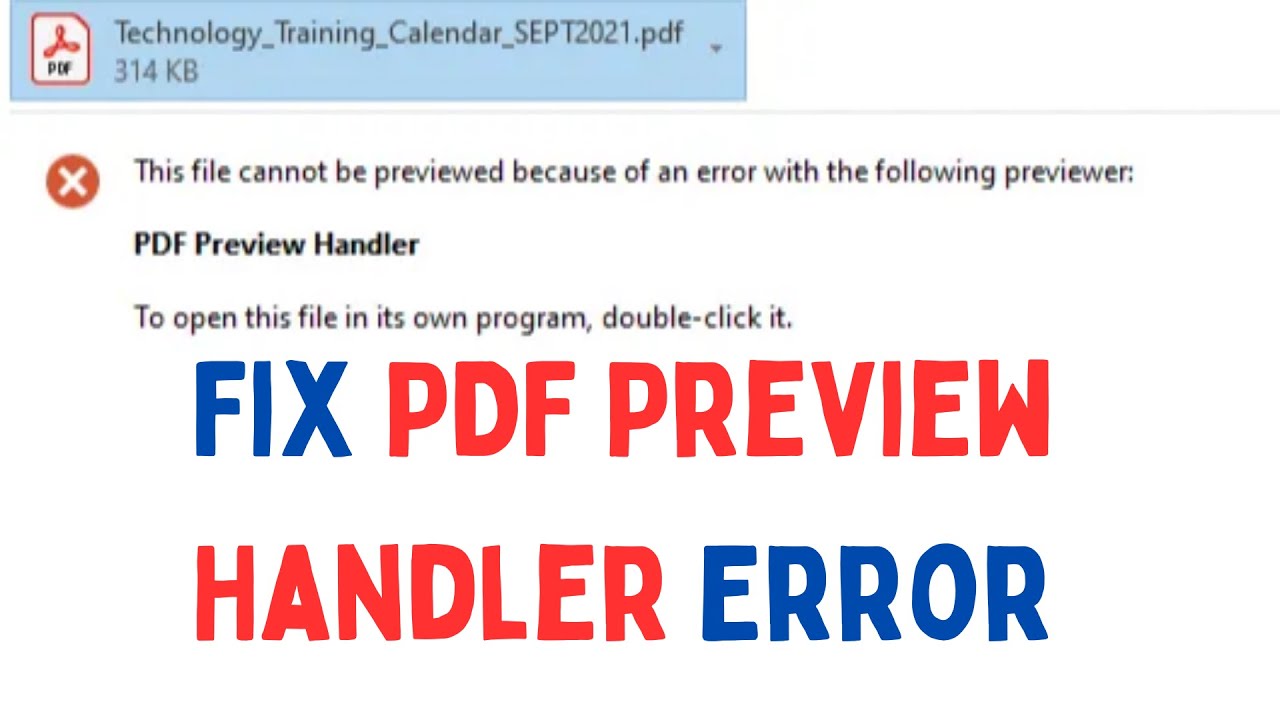
- The preview pane shows “This file cannot be previewed”
- Blank preview area for all PDF files
- Preview works for other file types but not PDFs
- Outlook cannot preview PDF attachments
If you notice any of these issues, reinstalling the preview handler is often the fastest fix.
Step-by-Step Guide to Reinstall PDF Preview Handler
Follow these steps carefully to restore functionality:
1. Uninstall Your Current PDF Reader
Start by removing your existing PDF software:
- Open Control Panel
- Navigate to Programs and Features
- Locate your PDF reader
- Click Uninstall
This ensures any corrupted components are removed.
2. Download the Latest Version
Visit the official website of your preferred PDF reader and download the latest version. Updated software often includes fixes for preview handler issues.
3. Install the Application Properly
During installation:
- Follow all prompts
- Enable any options related to preview functionality
- Set the program as the default PDF viewer
A clean installation is critical for restoring the preview handler.
4. Enable Preview Pane in File Explorer
Make sure the preview pane is active:
- Open File Explorer
- Click the View tab
- Select Preview Pane
Without this enabled, the handler won’t display anything.
5. Check Folder Options
Ensure preview handlers are allowed:
- Open File Explorer
- Click Options
- Go to the View tab
- Make sure “Show preview handlers in preview pane” is checked
This setting is often overlooked but essential.
6. Verify Application Settings
Some PDF readers have built-in preview options:
- Open your PDF reader
- Go to Preferences
- Locate General settings
- Enable “Enable PDF thumbnail previews” or similar options
Each software may label this differently.
7. Restart Your Computer
After completing all steps, restart your system to apply changes.
Alternative Fix: Register the Preview Handler Manually
If reinstalling doesn’t work, you can manually register the handler:
- Press Windows + R
- Type
regedit - Navigate to the preview handler registry path
- Ensure the correct handler is listed
This method is more advanced and should be used with caution.
Troubleshooting Tips
If the issue persists, try these additional fixes:
- Update Windows to the latest version
- Run System File Checker (
sfc /scannow) - Disable conflicting third-party plugins
- Check for antivirus interference
- Reset default apps in Windows settings
These steps can resolve deeper system conflicts.
Best Practices to Avoid Future Issues
To keep your PDF Preview Handler working smoothly:
- Always keep your PDF reader updated
- Avoid installing multiple PDF tools simultaneously
- Regularly clean your system registry
- Perform routine Windows updates
- Use trusted software sources only
Consistency in maintenance reduces the risk of recurring problems.
Why the PDF Preview Handler Matters
For professionals, students, and everyday users, the ability to preview PDFs instantly saves time and improves workflow efficiency. Instead of opening multiple files, you can quickly scan documents and find what you need.
Reinstalling the PDF Preview Handler not only fixes errors but also enhances overall system performance when dealing with document-heavy tasks.
Conclusion
The PDF Preview Handler is a vital feature that simplifies document management in Windows. When it stops working, it can disrupt your workflow—but the solution is usually simple.
By uninstalling your current PDF reader, reinstalling the latest version, and ensuring proper settings are enabled, you can restore preview functionality in just a few steps. For persistent issues, advanced fixes like registry adjustments and system scans can help.
Taking a few minutes to reinstall and configure the PDF Preview Handler can save hours of frustration in the long run. Keep your system updated, follow best practices, and enjoy seamless file viewing once again.