• Contact Us
  • About Us
Sunday, April 5, 2026
Pc Status
No Result
View All Result
  • Login
  • Home
  • Android
  • Apple
  • Browsers
  • Gaming
  • GPU
  • Networks
  • Microsoft Office
  • Windows
  • Software
  • Home
  • Android
  • Apple
  • Browsers
  • Gaming
  • GPU
  • Networks
  • Microsoft Office
  • Windows
  • Software
No Result
View All Result
PC Status
No Result
View All Result
Home Microsoft Office

Master PowerPoint Cameo for Interactive Presentations

Karina by Karina
March 26, 2026
in Microsoft Office
0
Master PowerPoint Cameo for Interactive Presentations
65
SHARES
86
VIEWS
Share on FacebookShare on Twitter

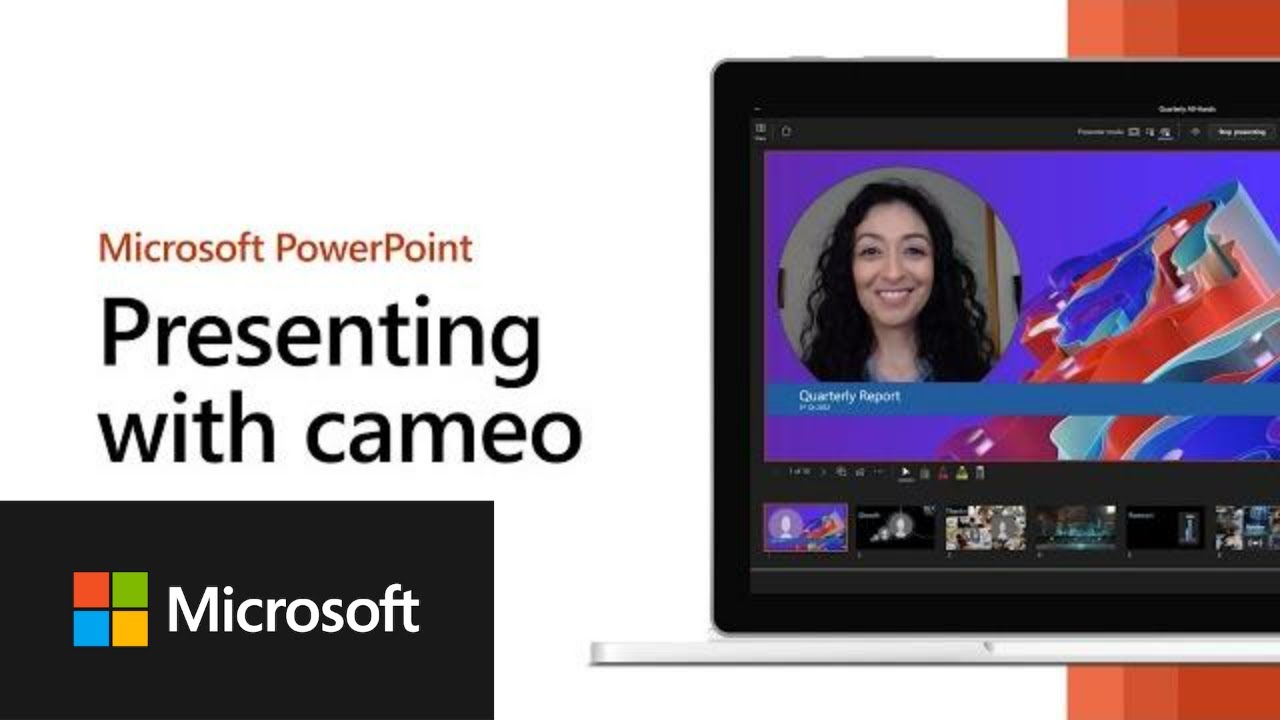
Presentations are evolving beyond static slides. With hybrid work and online collaboration becoming the norm, audiences expect more dynamic and interactive experiences. Microsoft has introduced PowerPoint Cameo, a feature that allows presenters to embed their live camera feed directly into slides. This transforms traditional presentations into immersive sessions where the presenter is visually part of the content.

What Is PowerPoint Cameo?

PowerPoint Cameo enables you to place your webcam feed inside a slide as if it were an image or object. You can resize, format, and apply transitions to the camera feed just like any other element.

READ ALSO

ISERROR Function in Excel Secrets for Smart Users

Fix Excel Cannot Locate Solver File Error Quickly

Key highlights:

  • Available for Microsoft 365 subscribers.
  • Works on Windows, macOS, and web apps.
  • Lets you apply styles, shapes, and effects to your camera feed.
  • Supports multiple layouts for creative presentations.

How to Use PowerPoint Cameo

Insert Cameo

  • Go to Insert > Cameo.
  • A placeholder appears on your slide.

Enable Camera Feed

  • Click the Preview icon to activate your webcam.
  • Choose your preferred camera if multiple devices are connected.

Format the Cameo

  • Use the Camera Format tab to adjust size, shape, and style.
  • Apply transitions to make your video feed appear dynamically.

Present with Cameo

  • During slideshow mode, your live feed appears seamlessly integrated into the slide.

Benefits of PowerPoint Cameo

  • Enhanced Engagement: Audiences see both the presenter and the content simultaneously.
  • Professional Look: Seamlessly integrates video without switching between apps.
  • Creative Flexibility: Apply animations, shapes, and effects to personalize your feed.
  • Hybrid-Friendly: Ideal for remote meetings, webinars, and online classes.

Common Issues and Fixes

Sometimes, users report that PowerPoint Cameo is not showing or working. Common causes include:

  • Disabled webcam permissions.
  • Outdated Office version.
  • Unsupported builds of Windows 11.
  • Driver or hardware issues.

Solutions:

  • Ensure your Office app is updated to the latest build.
  • Check camera permissions in Windows settings.
  • Update webcam drivers via Device Manager.
  • Restart PowerPoint after enabling the camera.

Use Cases for PowerPoint Cameo

  • Business Presentations: Add a personal touch during client pitches.
  • Education: Teachers can appear alongside slides for better student engagement.
  • Content Creation: Record tutorials with both presenter and slides visible.
  • Virtual Events: Enhance webinars and conferences with live presenter integration.

Risks and Considerations

  • Privacy: Ensure your camera is intentionally enabled to avoid accidental exposure.
  • Performance: Running Cameo alongside heavy animations may strain older PCs.
  • Compatibility: Only available for Microsoft 365 subscribers; not supported in standalone Office versions.

Future Outlook

Microsoft is expected to expand Cameo’s capabilities, possibly allowing multi-camera support and deeper integration with Teams and other collaboration tools. As hybrid work continues, Cameo will likely become a standard feature for professional presentations.

Conclusion

PowerPoint Cameo is a powerful tool that revolutionizes presentations by embedding live video directly into slides. With its ability to enhance engagement, personalize delivery, and streamline hybrid communication, Cameo is a must-use feature for professionals, educators, and creators.

By learning how to insert, format, and troubleshoot Cameo, you can elevate your presentations and stand out in any virtual or in-person setting.

Share26Tweet16Pin6

Related Posts

ISERROR Function in Excel Secrets for Smart Users
Microsoft Office

ISERROR Function in Excel Secrets for Smart Users

April 2, 2026
Fix Excel Cannot Locate Solver File Error Quickly
Microsoft Office

Fix Excel Cannot Locate Solver File Error Quickly

April 2, 2026
Microsoft OpenXML Format: A Rare Win for Openness
Microsoft Office

Microsoft OpenXML Format: A Rare Win for Openness

March 28, 2026
Fix Calendar Not Working on Windows 11 Easily
Microsoft Office

Fix Calendar Not Working on Windows 11 Easily

March 28, 2026
Why Outlook Calendar Sharing Not Working Fix Guide
Microsoft Office

Why Outlook Calendar Sharing Not Working Fix Guide

March 28, 2026
Fix Outlook Calendar Sharing Error on Windows 11 Now
Microsoft Office

Fix Outlook Calendar Sharing Error on Windows 11 Now

March 27, 2026

Leave a Reply Cancel reply

Your email address will not be published. Required fields are marked *

I agree to the Terms & Conditions and Privacy Policy.

EDITOR'S PICK

Fix Tarkov Critical Error 228 Item Moving Issue Fast

Fix Tarkov Critical Error 228 Item Moving Issue Fast

March 30, 2026
How to Disable Exploit Protection in Windows 11

How to Disable Exploit Protection in Windows 11

March 31, 2026
Fix NVIDIA Driver CRC Error in 7-Zip Windows Guide

Fix NVIDIA Driver CRC Error in 7-Zip Windows Guide

March 28, 2026
How to Generate a Battery Report Using PowerShell

How to Generate a Battery Report Using PowerShell

March 30, 2026
Hide All Category Section in Windows 11 Start Menu Guide

Hide All Category Section in Windows 11 Start Menu Guide

March 31, 2026
Check and Report Unsafe Websites in Internet Explorer

Check and Report Unsafe Websites in Internet Explorer

March 31, 2026

Popular Posts

  • Switch 2 Game Upgrade Costs: What You Need to Know Now

    Switch 2 Game Upgrade Costs: What You Need to Know Now

    77 shares
    Share 31 Tweet 19
  • Do You Need Antivirus for Microsoft Surface Devices?

    73 shares
    Share 29 Tweet 18
  • Fix Your PC Ran Into a Problem Error Windows 10

    72 shares
    Share 29 Tweet 18
  • Fix iPhone Not Receiving or Making Calls Easily Now

    72 shares
    Share 29 Tweet 18
  • Tung Tung Tung Sahur Fortnite Trend Explained Guide

    71 shares
    Share 28 Tweet 18

About

Explore PC Status for expert tech guides, Windows tips, troubleshooting fixes, reviews, and insights to keep your computer running smoothly.

Follow us

Company

  • Privacy Policy
  • Cookie Policy
  • Terms & Conditions
  • Disclaimer
  • DMCA Policy
  • Affiliate Disclosure

Categories

  • Android
  • Apple
  • Browsers
  • Gaming
  • GPU
  • Microsoft Office
  • Networks
  • Software
  • Windows
  • Privacy Policy
  • Contact Us
  • Disclaimer
  • Terms & Conditions

Copyright © 2026 PC Status - All rights reserved.

No Result
View All Result
  • Home
  • Android
  • Apple
  • Browsers
  • Gaming
  • GPU
  • Networks
  • Microsoft Office
  • Windows
  • Software

Copyright © 2026 PC Status - All rights reserved.

Welcome Back!

Login to your account below

Forgotten Password?

Retrieve your password

Please enter your username or email address to reset your password.

Log In
This website uses cookies. By continuing to use this website you are giving consent to cookies being used. Visit our Privacy and Cookie Policy.