Data security is one of the most critical concerns for organizations managing sensitive information. Whether you are running enterprise applications or storing confidential data, protecting your server from unauthorized access is essential. One of the most effective ways to secure your data on Windows Server is by using BitLocker.
BitLocker is a full disk encryption feature developed by Microsoft that helps protect data by encrypting entire volumes. While BitLocker is commonly used on desktop versions of Windows, it is also available on Windows Server editions—with a slightly different installation and configuration process.
In this comprehensive guide, you will learn how to install, enable, and uninstall BitLocker on Windows Server using three different methods:
- Server Manager
- Windows PowerShell
- DISM (Deployment Image Servicing and Management)
What Is BitLocker?
BitLocker is a built-in encryption tool that protects data by encrypting entire drives. It ensures that even if a disk is stolen or accessed without authorization, the data remains secure.
Key Features of BitLocker:
- Full disk encryption
- Integration with Trusted Platform Module (TPM)
- Support for PIN and password protection
- Recovery key backup options
- Seamless integration with Windows environments
Why Use BitLocker on Windows Server?
Using BitLocker on Windows Server provides several advantages:
1. Data Protection
Encrypts sensitive data to prevent unauthorized access.
2. Compliance
Helps meet regulatory requirements such as GDPR and HIPAA.
3. Theft Protection
Protects data even if physical drives are stolen.
4. Secure Boot Integration
Works with Secure Boot to prevent tampering.
Requirements Before Installing BitLocker
Before installing BitLocker, ensure your system meets the following requirements:
- Windows Server 2012 or later
- Administrator privileges
- TPM (Trusted Platform Module) version 1.2 or higher (optional but recommended)
- NTFS file system
- Backup location for recovery keys
Method 1: Install BitLocker Using Server Manager
Server Manager is the easiest graphical way to install BitLocker.
Step 1: Open Server Manager
- Log in to your Windows Server
- Launch Server Manager from the Start menu
Step 2: Add Roles and Features
- Click Manage
- Select Add Roles and Features
- Click Next until you reach the Features section
Step 3: Select BitLocker Feature
- Locate and check BitLocker Drive Encryption
- Click Next and then Install
Step 4: Restart Server
- Restart your system if prompted
BitLocker is now installed on your server.
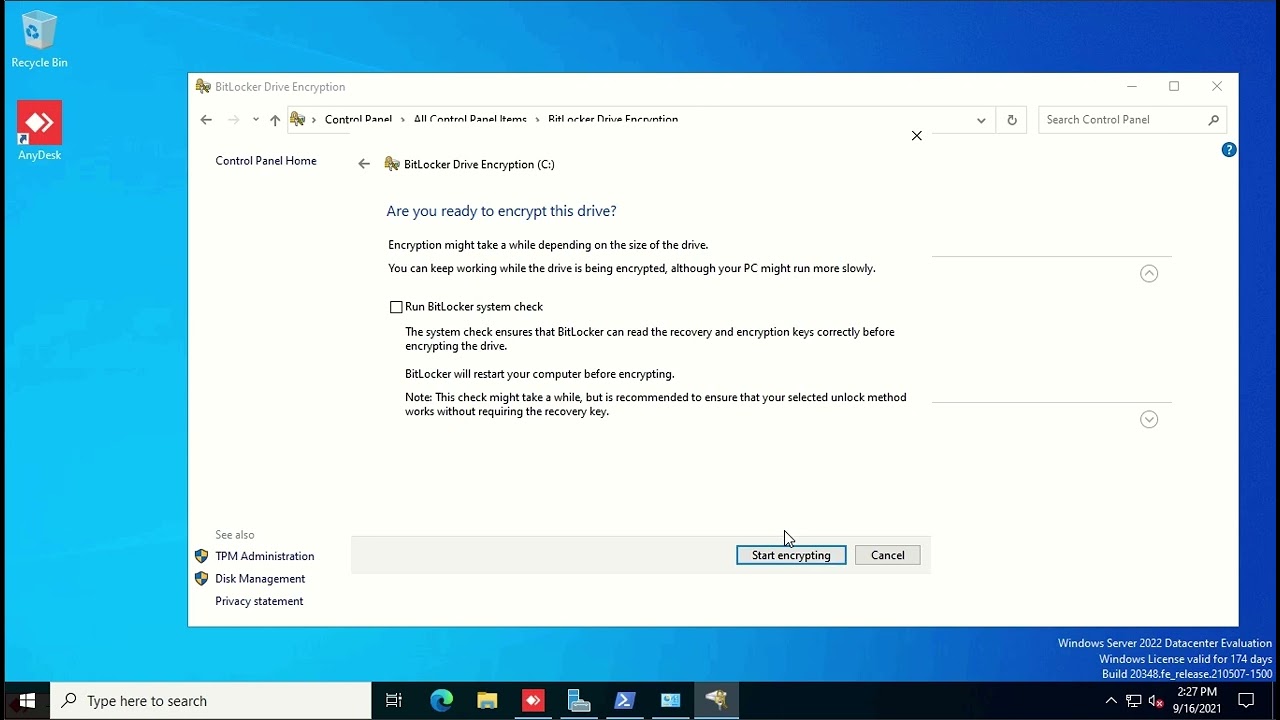
Enable BitLocker Using Server Manager
After installation, you can enable encryption:
Steps:
- Open File Explorer
- Right-click the drive you want to encrypt
- Select Turn on BitLocker
- Choose authentication method:
- TPM
- Password
- USB key
- Save the recovery key
- Select encryption mode
- Start encryption
Method 2: Install BitLocker Using Windows PowerShell
Windows PowerShell provides a powerful command-line method.
Step 1: Open PowerShell as Administrator
- Right-click Start
- Select Windows PowerShell (Admin)
Step 2: Install BitLocker Feature
Run the following command:
Install-WindowsFeature -Name BitLocker -IncludeAllSubFeature -IncludeManagementTools
Step 3: Verify Installation
Get-WindowsFeature -Name BitLocker
Enable BitLocker Using PowerShell
To enable encryption:
Enable-BitLocker -MountPoint "C:" -EncryptionMethod XtsAes256 -UsedSpaceOnly
Optional Parameters:
- Add password:
-Password (ConvertTo-SecureString "YourPassword" -AsPlainText -Force)
- Add recovery key:
-RecoveryKeyPath "D:\RecoveryKeys"
Method 3: Install BitLocker Using DISM
DISM is another command-line utility.
Step 1: Open Command Prompt as Administrator
Step 2: Install BitLocker Feature
Run:
dism /online /enable-feature /featurename:BitLocker /all
Step 3: Restart Server
Reboot your system after installation.
Enable BitLocker Using DISM
DISM itself doesn’t directly enable encryption, so you will use PowerShell or Control Panel after installation.
How to Check BitLocker Status
Use PowerShell:
Get-BitLockerVolume
This displays:
- Encryption status
- Protection status
- Volume type
How to Suspend BitLocker
Sometimes you may need to temporarily disable protection:
Suspend-BitLocker -MountPoint "C:"
How to Resume BitLocker
Resume-BitLocker -MountPoint "C:"
How to Uninstall BitLocker on Windows Server
Method 1: Using Server Manager
- Open Server Manager
- Go to Remove Roles and Features
- Uncheck BitLocker Drive Encryption
- Complete the wizard
Method 2: Using PowerShell
Uninstall-WindowsFeature -Name BitLocker
Method 3: Using DISM
dism /online /disable-feature /featurename:BitLocker
Important: Decrypt Drives Before Uninstalling
Before removing BitLocker:
- Turn off BitLocker encryption
- Wait for decryption to complete
Command:
Disable-BitLocker -MountPoint "C:"
Best Practices for Using BitLocker on Servers
1. Backup Recovery Keys
Store keys securely in multiple locations.
2. Use TPM with PIN
Adds an extra layer of security.
3. Monitor Encryption Status
Regularly check using PowerShell.
4. Encrypt All Drives
Protect both OS and data volumes.
5. Keep System Updated
Install latest security updates.
Common Issues and Troubleshooting
Issue 1: BitLocker Not Available
Fix:
- Ensure feature is installed
- Verify Windows Server version
Issue 2: TPM Not Detected
Fix:
- Enable TPM in BIOS
- Update firmware
Issue 3: Encryption Fails
Fix:
- Check disk format (NTFS required)
- Ensure sufficient disk space
Issue 4: Recovery Key Lost
Fix:
- Check backup locations
- Use Active Directory if integrated
BitLocker vs Other Encryption Tools
| Feature | BitLocker | Third-Party Tools |
|---|---|---|
| Integration | Native | External |
| Cost | Free | Often paid |
| Ease of Use | High | Varies |
| Security | Strong | Varies |
Frequently Asked Questions
Is BitLocker free on Windows Server?
Yes, it is included as a feature but must be installed.
Can I use BitLocker without TPM?
Yes, but you need a password or USB key.
Does BitLocker affect performance?
Minimal impact on modern hardware.
How long does encryption take?
Depends on drive size and system performance.
Final Thoughts
Implementing BitLocker on Windows Server is a crucial step toward securing your data. Whether you prefer a graphical interface like Server Manager or command-line tools such as Windows PowerShell and DISM, each method offers flexibility depending on your workflow.
By following this guide, you can confidently install, enable, and uninstall BitLocker while ensuring your server remains protected against unauthorized access. Always remember to back up your recovery keys and monitor encryption status regularly.
With proper implementation, BitLocker becomes a powerful shield for your server infrastructure—keeping your data safe, secure, and compliant.