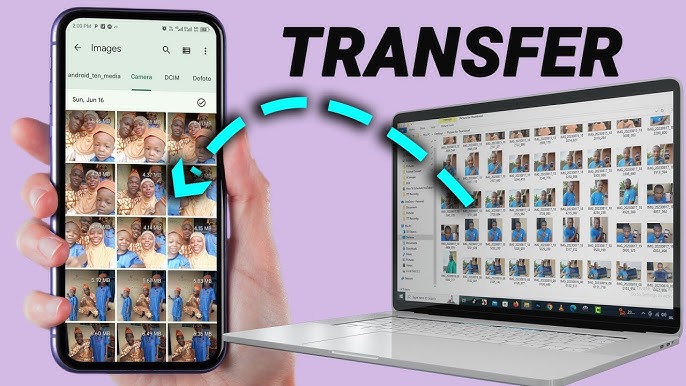
Transferring photos from your Android phone to a Windows PC is something most users need to do regularly—whether for backup, editing, or freeing up storage space. Fortunately, there are multiple methods available, ranging from simple USB transfers to wireless and cloud-based solutions.
In this comprehensive guide, you’ll learn how to transfer photos from Android to a Windows PC using various methods. Each method is explained step-by-step, so you can choose the one that works best for your needs.
Why Transfer Photos to a PC?
Before diving into the methods, let’s understand why transferring photos is important:
- Backup your memories to prevent data loss
- Free up phone storage
- Edit photos using advanced desktop software
- Organize files more efficiently
- Share photos easily
Regular transfers ensure your data is safe and accessible.
Method 1: Transfer Photos Using USB Cable
This is the most common and reliable method.
What You Need:
- USB cable
- Windows PC
- Android phone
Steps:
- Connect your Android phone to your PC using a USB cable
- Unlock your phone
- Select File Transfer (MTP) mode from the notification panel
- On your PC, open File Explorer
- Click on your device under This PC
- Navigate to:
- DCIM → Camera
- Copy and paste photos to your PC
Advantages:
- Fast transfer speed
- No internet required
- Reliable connection
Disadvantages:
- Requires cable
- Manual process
Method 2: Use Windows Photos App
Windows includes a built-in Photos app for importing images.
Steps:
- Connect your phone via USB
- Open Photos app on your PC
- Click Import
- Select From a connected device
- Choose photos to import
- Click Import selected
Benefits:
- Easy interface
- Automatic organization
- Quick preview
Method 3: Transfer Photos via Bluetooth
Bluetooth is useful for small transfers.
Steps:
- Enable Bluetooth on both devices
- Pair your phone with your PC
- Select photos on your phone
- Tap Share > Bluetooth
- Accept transfer on PC
Pros:
- Wireless
- No cables needed
Cons:
- Slow for large files
Method 4: Use Cloud Storage Services
Cloud services allow wireless transfers.
Popular Options:
- Google Drive
- OneDrive
- Dropbox
Steps:
- Upload photos from your phone to cloud storage
- Open the same service on your PC
- Download the photos
Advantages:
- Access from anywhere
- Automatic backup
Disadvantages:
- Requires internet
- Limited free storage
Method 5: Use Wi-Fi Transfer Apps
Apps enable wireless file transfer over Wi-Fi.
Popular Apps:
- AirDroid
- Send Anywhere
- SHAREit
Steps (Example with AirDroid):
- Install AirDroid on your phone
- Open web.airdroid.com on your PC
- Scan QR code
- Access and download photos
Benefits:
- Fast wireless transfer
- No cables required
Method 6: Email Photos
Best for transferring a few images.
Steps:
- Open your email app
- Attach photos
- Send to yourself
- Download on PC
Pros:
- Simple
- No additional tools
Cons:
- File size limits
Method 7: Use SD Card
If your phone has a microSD card:
Steps:
- Move photos to SD card
- Remove card from phone
- Insert into PC
- Copy files
Method 8: Use File Transfer Software
Advanced tools offer better control.
Examples:
- Samsung Smart Switch
- Microsoft Phone Link
- Droid Transfer
Benefits:
- Organized transfers
- Additional features
Best Method for You
| Method | Speed | Ease | Internet Required |
|---|---|---|---|
| USB Cable | High | Easy | No |
| Cloud | Medium | Easy | Yes |
| Wi-Fi Apps | High | Medium | Yes |
| Bluetooth | Low | Easy | No |
| Low | Very Easy | Yes |
Tips for Faster Transfers
- Use USB 3.0 ports
- Avoid background apps
- Transfer in batches
- Use high-quality cables
Organizing Photos on Your PC
Once transferred:
- Create folders by date or event
- Rename files
- Backup to external drive
- Use photo management software
Troubleshooting Common Issues
Phone Not Detected
- Try a different USB cable
- Enable file transfer mode
- Update drivers
Slow Transfer Speed
- Use USB instead of Bluetooth
- Close background apps
Files Not Showing
- Check DCIM folder
- Refresh File Explorer
Security Tips
- Avoid public Wi-Fi for transfers
- Use trusted apps only
- Scan files for malware
- Backup regularly
Automating Photo Transfers
You can automate transfers using:
- OneDrive auto-upload
- Google Photos sync
- Backup apps
This ensures photos are always backed up.
Benefits of Regular Transfers
- Prevent data loss
- Improve phone performance
- Better file organization
- Easier editing and sharing
Final Thoughts
Transferring photos from Android to a Windows PC doesn’t have to be complicated. Whether you prefer a fast USB connection, wireless apps, or cloud storage, there’s a method for everyone.
For most users, the USB method offers the best balance of speed and reliability, while cloud and Wi-Fi options provide convenience and flexibility.
By following the steps in this guide, you can safely and efficiently transfer your photos, keep your memories secure, and maintain optimal device performance.
Choose the method that suits your needs and make photo transfers a regular habit—it’s one of the easiest ways to protect your valuable data.