Windows 11 is designed to be fast, secure, and reliable, but like any operating system, it can encounter problems over time. Whether you’re facing system crashes, slow performance, boot issues, or software errors, knowing how to repair Windows 11 can save you time, money, and frustration.
In this in-depth guide, you’ll learn multiple proven methods to repair Windows 11 using built-in tools and techniques. From basic troubleshooting to advanced recovery options, this article covers everything you need to restore your system to optimal performance.
Why You May Need to Repair Windows 11
Before diving into solutions, it’s important to understand why Windows 11 may need repair. Common issues include:
- System crashes or Blue Screen errors
- Slow or unresponsive performance
- Corrupted system files
- Failed Windows updates
- Startup or boot problems
- Malware infections
- Missing or broken system features
These issues can arise due to software conflicts, hardware problems, improper shutdowns, or corrupted updates.
Before You Start: Important Preparations
Before attempting any repair, take these precautions:
1. Backup Your Data
Always back up important files to an external drive or cloud storage to prevent data loss.
2. Ensure Power Stability
If you’re using a laptop, plug it in. Avoid interruptions during repair processes.
3. Disconnect External Devices
Remove unnecessary USB devices to avoid conflicts during repair.
Method 1: Restart Your Computer
It may sound simple, but restarting your PC can resolve temporary glitches and refresh system processes.
When to Try This:
- Minor freezing or lag
- Apps not responding
- Temporary system bugs
Method 2: Run Windows Troubleshooter
Windows 11 includes built-in troubleshooters that automatically detect and fix common problems.
Steps:
- Open Settings
- Go to System
- Click Troubleshoot
- Select Other troubleshooters
- Run the relevant troubleshooter (e.g., Windows Update, Internet, Audio)
Method 3: Use System File Checker (SFC)
Corrupted system files are a major cause of Windows issues. The SFC tool scans and repairs these files.
Steps:
- Open Command Prompt as Administrator
- Type the command:
sfc /scannow - Press Enter and wait for completion
What It Does:
- Scans protected system files
- Replaces corrupted files with cached versions
- Repairs system integrity
Method 4: Use DISM Tool
If SFC cannot fix all issues, use DISM (Deployment Image Servicing and Management).
Steps:
- Open Command Prompt as administrator
- Run the command:
DISM /Online /Cleanup-Image /RestoreHealth - Wait for the process to complete
Why Use DISM?
- Repairs the Windows system image
- Fixes deeper corruption issues
- Supports SFC functionality
Method 5: Check Disk for Errors (CHKDSK)
Disk errors can cause file corruption and system instability.
Steps:
- Open Command Prompt as administrator
- Enter:
chkdsk C: /f /r - Press Enter
- Restart your PC if prompted
What It Fixes:
- File system errors
- Bad sectors on the drive
- Data recovery issues
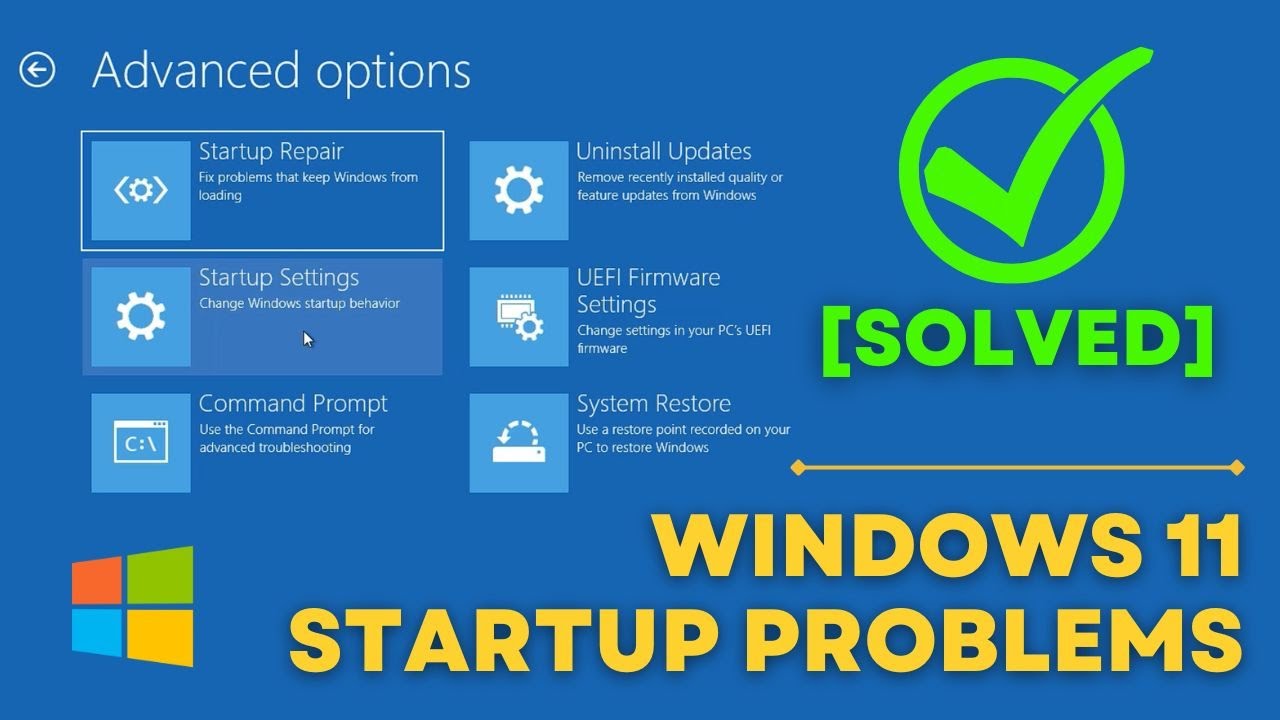
Method 6: Perform Startup Repair
If Windows 11 won’t boot properly, Startup Repair can fix boot-related issues.
Steps:
- Restart your PC
- Interrupt the boot process 2–3 times to enter recovery mode
- Select Advanced Options
- Click Troubleshoot
- Choose Startup Repair
What It Does:
- Fixes bootloader issues
- Repairs missing or damaged startup files
- Restores boot functionality
Method 7: Use System Restore
System Restore allows you to revert your system to a previous working state.
Steps:
- Search for Create a restore point
- Open System Properties
- Click System Restore
- Choose a restore point
- Follow the instructions
When to Use:
- After installing faulty software or updates
- When system issues started recently
Method 8: Uninstall Recent Updates
Sometimes Windows updates can introduce bugs or compatibility issues.
Steps:
- Open Settings
- Go to Windows Update
- Click Update History
- Select Uninstall updates
- Remove the latest update
Method 9: Boot in Safe Mode
Safe Mode starts Windows with minimal drivers and services.
Steps:
- Go to Settings
- Click System > Recovery
- Under Advanced startup, click Restart now
- Navigate to Troubleshoot > Advanced Options > Startup Settings
- Restart and choose Safe Mode
Benefits:
- Helps identify problematic apps or drivers
- Allows safe troubleshooting
Method 10: Reset Windows 11
If all other methods fail, resetting Windows is a powerful solution.
Reset Options:
Keep My Files
- Removes apps and settings
- Keeps personal files intact
Remove Everything
- Complete factory reset
- Deletes all data and apps
Steps:
- Open Settings
- Go to System > Recovery
- Click Reset this PC
- Choose your option
- Follow on-screen instructions
Method 11: Reinstall Windows 11 (Clean Install)
A clean installation is the most thorough repair method.
When to Use:
- Severe corruption
- Persistent errors
- Malware damage
Steps Overview:
- Create installation media using a USB drive
- Boot from USB
- Follow installation instructions
- Format system drive if necessary
Common Windows 11 Errors and Fixes
Blue Screen of Death (BSOD)
- Run SFC and DISM
- Update drivers
- Check hardware
Windows Update Errors
- Run Update Troubleshooter
- Clear update cache
- Restart services
Slow Performance
- Disable startup apps
- Run disk cleanup
- Upgrade hardware if needed
Tips to Keep Windows 11 Healthy
1. Keep Your System Updated
Install updates regularly to fix bugs and improve security.
2. Use Antivirus Protection
Prevent malware infections that can damage system files.
3. Clean Temporary Files
Use Disk Cleanup or Storage Sense to free up space.
4. Monitor Startup Programs
Disable unnecessary startup apps to improve boot speed.
5. Avoid Untrusted Software
Only install apps from reliable sources.
How Long Does Repairing Windows 11 Take?
The time required depends on the method:
- Restart: 1–2 minutes
- SFC Scan: 10–20 minutes
- DISM Scan: 15–30 minutes
- Startup Repair: 10–30 minutes
- Reset: 30–90 minutes
- Clean Install: 1–2 hours
Frequently Asked Questions
Is it safe to repair Windows 11?
Yes, built-in tools are safe and designed by Microsoft.
Will repairing Windows delete my files?
Most methods do not delete files, except full reset or clean install.
How often should I repair Windows?
Only when issues arise, not regularly.
Can I repair Windows without losing apps?
Yes, using SFC, DISM, and System Restore.
Final Thoughts
Repairing Windows 11 doesn’t have to be complicated. With the right tools and methods, you can fix most issues quickly and effectively. Start with basic solutions like restarting and troubleshooting, then move on to advanced tools like SFC, DISM, and Startup Repair if needed.
For severe problems, resetting or reinstalling Windows provides a clean slate and restores full functionality. By following this guide, you can confidently handle Windows 11 issues and keep your system running smoothly.
Regular maintenance, proper usage habits, and timely updates will go a long way in preventing future problems. Take control of your PC’s health and ensure a fast, stable, and reliable Windows 11 experience.