ISO files are a common way to distribute software, operating systems, and large applications. Instead of using physical discs, developers now package installation files into ISO images, which can be easily downloaded and mounted directly on your computer.
If you’ve ever downloaded an ISO file and wondered what to do next, you’re not alone. Fortunately, modern versions of Windows make it incredibly simple to mount ISO files and install software without needing third-party tools.
In this complete guide, you’ll learn how to download an ISO image, mount it using File Explorer, and install software step by step.
What Is an ISO File?
An ISO file (also known as an ISO image) is a complete copy of a disc, such as a CD, DVD, or Blu-ray. It contains all the files and folders needed for installation, bundled into a single file.
Key Features of ISO Files
- Exact replica of a physical disc
- Contains installation files
- Easy to download and share
- Compatible with virtual drives
Why Use ISO Files?
ISO files have become popular for several reasons:
1. Convenience
No need for physical discs or external drives.
2. Portability
Easily stored and transferred.
3. Reliability
Less risk of damage compared to physical media.
4. Faster Installation
Direct access to files improves speed.
What Does “Mounting an ISO” Mean?
Mounting an ISO file means creating a virtual drive on your computer that acts like a physical DVD drive. Once mounted, you can access the files inside the ISO just like you would with a real disc.
Step 1: Download the ISO File
Before mounting, you need to download the ISO image.
Tips for Downloading:
- Use official or trusted sources
- Ensure the file is complete (no interruptions)
- Verify file size or checksum if available
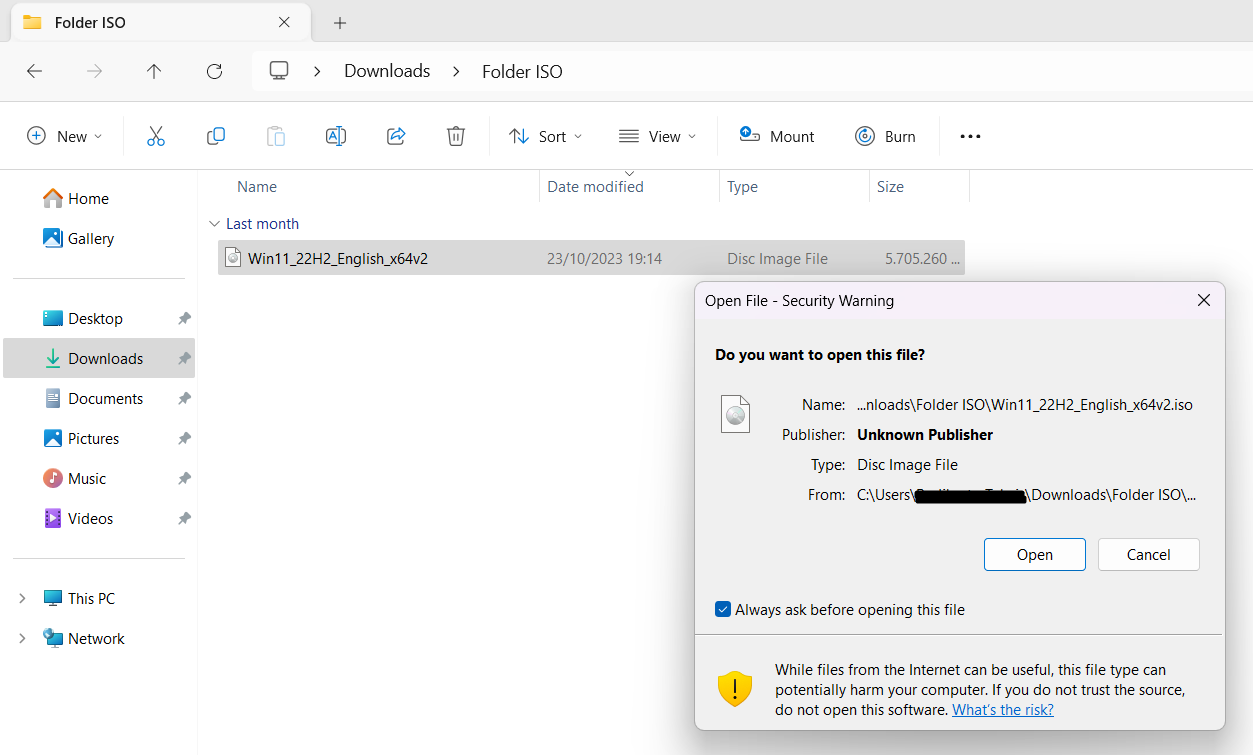
Step 2: Locate the ISO File
After downloading:
- Open File Explorer
- Navigate to your Downloads folder (or chosen location)
- Find the ISO file
Step 3: Mount the ISO File
Windows provides built-in support for mounting ISO files.
Method 1: Right-Click Mount
- Right-click the ISO file
- Select Mount from the menu
Method 2: Double-Click
- Simply double-click the ISO file
- Windows will automatically mount it
What Happens After Mounting?
Once mounted:
- A new virtual drive appears in File Explorer
- It behaves like a DVD drive
- You can open and browse its contents
Step 4: Open the Virtual Drive
To access the mounted ISO:
- Open File Explorer
- Click This PC
- Look for a new drive (e.g., DVD Drive)
- Double-click to open it
Step 5: Install the Software
Inside the virtual drive, you’ll typically find installation files.
Common Files:
- setup.exe
- install.exe
- autorun.exe
Installation Steps:
- Double-click the setup file
- Follow on-screen instructions
- Complete the installation
Step 6: Unmount the ISO File
After installation, you can remove the virtual drive.
Steps:
- Open File Explorer
- Right-click the virtual drive
- Select Eject
This will unmount the ISO file.
Benefits of Mounting ISO Files in Windows
1. No Extra Software Needed
Built-in support eliminates the need for third-party tools.
2. Quick Access
Instantly access files without extraction.
3. Safe Installation
Reduces risk of file corruption.
Common Issues and Fixes
ISO File Won’t Mount
Possible Causes:
- Corrupted file
- Unsupported format
Solution:
- Re-download the ISO
- Check file integrity
No Setup File Found
Solution:
- Look for alternative installers
- Check documentation
Installation Fails
Solution:
- Run installer as administrator
- Disable antivirus temporarily
- Ensure system compatibility
ISO vs ZIP Files: What’s the Difference?
| Feature | ISO | ZIP |
|---|---|---|
| Structure | Disc image | Compressed archive |
| Mounting | Yes | No |
| Installation | Direct | Requires extraction |
When Should You Use ISO Files?
- Installing operating systems
- Running large software packages
- Testing applications
- Creating backups
Advanced Tips for ISO Files
1. Create ISO Files
You can create ISO images from discs using tools.
2. Use Multiple ISOs
Mount multiple ISO files simultaneously.
3. Burn ISO to USB
Create bootable drives for OS installation.
Security Tips
1. Download from Trusted Sources
Avoid malware or corrupted files.
2. Scan ISO Files
Use antivirus software before mounting.
3. Verify File Integrity
Check hashes if available.
ISO Mounting in Older Windows Versions
Older versions like Windows 7 may require third-party tools.
Popular Tools:
- Daemon Tools
- PowerISO
- WinCDEmu
Benefits for Beginners and Professionals
Beginners
- Easy installation process
- No technical expertise required
Professionals
- Efficient deployment
- System testing and recovery
Frequently Asked Questions
Is mounting an ISO safe?
Yes, if the file is from a trusted source.
Do I need internet to mount an ISO?
No, only for downloading.
Can I edit ISO files?
Not directly—you need special tools.
What happens if I delete the ISO?
The virtual drive will disappear after unmounting.
Final Thoughts
Mounting ISO files in Windows is a simple yet powerful feature that eliminates the need for physical media and third-party tools. By using File Explorer, you can quickly access ISO contents, install software, and manage virtual drives with ease.
Whether you’re installing an operating system, running software, or exploring file contents, understanding how to mount and use ISO files is an essential skill for modern computer users.
With just a few clicks—right-clicking or double-clicking—you can transform a single ISO file into a fully functional installation environment. It’s fast, efficient, and built right into Windows, making software installation more convenient than ever.
By following this guide, you now have everything you need to confidently download, mount, and install ISO files on your system.