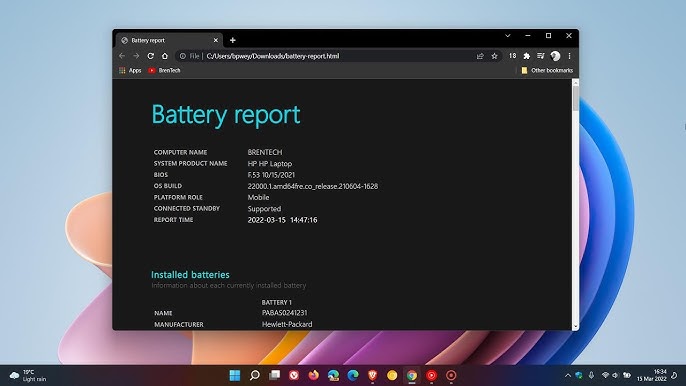
Battery performance is one of the most critical aspects of any laptop or portable device. Over time, batteries degrade, leading to shorter usage times, unexpected shutdowns, and reduced overall efficiency. Fortunately, Windows provides a powerful built-in tool that allows you to analyze your battery’s health in detail—the Battery Report.
This report is generated using Windows PowerShell, a command-line utility that many users overlook. With just a simple command, you can access a comprehensive breakdown of your battery’s performance, usage history, and capacity over time.
In this complete guide, you’ll learn how to generate a battery report using PowerShell, understand the data it provides, and use that information to improve your device’s battery life.
What Is a Battery Report?
A battery report is a detailed diagnostic file created by Windows that provides insights into your laptop’s battery health and performance.
Key Information Included:
- Battery capacity history
- Charge cycles
- Usage patterns
- Recent battery usage
- Estimated battery life
This report is especially useful for diagnosing battery issues or determining whether your battery needs replacement.
What Is Windows PowerShell?
Windows PowerShell is a command-line tool built into Windows operating systems. It allows users to execute commands, automate tasks, and access advanced system features.
Why Use PowerShell for Battery Reports?
- It’s built into Windows (no extra software needed)
- Provides detailed system-level data
- Quick and easy to use with simple commands
Even if you’ve never used PowerShell before, generating a battery report is straightforward.
How to Access PowerShell (Admin Mode)
To generate a battery report, you need to open PowerShell with administrator privileges.
Steps for Windows 11:
- Right-click the Start icon
- Select Terminal (Admin)
- Click Yes when prompted
Steps for Windows 10:
- Right-click the Start icon
- Select Windows PowerShell (Admin)
- Click Yes to allow changes
Command to Generate Battery Report
Once PowerShell is open, generating the report is simple.
Run This Command:
powercfg /batteryreport
What Happens Next?
- Windows generates a battery report file
- The file is saved in your system directory
- You’ll see the file path displayed in PowerShell
Where to Find the Battery Report
By default, the report is saved as an HTML file.
Common Location:
C:\Users\YourUsername\battery-report.html
How to Open It:
- Navigate to the file location
- Double-click the file
- Open it in your web browser
Understanding the Battery Report
The battery report contains several sections. Let’s break them down.
1. Installed Batteries
This section shows basic information about your battery.
Includes:
- Manufacturer
- Serial number
- Design capacity
- Full charge capacity
Key Insight:
Compare Design Capacity vs Full Charge Capacity
- If full charge is much lower, your battery has degraded
2. Recent Usage
Displays battery usage over the last few days.
Shows:
- Active usage
- Sleep mode
- Battery drain patterns
Why It Matters:
Helps identify apps or activities draining your battery.
3. Battery Usage
Provides a visual graph of battery consumption over time.
Benefits:
- Easy to spot heavy usage periods
- Understand daily battery trends
4. Usage History
Tracks how often your device runs on battery vs plugged in.
Useful For:
- Identifying charging habits
- Understanding wear patterns
5. Battery Capacity History
Shows how your battery capacity has changed over time.
Key Metric:
- Decline in full charge capacity
This helps determine long-term battery health.
6. Battery Life Estimates
Estimates how long your battery lasts based on usage.
Includes:
- Historical battery life
- Current estimated runtime
How to Interpret Battery Health
Healthy Battery
- Full charge capacity close to design capacity
- Stable usage patterns
Degrading Battery
- Significant drop in full charge capacity
- Shorter battery life
Failing Battery
- Rapid capacity decline
- Frequent shutdowns
Benefits of Using a Battery Report
1. Early Problem Detection
Identify issues before they worsen.
2. Better Battery Management
Optimize usage habits.
3. Accurate Replacement Decisions
Know when to replace your battery.
Tips to Improve Battery Life
1. Adjust Power Settings
Use power-saving modes when needed.
2. Reduce Screen Brightness
Lower brightness to conserve energy.
3. Close Background Apps
Limit unnecessary processes.
4. Disable Unused Features
Turn off Bluetooth and Wi-Fi when not in use.
5. Keep Your System Updated
Updates often include battery optimizations.
Advanced PowerShell Options
You can customize the battery report command.
Save to a Specific Location:
powercfg /batteryreport /output "C:\battery-report.html"
Benefits:
- Easier file access
- Organized storage
Common Issues and Fixes
Command Not Working
- Ensure PowerShell is running as administrator
- Check for typos
Report Not Found
- Verify file path shown in PowerShell
- Search for “battery-report.html”
Battery Report vs Third-Party Tools
Built-In Tool Advantages:
- Free
- Reliable
- No installation required
Third-Party Tools:
- More visual interfaces
- Additional features
However, PowerShell’s battery report is often sufficient for most users.
How Often Should You Generate a Battery Report?
- Once a month for regular monitoring
- When experiencing battery issues
- Before buying or selling a laptop
Who Should Use Battery Reports?
Everyday Users
- Monitor battery health
- Improve usage habits
Professionals
- Diagnose hardware issues
- Optimize device performance
IT Administrators
- Manage multiple devices
- Track battery performance
Frequently Asked Questions
Is PowerShell safe to use?
Yes, it’s a built-in Windows tool.
Does generating a report affect battery performance?
No, it only reads existing data.
Can I generate reports on desktops?
Only devices with batteries will produce reports.
Is the report accurate?
Yes, it uses system-level data.
Final Thoughts
Generating a battery report using PowerShell is one of the easiest and most effective ways to monitor your laptop’s battery health. With just a simple command, you gain access to detailed insights that can help you extend battery life, detect issues early, and make informed decisions about maintenance or replacement.
Even if you’ve never used PowerShell before, this tool is incredibly user-friendly and powerful. By regularly checking your battery report and following best practices, you can ensure your device remains efficient and reliable for years to come.
Understanding your battery is the first step toward better performance—and with PowerShell, that understanding is just one command away.