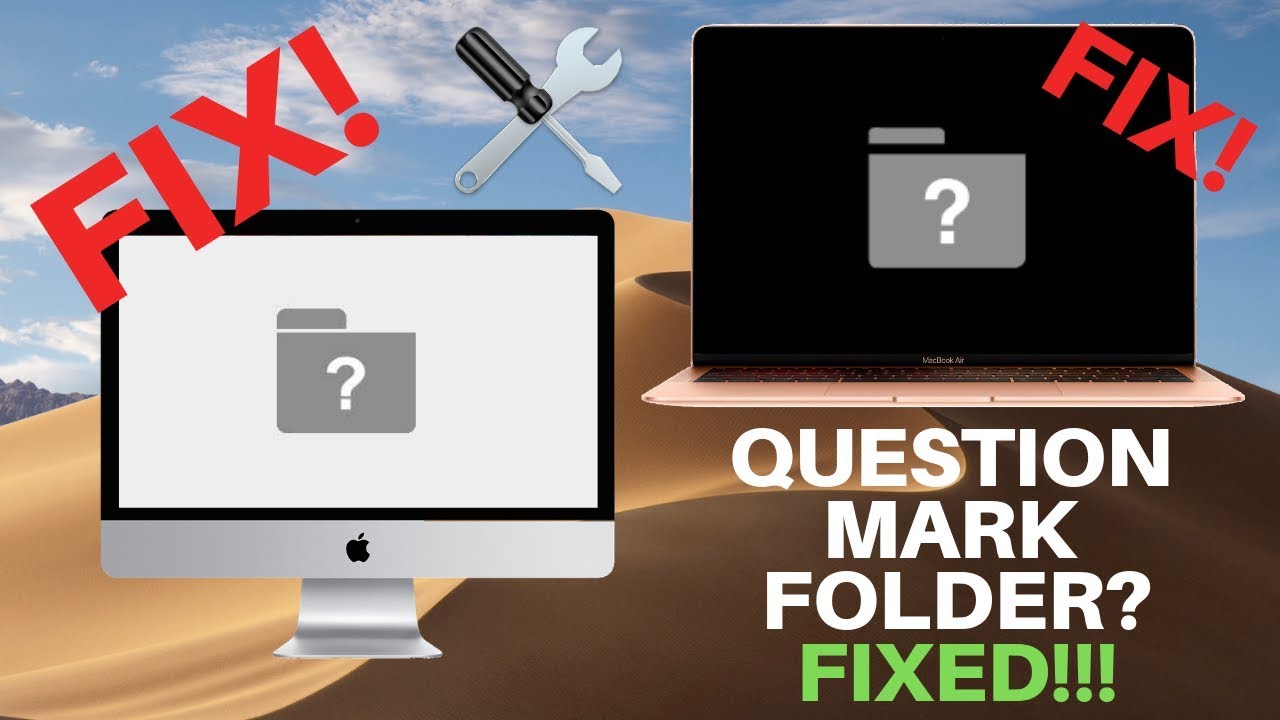
Seeing a flashing folder with a question mark on your Mac can be alarming. Instead of the usual Apple logo, your screen displays a blinking icon that signals something is wrong. This issue typically appears when your Mac cannot locate a valid startup disk containing macOS.
While it may seem like a serious hardware failure, the good news is that this problem is often fixable with a few troubleshooting steps. In this guide, you’ll learn what causes the issue and how to fix it quickly and safely—even if you’re not a tech expert.
What Does the Flashing Folder Mean?
The flashing folder icon indicates that your Mac is unable to find a system folder to boot from. In simple terms, your computer doesn’t know where macOS is installed, or it cannot access it.
This can happen due to:
- Missing or corrupted macOS files
- Incorrect startup disk selection
- Disk errors or failure
- Recent system updates gone wrong
- Hardware-related issues
Understanding the cause helps you apply the correct fix.
Quick Fixes to Try First
Before moving into advanced solutions, try these simple steps.
1. Restart Your Mac
Temporary glitches can sometimes trigger the issue.
- Hold the power button to shut down your Mac
- Wait a few seconds
- Turn it back on
2. Disconnect External Devices
External drives or USB devices may confuse the startup process.
- Unplug all accessories
- Restart your Mac
Method 1: Select the Startup Disk
Sometimes your Mac simply doesn’t know which disk to use.
Steps:
- Turn on your Mac
- Press and hold the Option (⌥) key immediately
- Wait for the Startup Manager
- Select your main disk (usually “Macintosh HD”)
- Press Enter
If your Mac boots successfully, go to System Settings and set the correct startup disk permanently.
Method 2: Reset NVRAM/PRAM
NVRAM stores startup settings. Resetting it can fix boot-related issues.
Steps:
- Shut down your Mac
- Turn it on and press:
Option + Command + P + R - Hold for about 20 seconds
- Release the keys and allow restart
Method 3: Use macOS Recovery Mode
macOS Recovery provides tools to repair or reinstall the system.
Steps:
- Turn off your Mac
- Turn it on and hold Command (⌘) + R
- Release when the Apple logo appears
You’ll see several options, including Disk Utility and macOS reinstall.
Method 4: Repair Disk with Disk Utility
Disk errors are a common cause of this issue.
Steps:
- Open Disk Utility in Recovery Mode
- Select your startup disk
- Click First Aid
- Confirm and wait
This process scans and repairs disk errors automatically.
Method 5: Reinstall macOS
If macOS is corrupted or missing, reinstalling it can solve the problem.
Steps:
- Enter Recovery Mode
- Select Reinstall macOS
- Follow on-screen instructions
This usually keeps your files intact, but having a backup is recommended.
Method 6: Use Internet Recovery
If local recovery doesn’t work, Internet Recovery downloads macOS from Apple servers.
Steps:
- Turn on your Mac
- Hold Option + Command + R
- Wait for the spinning globe
- Connect to Wi-Fi
- Follow the installation process
Method 7: Check Disk Visibility
If your disk doesn’t appear in Disk Utility, it may indicate a serious issue.
Possible Causes:
- Failing SSD or hard drive
- Loose internal connection
- Logic board problems
In this case, professional repair may be necessary.
Advanced Option: Erase and Reformat Disk
If all else fails, you may need to erase the disk and start fresh.
Warning: This deletes all data.
Steps:
- Boot into Recovery Mode
- Open Disk Utility
- Select your disk
- Click Erase
- Format as APFS
- Reinstall macOS
How to Recover Your Data
Before erasing your disk, consider recovering your files.
Options:
- Restore from Time Machine backup
- Use data recovery software
- Connect your drive to another Mac
- Seek professional recovery services
Data recovery is often possible if the drive isn’t physically damaged.
When It’s a Hardware Issue
If none of the methods work, the issue may be hardware-related.
Common Hardware Problems:
- Dead SSD or hard drive
- Damaged internal cables
- Logic board failure
In such cases, visiting an Apple-authorized service provider is the best option.
Tips to Prevent This Problem
Preventing the flashing folder issue is easier than fixing it.
1. Keep Your System Updated
Always install macOS updates properly.
2. Back Up Regularly
Use Time Machine or cloud backups.
3. Avoid Forced Shutdowns
Improper shutdowns can corrupt files.
4. Monitor Disk Health
Check your disk periodically for errors.
Frequently Asked Questions
Is this problem serious?
Not always. Many cases are caused by software issues and are easily fixable.
Will reinstalling macOS erase my data?
Usually not, but you should always back up your data first.
Can I fix it myself?
Yes, most solutions are simple and don’t require technical expertise.
Conclusion
The flashing folder with a question mark on a Mac indicates that your system cannot find a valid startup disk. While it may seem alarming, the issue is often caused by software problems that can be resolved with simple troubleshooting steps.
Start with basic fixes like restarting your Mac or selecting the correct startup disk. If that doesn’t work, move on to Recovery Mode, Disk Utility, and macOS reinstallation. For more serious cases, hardware repair may be required.
By following this guide, you can diagnose and fix the problem efficiently while protecting your data. With the right approach, your Mac will be back to normal in no time.