Fortnite is one of the most popular online multiplayer games in the world, offering fast-paced action and competitive gameplay. However, players in the Middle East region often encounter server-related issues that disrupt their gaming experience. If you’ve recently faced connection errors, high ping, or complete server outages, you’re not alone.
This comprehensive guide explains why Fortnite Middle East servers go down and provides practical, effective solutions to fix the problem quickly. Whether the issue is on your end or Epic Games’ servers, you’ll find everything you need to get back into the game.
Why Fortnite Middle East Servers Go Down
Before jumping into solutions, it’s important to understand the root causes. Server issues can occur for several reasons:
1. Server Maintenance
Epic Games regularly performs scheduled maintenance to improve performance, fix bugs, and roll out updates. During this time, servers may be temporarily unavailable.
2. Unexpected Server Outages
Sometimes servers go down unexpectedly due to technical failures, overload, or infrastructure issues.
3. High Player Traffic
Major events, updates, or new seasons can lead to a sudden spike in player activity, overwhelming the servers.
4. Regional Connectivity Issues
Players in the Middle East may experience routing problems due to ISP limitations or network congestion.
5. Local Network Problems
Your own internet connection, router, or device settings could also be causing the issue.
How to Check If Fortnite Servers Are Down
Before troubleshooting, confirm whether the issue is global or local.
Check Official Server Status
Visit the official Epic Games status page to see if servers are down.
Use Social Media
Check Fortnite’s official Twitter or community forums for real-time updates.
Use Downtime Tracking Websites
Websites like DownDetector can show if other players are experiencing similar issues.
If servers are officially down, you’ll need to wait until Epic Games resolves the issue. If not, continue with the fixes below.
Fix 1: Restart Your Game and Device
This may sound simple, but it often works.
- Close Fortnite completely
- Restart your PC, console, or mobile device
- Relaunch the game
Restarting clears temporary glitches that might be causing connection problems.
Fix 2: Check Your Internet Connection
A stable internet connection is crucial for online gaming.
Steps to Follow:
- Restart your router and modem
- Use a wired connection instead of Wi-Fi
- Run a speed test to ensure adequate bandwidth
Recommended Speeds:
- Download: At least 10 Mbps
- Upload: At least 3 Mbps
- Ping: Below 50 ms (ideal)
Fix 3: Switch to Middle East Server Manually
Sometimes Fortnite doesn’t automatically select the best server.
How to Change Server:
- Open Fortnite settings
- Go to the “Game” tab
- Find “Matchmaking Region”
- Select “Middle East”
If the Middle East server shows high ping, try switching to Europe temporarily.
Fix 4: Use a VPN for Better Routing
In some cases, routing issues between your ISP and Fortnite servers cause lag or disconnection.
Benefits of Using a VPN:
- Bypass ISP throttling
- Improve routing efficiency
- Reduce ping in some cases
Important Tip:
Choose a high-quality gaming VPN with servers close to the Middle East region.
Fix 5: Flush DNS Cache
DNS issues can prevent your device from connecting properly to Fortnite servers.
Steps (Windows):
- Open Command Prompt as Administrator
- Type:
ipconfig /flushdns - Press Enter
Steps (Mac):
- Open Terminal
- Type:
sudo killall -HUP mDNSResponder - Press Enter
This refreshes your connection to game servers.
Fix 6: Update Network Drivers
Outdated network drivers can cause connectivity issues.
Steps:
- Open Device Manager
- Expand “Network Adapters”
- Right-click your adapter
- Select “Update Driver”
Alternatively, download the latest drivers from the manufacturer’s website.
Fix 7: Disable Background Applications
Other apps may be consuming bandwidth or interfering with Fortnite.
Common Culprits:
- Streaming services
- Downloads
- Background updates
Solution:
- Close unnecessary applications
- Pause downloads while gaming
Fix 8: Check Firewall and Antivirus Settings
Sometimes security software blocks Fortnite’s connection.
What to Do:
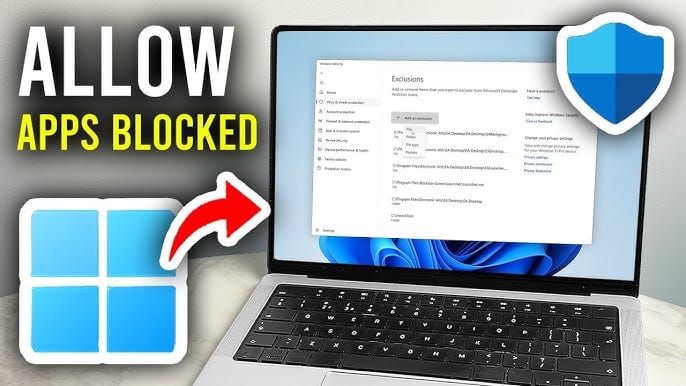
- Add Fortnite as an exception in your firewall
- Temporarily disable antivirus (for testing)
- Ensure required ports are open
Common Ports:
- TCP: 80, 443
- UDP: 3478, 3479, 5060, 5062
Fix 9: Reset Network Settings
If nothing else works, reset your network configuration.
Steps (Windows):
- Go to Settings
- Network & Internet
- Click “Network Reset”
Steps (Console):
- Restart console
- Reconnect to Wi-Fi
- Re-enter network settings
Fix 10: Reinstall Fortnite
Corrupted game files can also cause server issues.
Steps:
- Uninstall Fortnite
- Restart your device
- Download and install the latest version
This ensures you’re running a clean, updated version of the game.
Fix 11: Contact Your ISP
If the issue persists, your Internet Service Provider might be the problem.
Ask Your ISP About:
- Routing issues
- Packet loss
- Throttling
Sometimes they can optimize your connection or provide solutions.
Fix 12: Wait for Official Fixes
If the problem is server-side, the only solution is patience.
What You Can Do:
- Follow official updates
- Join community discussions
- Play in another region temporarily
Epic Games usually resolves major outages quickly.
Tips to Prevent Future Server Issues
While you can’t control server outages, you can minimize disruptions.
1. Keep Your Game Updated
Always install the latest updates to avoid compatibility issues.
2. Use a Stable Internet Connection
Avoid playing on unstable or shared networks.
3. Monitor Server Status Regularly
Check server status before starting long gaming sessions.
4. Optimize Your Network Setup
- Use Ethernet instead of Wi-Fi
- Upgrade your router if needed
Common Error Messages and Their Meaning
Understanding error messages can help you fix issues faster.
“Unable to Connect to Server”
Usually indicates server downtime or network issues.
“Matchmaking Error”
May occur due to region mismatch or server overload.
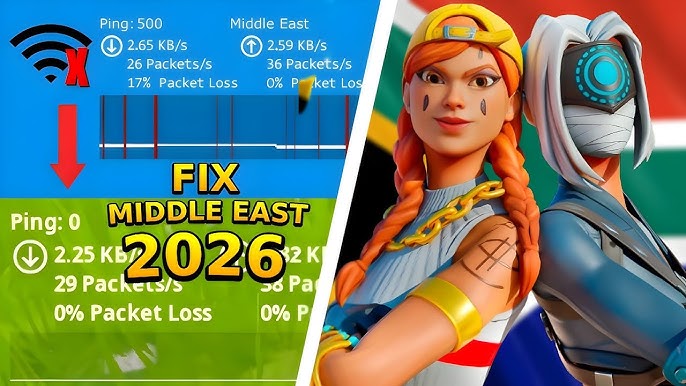
“High Ping”
Often caused by poor routing or network congestion.
Conclusion
Fortnite Middle East server issues can be frustrating, especially when you’re in the middle of a game or trying to join friends. However, most problems can be resolved with simple troubleshooting steps such as checking server status, optimizing your network, or adjusting in-game settings.
If the issue is on Epic Games’ end, staying informed and patient is key. For local issues, following the fixes in this guide will help you restore smooth gameplay quickly.
By applying these strategies, you can minimize downtime and enjoy a seamless Fortnite experience, even when server issues arise.
Frequently Asked Questions (FAQs)
Why is Fortnite not working in the Middle East?
It could be due to server maintenance, outages, or local network issues.
How do I reduce ping in Fortnite Middle East servers?
Use a wired connection, close background apps, and consider a gaming VPN.
Are Fortnite Middle East servers reliable?
Generally yes, but occasional outages and routing issues can occur.
Can I play on other servers?
Yes, you can switch to Europe or Asia, but you may experience higher latency.
By following this guide, you’ll be well-equipped to handle Fortnite server issues and get back to playing without interruptions.