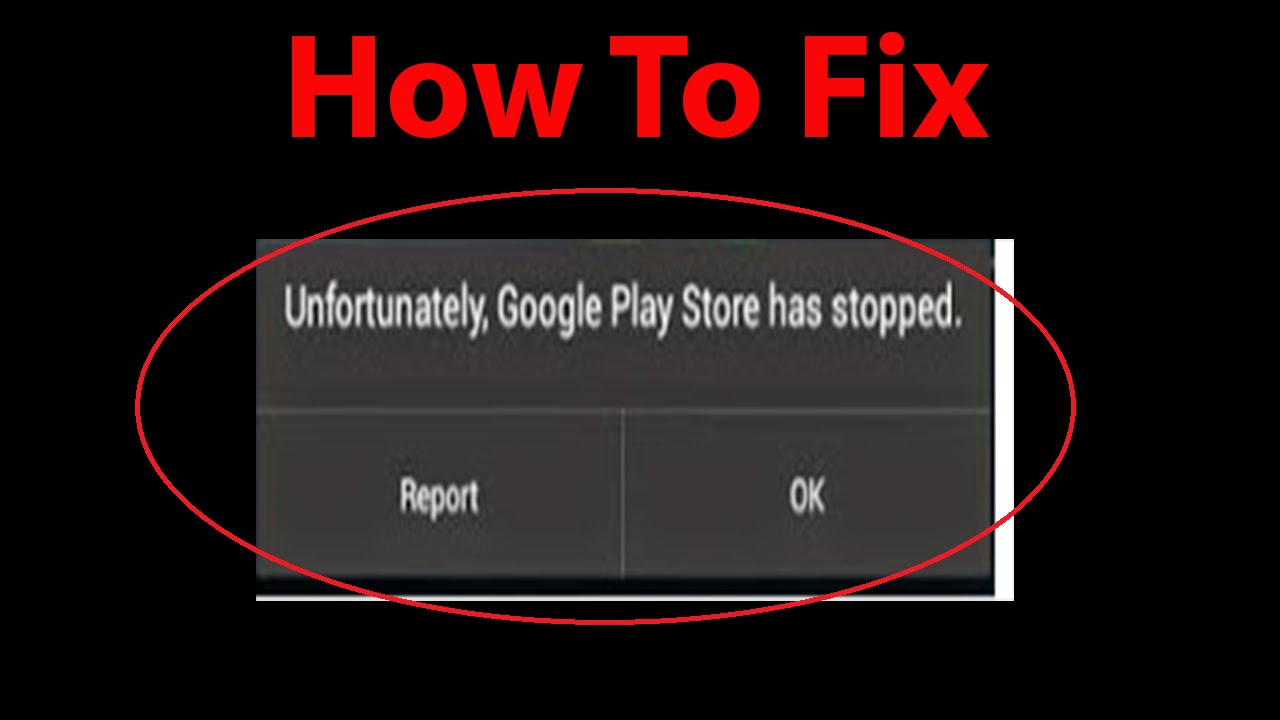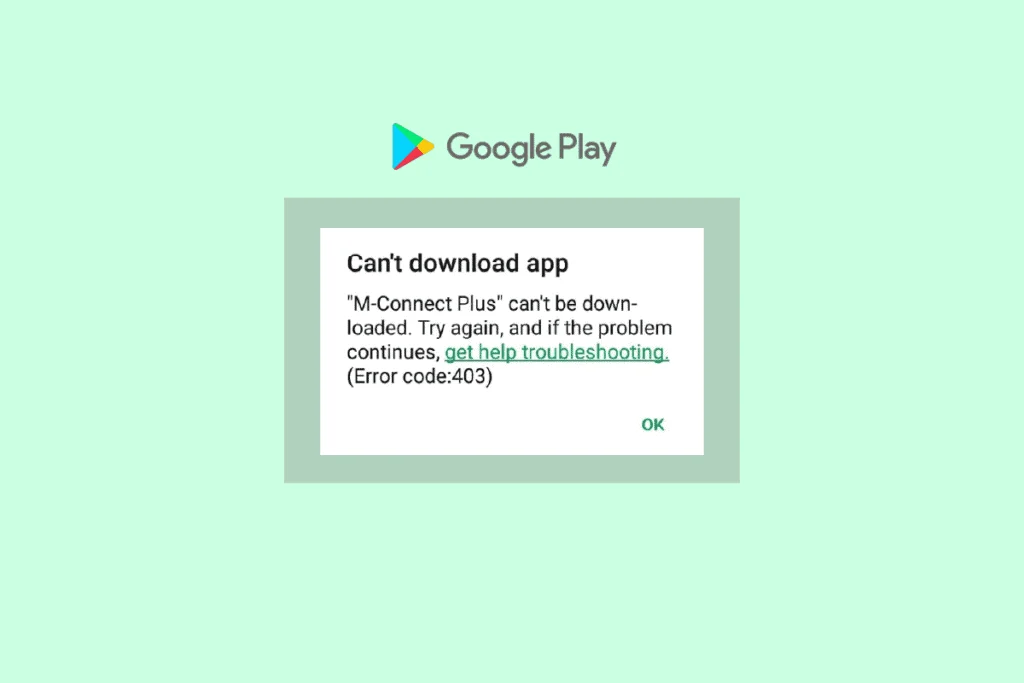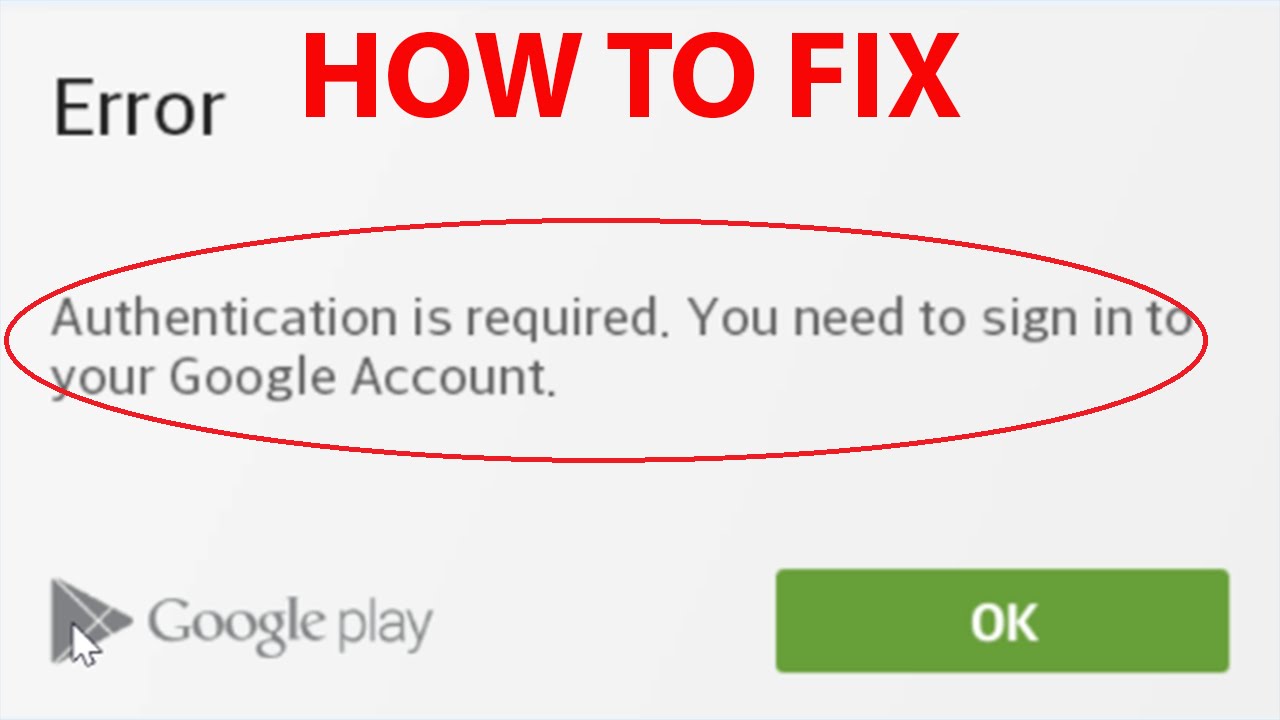
If you’ve ever tried downloading or updating an app from the Google Play Store and encountered the frustrating message “Authentication is required. You need to sign in to your Google Account”—even though you’re already signed in—you’re not alone.
This is a common issue faced by Android users, and it can disrupt your ability to install or update apps. Fortunately, the problem is usually easy to fix once you understand what causes it.
In this in-depth guide, we’ll explore why this error occurs and provide step-by-step solutions to fix it effectively.
What Causes the “Authentication Is Required” Error?
The error typically appears when there’s a disconnect between your device and your Google Account authentication system.
Here are the most common causes:
1. Cache Issues
Apps like the Play Store store temporary data (cache) to improve performance. However, outdated or corrupted cache files can cause authentication errors.
2. Sync Problems
If your Google account isn’t syncing properly, the Play Store may fail to verify your login status.
3. Play Store Glitches
Bugs or outdated versions of the Google Play Store can lead to authentication problems.
4. Account Conflicts
Multiple Google accounts on the same device can sometimes interfere with authentication.
5. System Update Issues
Recent Android updates may disrupt app behavior temporarily.
Why Clearing Cache Often Fixes the Problem
Cache files are designed to speed up app performance by storing frequently accessed data. However, they are not always updated in real time.
When these files contain outdated or corrupted data:
- The system may reference incorrect login information
- Authentication tokens may become invalid
- Apps may behave inconsistently
That’s why clearing cache is one of the most effective solutions.
Method 1: Clear Cache and Data of Google Play Store
This is the most recommended fix.
Steps:
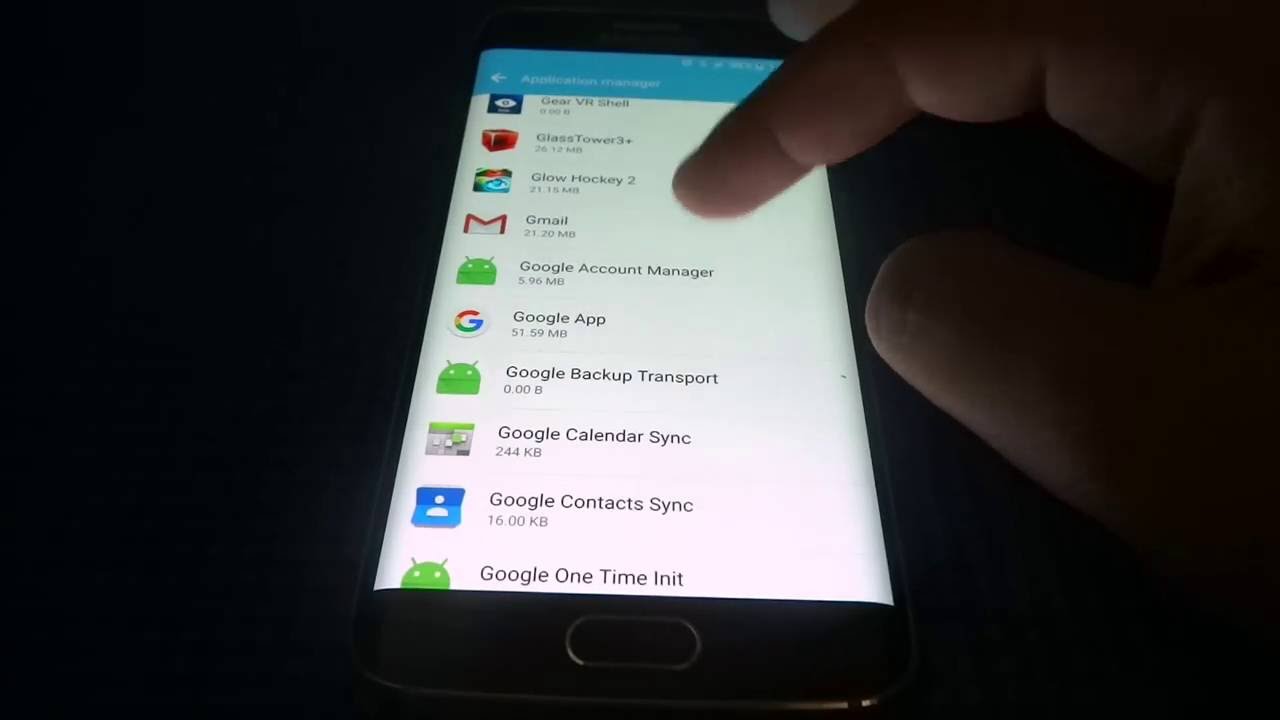
- Open Settings on your Android device
- Go to Apps or App Management
- Find and tap Google Play Store
- Tap Storage & Cache
- Select Clear Cache
- Then tap Clear Data
Restart your device and open the Play Store again.
Method 2: Clear Cache for Google Play Services
Google Play Services is essential for app authentication.
Steps:
- Go to Settings > Apps
- Select Google Play Services
- Tap Storage & Cache
- Clear both cache and data
Restart your device.
Method 3: Remove and Re-Add Your Google Account
Sometimes, refreshing your Google Account fixes sync issues.
Steps:
- Go to Settings > Accounts
- Tap your Google account
- Select Remove Account
- Restart your phone
- Go back and add your account again
Method 4: Force Sync Your Google Account
Manual sync can resolve authentication delays.
Steps:
- Open Settings > Accounts
- Tap your Google account
- Select Account Sync
- Tap Sync Now
Wait for syncing to complete.
Method 5: Update Google Play Store
An outdated version of the Google Play Store may cause errors.
Steps:
- Open Play Store
- Tap your profile icon
- Go to Settings > About
- Tap Update Play Store
Method 6: Check Internet Connection
Authentication requires a stable connection.
Tips:
- Switch between Wi-Fi and mobile data
- Restart your router
- Disable VPN if active
Method 7: Restart Your Device
Sometimes, a simple reboot can fix temporary glitches.
Method 8: Uninstall Play Store Updates
Rolling back updates can resolve bugs.
Steps:
- Go to Settings > Apps
- Tap Google Play Store
- Select Uninstall Updates
- Restart your device
Method 9: Check Date and Time Settings
Incorrect time settings can interfere with authentication.
Steps:
- Go to Settings > System > Date & Time
- Enable Automatic Date & Time
Method 10: Clear Cache Partition (Advanced)
For persistent issues:
- Turn off your device
- Boot into recovery mode
- Select Wipe Cache Partition
- Restart device
Method 11: Disable and Re-Enable Play Store
Steps:
- Go to Settings > Apps
- Select Google Play Store
- Tap Disable
- Wait a few seconds
- Tap Enable
Method 12: Factory Reset (Last Resort)
If nothing works, reset your device.
Warning: This will erase all data.
Steps:
- Go to Settings > System > Reset Options
- Select Erase All Data (Factory Reset)
Best Practices to Avoid This Error
1. Regularly Clear Cache
Prevent buildup of outdated data.
2. Keep Apps Updated
Ensure compatibility and bug fixes.
3. Maintain Stable Internet
Avoid interruptions during authentication.
4. Use One Primary Account
Minimize conflicts between multiple accounts.
5. Restart Device Occasionally
Helps refresh system processes.
Common User Scenarios
Scenario 1: Error After App Update
Fix: Clear Play Store cache
Scenario 2: Error After Adding New Account
Fix: Remove and re-add account
Scenario 3: Error on New Device
Fix: Sync account manually
Frequently Asked Questions
Why does Play Store say authentication required?
Usually due to cache, sync, or account issues.
Is clearing cache safe?
Yes, it does not delete personal data.
Will I lose apps after removing my account?
No, apps remain installed.
How long does it take to fix?
Most fixes take less than 5 minutes.
Final Thoughts
The “Authentication is required” error in the Google Play Store can be frustrating, but it’s usually easy to fix. In most cases, clearing cache or refreshing your Google Account resolves the issue quickly.
Understanding how cache works—and how outdated data can interfere with authentication—helps you troubleshoot more effectively. Whether it’s a sync issue, app glitch, or outdated cache, the solutions outlined in this guide cover all major scenarios.
By following these steps and maintaining good device habits, you can ensure a smooth and error-free experience on your Android device.