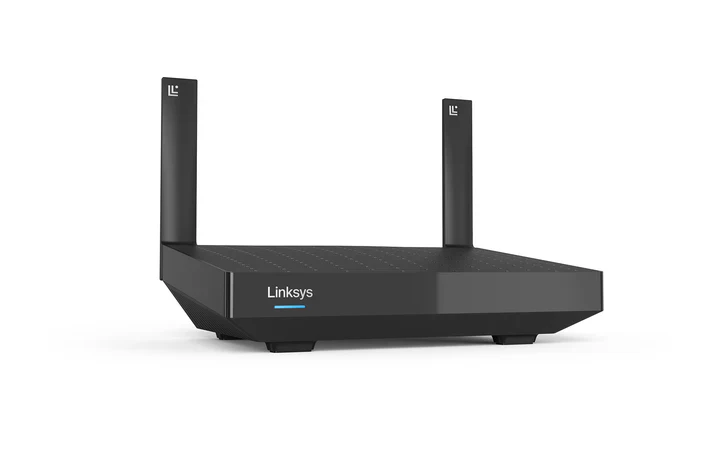
Setting up a router correctly is essential for a fast, secure, and reliable internet connection. Whether you’ve just purchased a new Linksys router or need to reconfigure an existing one, understanding the setup process can save time and prevent connectivity issues. This comprehensive guide walks you through how to configure and set up any Linksys router efficiently, even if you’re not tech-savvy.
Why Choose a Linksys Router?
Linksys routers are known for their reliability, performance, and user-friendly interfaces. They are suitable for home users, gamers, and small businesses alike. With features like dual-band Wi-Fi, parental controls, guest networks, and advanced security options, Linksys devices offer flexibility and control over your network.
What You Need Before Setup
Before starting the setup process, make sure you have the following:
- A working modem connected to your internet service
- An Ethernet cable
- Your Linksys router
- A computer, laptop, or smartphone
- Default login credentials (usually printed on the router label)
Having these ready ensures a smooth and uninterrupted setup process.
Step 1: Connect the Hardware
Begin by connecting your router to the modem:
- Turn off your modem
- Plug one end of the Ethernet cable into the modem
- Connect the other end to the router’s WAN or Internet port
- Power on the modem and wait for it to fully boot
- Turn on the router
Wait a few minutes for the router’s indicator lights to stabilize. This means the device is ready for configuration.
Step 2: Access the Router’s Admin Panel
To configure your Linksys router, you need to access its web-based interface:
- Connect your device to the router via Wi-Fi or Ethernet
- Open a web browser and enter
http://192.168.1.1in the address bar - Log in using the default username and password (commonly “admin”)
If the default credentials don’t work, check the label on the router or the user manual.
Step 3: Run the Setup Wizard
Most Linksys routers include a built-in setup wizard that guides you through the configuration process. Once logged in:
- Follow the on-screen instructions
- Select your internet connection type (usually DHCP for most users)
- Allow the router to detect settings automatically
The wizard simplifies the setup and ensures that basic configurations are correctly applied.
Step 4: Configure Wi-Fi Settings
Setting up your wireless network is one of the most important steps:
- Choose a unique network name (SSID)
- Create a strong password (use a mix of letters, numbers, and symbols)
- Select WPA2 or WPA3 security for better protection
If your router supports dual-band, configure both 2.4 GHz and 5 GHz networks. The 2.4 GHz band offers wider coverage, while 5 GHz provides faster speeds at shorter distances.
Step 5: Change Default Admin Credentials
For security reasons, you should never keep the default login credentials:
- Navigate to the administration or settings section
- Change the router’s username and password
- Save your changes
This prevents unauthorized users from accessing your router settings.
Step 6: Update Firmware
Firmware updates improve performance, fix bugs, and enhance security:
- Go to the firmware or system update section
- Check for available updates
- Install the latest version if available
Avoid turning off the router during the update process, as this could cause issues.
Step 7: Set Up Advanced Features
Linksys routers offer several advanced features you can configure:
Guest Network
Create a separate network for visitors to keep your main network secure.
Parental Controls
Restrict access to certain websites or limit internet usage for specific devices.
Quality of Service (QoS)
Prioritize bandwidth for activities like gaming or video streaming.
Port Forwarding
Allow external devices to access services on your local network, useful for gaming or hosting servers.
Step 8: Test Your Connection
After completing the setup:
- Connect your devices to the Wi-Fi network
- Test internet speed and connectivity
- Check for dead zones in your home
If you notice weak signals, consider repositioning the router or adding a range extender.
Troubleshooting Common Issues
Even with a straightforward setup, you may encounter some problems:
No Internet Connection:
Restart both the modem and router. Ensure cables are properly connected.
Cannot Access Admin Page:
Double-check the IP address and ensure your device is connected to the router.
Slow Wi-Fi Speeds:
Change the Wi-Fi channel or move the router to a central location.
Frequent Disconnections:
Update firmware and reduce interference from nearby devices.
Tips for Optimal Performance
To get the best out of your Linksys router:
- Place the router in a central, elevated location
- Keep it away from walls and electronic interference
- Use the 5 GHz band for high-speed tasks
- Regularly reboot the router to refresh connections
These small adjustments can significantly improve your network performance.
When to Reset Your Router
If you experience persistent issues, a factory reset may help:
- Press and hold the reset button for 10–15 seconds
- Wait for the router to reboot
- Reconfigure the settings from scratch
Keep in mind that resetting will erase all custom configurations.
Final Thoughts
Configuring and setting up a Linksys router doesn’t have to be complicated. By following this step-by-step guide, you can quickly establish a secure and high-performing network for your home or office.
From connecting the hardware to optimizing advanced settings, each step plays a role in ensuring a stable internet experience. Taking the time to properly configure your router will pay off in faster speeds, better security, and fewer connectivity issues.
Whether you’re a beginner or an experienced user, mastering your router setup gives you full control over your network—and that’s essential in today’s connected world.