Corrupted system files can cause a wide range of problems on a Windows computer. If you notice frequent crashes, applications failing to open, unusual error messages, or slow performance, corrupted files could be the root cause. In Windows 11, corrupted files may appear due to unexpected shutdowns, malware infections, failed updates, disk errors, or software conflicts.
Fortunately, Windows 11 includes several built-in tools that help users identify and repair corrupted files without installing third-party software. By using utilities like System File Checker (SFC), Deployment Image Servicing and Management (DISM), and Check Disk (CHKDSK), you can scan your system for damaged files and restore them to their original state.
This complete guide will walk you through how to check for corrupted files in Windows 11, repair system issues, and keep your computer running smoothly.
What Are Corrupted Files in Windows 11?
A corrupted file is a file that becomes damaged or unreadable by the operating system or applications. When this happens, Windows may not be able to access or execute the file correctly.
- File corruption may affect different types of files, including:
- System files required for Windows to operate
- Application files needed to run programs
User files such as documents, images, or videos
When system files become corrupted, the impact can be significant. You might experience issues like:
- Windows failing to start
- System crashes or blue screen errors
- Programs freezing or closing unexpectedly
- Updates failing to install
- Features not working properly
Understanding the causes of file corruption helps you prevent future problems and maintain a stable system.
Common Causes of File Corruption
Corrupted files in Windows 11 can happen for many reasons. Some of the most common causes include the following.
Unexpected System Shutdown
When a computer shuts down abruptly due to power failure or forced restart, files that are being written or updated may become corrupted.
Hard Drive Errors
Bad sectors on a storage drive can damage files stored in those areas, making them unreadable.
Malware or Virus Infection
Malicious software may modify, delete, or corrupt system files to compromise the system.
Incomplete Windows Updates
Interrupted or failed updates can cause important system files to become incomplete or damaged.
Software Conflicts
Applications that interact with system components may accidentally overwrite or damage essential files.
Hardware Issues
Faulty RAM, storage drives, or overheating hardware can also lead to file corruption.
Signs That Windows 11 Has Corrupted Files
Before running repair tools, it’s useful to identify symptoms that indicate corrupted files.
Common warning signs include:
- Frequent application crashes
- Slow system performance
- Error messages when opening files
- Windows features not responding
- Missing system components
- Blue Screen of Death (BSOD)
If you notice these issues repeatedly, it may be time to check your system files.
Built-In Tools to Check Corrupted Files in Windows 11
Windows 11 provides several built-in tools designed to diagnose and repair system problems. The most useful ones include:
- System File Checker (SFC)
- Deployment Image Servicing and Management (DISM)
- Check Disk (CHKDSK)
- Windows Memory Diagnostic
- Windows Update repair tools
Using these utilities in the correct order increases the chances of successfully fixing corrupted files.
Method 1: Run System File Checker (SFC Scan)
System File Checker is one of the most effective tools for repairing corrupted system files in Windows 11. It scans protected system files and replaces damaged versions with correct copies.
Steps to Run SFC
- Press Windows + S to open Search.
- Type Command Prompt.
- Right-click Command Prompt and choose Run as administrator.
- In the command window, type:
sfc /scannow
- Press Enter.
The scanning process will begin immediately. This process may take several minutes.
Possible Scan Results
After the scan finishes, you may see one of these results:
- Windows Resource Protection did not find any integrity violations
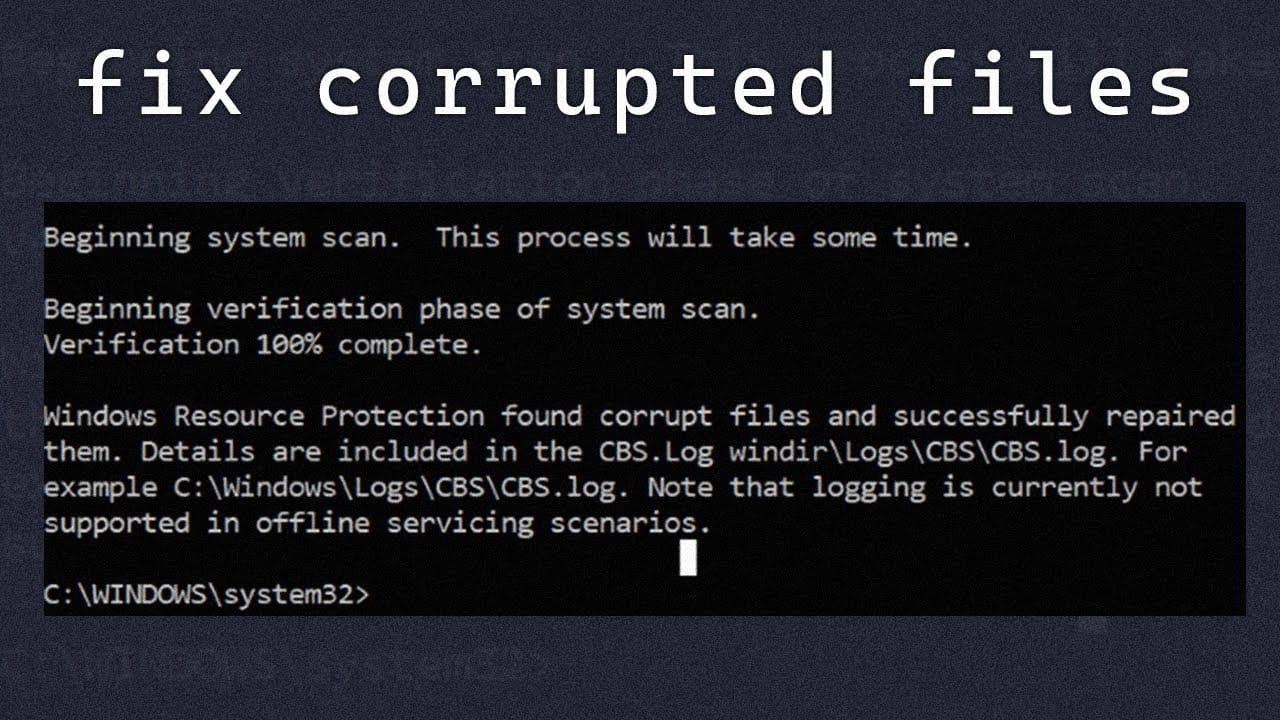
No corrupted files were detected. - Windows Resource Protection found corrupted files and successfully repaired them
The issue has been fixed. - Windows Resource Protection found corrupted files but could not fix some of them
Additional repair methods such as DISM may be required.
Running the SFC tool regularly helps maintain system health.
Method 2: Use DISM to Repair Windows Image
If the SFC scan fails to repair corrupted files, the next step is using the DISM tool. DISM repairs the Windows system image, which SFC relies on to replace damaged files.
Steps to Run DISM
- Open Command Prompt as Administrator.
- Enter the following command:
DISM /Online /Cleanup-Image /RestoreHealth
- Press Enter.
This process may take 10–30 minutes depending on your system.
What DISM Does
DISM connects to Windows Update servers and downloads clean system files if needed. It repairs the Windows image so that SFC can function correctly.
After the process finishes, run the SFC scan again to ensure all corrupted files are fixed.
Method 3: Run CHKDSK to Repair Disk Errors
Disk errors or bad sectors can also lead to file corruption. The Check Disk utility scans the drive for physical and logical issues.
Steps to Run CHKDSK
- Open Command Prompt as Administrator.
- Type the following command:
chkdsk C: /f /r
- Press Enter.
Explanation of parameters:
- /f fixes errors on the disk
- /r locates bad sectors and recovers readable data
If the drive is currently in use, Windows will ask if you want to schedule the scan at the next restart. Press Y and restart your PC.
The scan will begin during startup and may take some time.
Method 4: Use Windows Security to Scan for Malware
Malware can damage or replace system files. Running a full malware scan helps ensure the problem is not caused by malicious software.
Steps to Run a Security Scan
- Open Settings.
- Go to Privacy & Security.
- Select Windows Security.
- Click Virus & Threat Protection.
- Choose Scan options.
- Select Full scan.
- Click Scan now.
If malware is detected, remove it immediately and then run system repair tools again.
Method 5: Check Windows Update
Outdated system files or failed updates may cause file corruption. Updating Windows often replaces damaged components.
Steps to Update Windows 11
- Open Settings.
- Select Windows Update.
- Click Check for updates.
- Install any available updates.
After updating, restart your computer and verify if the issue is resolved.
Method 6: Use Startup Repair
If corrupted files prevent Windows from starting correctly, Startup Repair can automatically detect and fix issues.
Steps to Run Startup Repair
- Open Settings.
- Navigate to System.
- Select Recovery.
- Click Restart now under Advanced startup.
- Choose Troubleshoot.
- Select Advanced options.
- Click Startup Repair.
Windows will scan and repair startup-related files automatically.
Method 7: Restore Windows Using System Restore
System Restore allows you to revert your system to a previous state before the corruption occurred.
Steps to Use System Restore
- Open Search and type Create a restore point.
- Open System Protection.
- Click System Restore.
- Choose a restore point created before the problem started.
- Follow the on-screen instructions.
Your system files and settings will revert to the selected restore point.
Method 8: Reset Windows 11
If corruption is severe and cannot be repaired, resetting Windows may be necessary.
Resetting reinstalls Windows while optionally keeping personal files.
Steps to Reset Windows
- Open Settings.
- Go to System.
- Select Recovery.
- Click Reset this PC.
- Choose Keep my files or Remove everything.
Follow the prompts to reinstall Windows.
Tips to Prevent File Corruption in Windows 11
Preventing corruption is easier than repairing it. Consider these best practices.
Keep Windows Updated
Regular updates ensure system files remain secure and stable.
Use Reliable Antivirus Protection
Security software prevents malware that may damage files.
Avoid Forced Shutdowns
Always shut down your PC properly to avoid incomplete file writes.
Maintain Disk Health
Regularly check your drive using CHKDSK and ensure enough free storage space.
Backup Important Data
Use cloud storage or external drives to keep backups of critical files.
Install Software Carefully
Avoid downloading programs from untrusted sources.
Best Practices for Maintaining System Stability
Maintaining system health requires ongoing maintenance. Here are several practices that help reduce corruption risks.
- Regularly restart your computer
- Monitor disk health and SMART status
- Clean temporary files
- Uninstall unused programs
- Keep device drivers updated
These steps ensure your Windows 11 system continues running efficiently.
When to Seek Advanced Help
In some situations, corrupted files may indicate deeper hardware or system issues.
Consider professional assistance if:
- The system continues crashing after repairs
- Disk errors repeatedly appear
- Hardware problems are suspected
- Windows fails to boot entirely
Advanced diagnostic tools or hardware replacement may be necessary.
Conclusion
Corrupted files in Windows 11 can disrupt performance, cause application crashes, and create system instability. Fortunately, Windows includes powerful tools that allow users to detect and repair these issues without advanced technical knowledge.
By using utilities like System File Checker, DISM, and Check Disk, you can scan your system, repair damaged files, and restore your computer’s stability. Additionally, keeping Windows updated, maintaining disk health, and protecting your system from malware significantly reduces the chances of file corruption.
Following the methods and preventive tips outlined in this guide will help ensure your Windows 11 PC remains reliable, fast, and free from system file problems. Regular maintenance and timely troubleshooting can keep your computer operating smoothly for years to come.