iMessage is one of the most popular messaging services for Apple users, offering a seamless way to send texts, photos, videos, and more over the internet. Unlike traditional SMS, iMessage works through Wi-Fi or mobile data, allowing users to communicate without standard messaging charges.
If you’ve recently switched to an Apple device or are setting one up for the first time, you might be wondering how to activate iMessage. In this complete guide, we’ll walk you through the steps to enable iMessage on your devices and fix common activation issues.
What Is iMessage?
iMessage is a messaging platform developed by Apple that allows users to send messages between Apple devices.
Key features include:
- Free messaging over the internet
- End-to-end encryption
- Sending photos, videos, and documents
- Read receipts and typing indicators
- Group chats
iMessage works across multiple Apple devices, including iPhones, iPads, and Macs.
Requirements to Activate iMessage
Before activating iMessage, ensure the following requirements are met:
Apple ID
You must have a valid Apple ID to use iMessage.
Internet Connection
A stable Wi-Fi or mobile data connection is required.
Active SIM Card (for iPhone)
An active phone number helps link iMessage to your device.
Updated Software
Your device should be running the latest version of iOS, iPadOS, or macOS.
How to Activate iMessage on iPhone
Activating iMessage on an iPhone is simple.
Steps
- Open Settings.
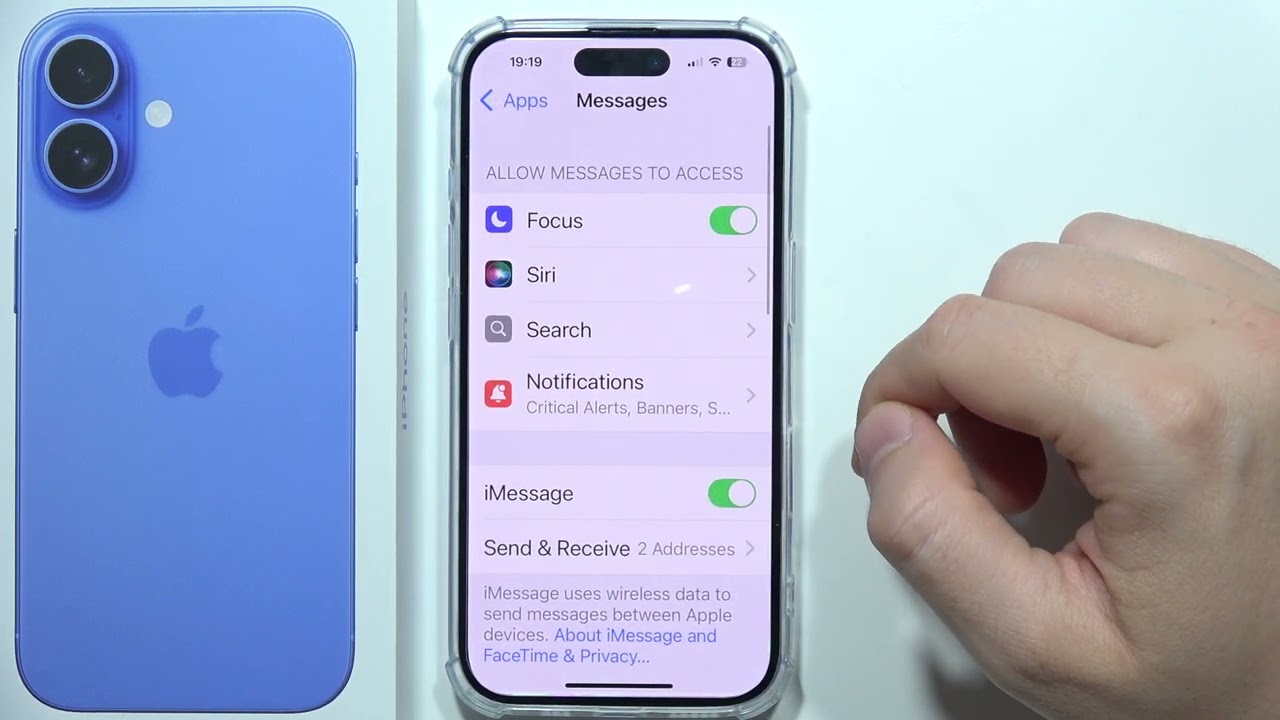
- Scroll down and tap Messages.
- Toggle iMessage to ON.
- Wait for activation (this may take a few minutes).
Once activated, you can start sending messages through iMessage.
How to Activate iMessage on iPad
The process on an iPad is very similar.
Steps
- Open Settings.
- Tap Messages.
- Turn on iMessage.
- Sign in with your Apple ID if prompted.
After activation, your iPad can send and receive iMessages using your Apple ID.
How to Activate iMessage on Mac
You can also use iMessage on your Mac computer.
Steps
- Open the Messages app.
- Click Sign In.
- Enter your Apple ID credentials.
- Enable iMessage in preferences.
Now your Mac will sync messages with your other Apple devices.
How to Choose Send & Receive Addresses
After activation, you can choose how you send and receive messages.
Steps
- Go to Settings → Messages.
- Tap Send & Receive.
- Select your phone number and email addresses.
This allows you to control which contact details are used for iMessage.
How to Enable Additional iMessage Features
Once iMessage is active, you can customize it further.
Read Receipts
Let others know when you’ve read their messages.
Send as SMS
Automatically send messages as SMS if iMessage is unavailable.
Message Effects
Send animations and effects in conversations.
Sync Across Devices
Use the same Apple ID to sync messages across all devices.
Common iMessage Activation Issues
Sometimes iMessage may not activate properly.
Here are common problems users face:
Activation Taking Too Long
It may take several minutes or even hours.
“Waiting for Activation” Message
This indicates the process is still ongoing.
Phone Number Not Recognized
Your number may not link correctly to iMessage.
How to Fix iMessage Activation Problems
If iMessage is not activating, try these solutions.
1. Check Internet Connection
Ensure your device is connected to Wi-Fi or mobile data.
2. Verify Apple ID
Make sure you are signed in with the correct Apple ID.
3. Restart Your Device
A simple restart can fix temporary glitches.
4. Check Date and Time Settings
Incorrect time settings can prevent activation.
Steps
- Go to Settings → General → Date & Time.
- Enable Set Automatically.
5. Toggle iMessage Off and On
Turn iMessage off, wait a few seconds, and turn it back on.
6. Update Your Device
Ensure your device is running the latest version of iOS or macOS.
7. Check Carrier Settings
Some carriers may require SMS activation.
Make sure your SIM card is active and can send messages.
8. Sign Out and Sign Back In
- Go to Settings → Messages → Send & Receive.
- Tap your Apple ID and sign out.
- Sign in again.
How Long Does iMessage Activation Take?
In most cases, activation happens within a few minutes.
However, it can take up to 24 hours depending on:
- Network conditions
- Carrier support
- Apple server status
If it takes longer, troubleshooting may be required.
Benefits of Using iMessage
Once activated, iMessage offers several advantages.
Free Messaging
Send messages over the internet without SMS charges.
High-Quality Media Sharing
Photos and videos are sent without heavy compression.
Secure Communication
Messages are encrypted for privacy.
Seamless Integration
Works across all Apple devices.
Tips for Using iMessage Efficiently
To get the most out of iMessage:
- Keep your Apple ID consistent across devices
- Enable message syncing
- Use Wi-Fi for faster delivery
- Customize notifications for better control
Conclusion
Activating iMessage is a simple process that unlocks powerful messaging features across your Apple devices. Whether you are using an iPhone, iPad, or Mac, enabling iMessage allows you to communicate seamlessly using your internet connection.
By following the steps in this guide and applying the troubleshooting tips when needed, you can ensure a smooth activation process. Once set up, iMessage provides a fast, secure, and feature-rich way to stay connected with friends, family, and colleagues.
If you encounter any issues, most can be resolved by checking your settings, internet connection, and Apple ID configuration. With everything properly configured, you’ll be ready to enjoy all the benefits that iMessage has to offer.