


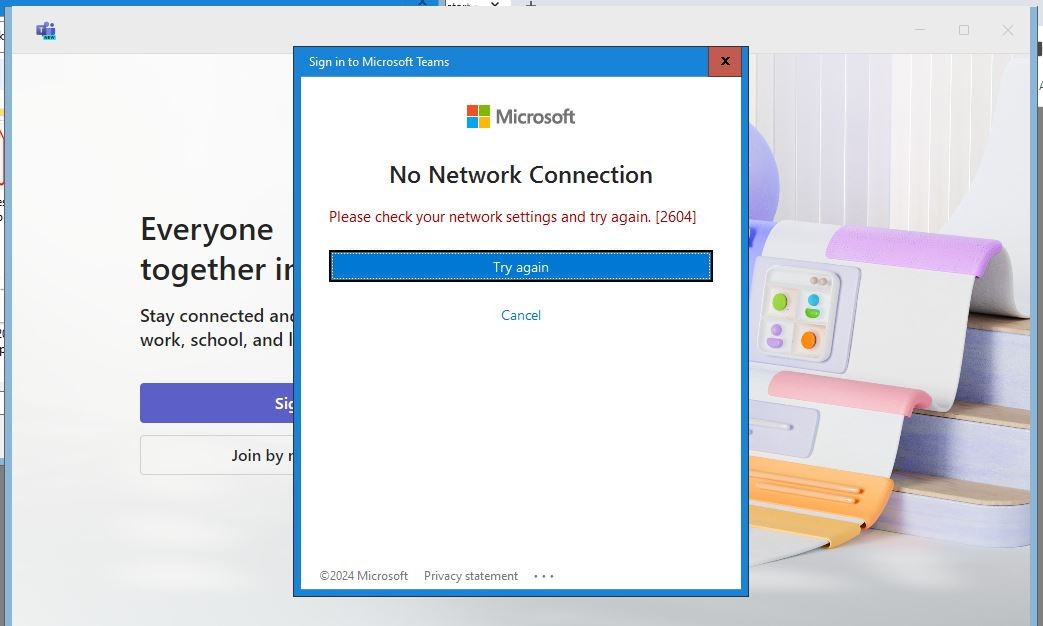
Microsoft Teams has become a cornerstone of modern collaboration, enabling real-time communication, video conferencing, and project management across organizations worldwide. However, one of the most frustrating issues users encounter is the error message:
“No internet connection was found. Please reconnect and try again.”
This error can appear even when your device is connected to the internet, disrupting meetings, chats, and productivity. In this comprehensive guide, we’ll explore why this happens, how to fix it, and what you can do to prevent it in the future.
Understanding the Error
The error typically occurs when Teams cannot establish a stable connection to Microsoft’s servers. This doesn’t always mean your internet is down—it could be related to:
- Local network issues
- Firewall or proxy restrictions
- Outdated Teams client
- Cached data conflicts
- VPN interference
- Microsoft service outages
Common Causes
- Weak or unstable Wi-Fi signal
- Incorrect DNS settings
- Firewall blocking Teams traffic
- Corrupted Teams cache
- Outdated Teams version
- VPN or proxy misconfiguration
- Temporary Microsoft server outage
Step-by-Step Troubleshooting
Step 1: Verify Internet Connection
- Open a browser and test connectivity.
- Run ping www.microsoft.com in Command Prompt to check stability.
Step 2: Restart Teams
- Close Teams completely.
- End background processes via Task Manager.
- Relaunch the app.
Step 3: Clear Teams Cache
- Navigate to:
Code
%appdata%\Microsoft\Teams
- Delete cache folders (Cache, blob_storage, databases, GPUCache).
- Restart Teams.
Step 4: Update Teams
- Go to Settings → About → Check for updates.
- Ensure you’re running the latest version.
Step 5: Check Firewall and Proxy
- Allow Teams through Windows Firewall.
- If using a proxy, ensure Teams domains are whitelisted.
Step 6: Reset DNS Settings
- Open Command Prompt as Administrator.
- Run:
Code
ipconfig /flushdns
ipconfig /release
ipconfig /renew
Step 7: Disable VPN Temporarily
- Disconnect VPN and test Teams.
- If Teams works, adjust VPN settings or whitelist Teams traffic.
Step 8: Reinstall Teams
- Uninstall Teams completely.
- Download the latest installer from Microsoft’s official site.
- Reinstall and log in again.
Advanced Fixes
- Group Policy Adjustments (Enterprise): Ensure Teams traffic is not restricted.
- Registry Edits: Reset Teams network configurations.
- Network Adapter Reset: Disable and re-enable your adapter.
- Microsoft 365 Service Health Check: Visit the Microsoft 365 Service Health dashboard to confirm if outages are affecting Teams.
Preventive Measures
- Keep Teams updated.
- Use a stable wired connection for critical meetings.
- Regularly clear cache to avoid corruption.
- Configure firewall and proxy correctly.
- Monitor Microsoft service status before major events.
Best Practices for IT Administrators
- Deploy Teams updates via Intune or SCCM.
- Whitelist Teams domains in enterprise firewalls.
- Provide VPN split tunneling for Teams traffic.
- Educate users on basic troubleshooting steps.
Frequently Asked Questions (FAQ)
Q: Why does Teams say no internet when I’m connected?
A: Teams may fail to authenticate with Microsoft servers due to cache, firewall, or DNS issues.
Q: Can I use Teams offline?
A: Limited functionality is available offline, but meetings and real-time chat require internet.
Q: Does reinstalling Teams fix the issue?
A: Yes, if the problem is caused by corrupted files or outdated versions.
Conclusion
The “No internet connection was found. Please reconnect and try again.” error in Microsoft Teams can be frustrating, but it’s usually fixable with systematic troubleshooting. By checking your network, clearing cache, updating Teams, and adjusting firewall or VPN settings, you can restore connectivity quickly.
For organizations, proactive IT policies and proper configuration can minimize disruptions, ensuring Teams remains a reliable collaboration tool.