Zoom has become one of the most essential communication tools for meetings, online classes, and remote collaboration. However, it can be incredibly frustrating when Zoom refuses to open on your Windows PC—especially when you’re about to join an important call.
If you’re dealing with this issue, you’re not alone. Many users experience problems where Zoom won’t launch, crashes instantly, or gets stuck on loading. The good news is that most of these issues can be fixed with simple troubleshooting steps.
In this comprehensive guide, you’ll learn how to fix Zoom not opening on Windows PC easily using proven methods.
Why Zoom Is Not Opening on Windows PC
Before diving into solutions, it’s important to understand what might be causing the issue.
1. Corrupted Installation Files
Zoom files may become corrupted due to incomplete updates or improper shutdowns.
2. Outdated Zoom Version
Older versions of Zoom may not be compatible with the latest Windows updates.
3. Conflicting Software
Other applications, especially security software, may block Zoom from launching.
4. System Resource Limitations
Low RAM or high CPU usage can prevent Zoom from opening.
5. Firewall or Antivirus Restrictions
Security settings may block Zoom’s processes.
6. Missing System Permissions
Zoom may not have the required permissions to run properly.
7. Network Issues
Poor internet connection can prevent Zoom from launching correctly.
How to Fix Zoom Not Opening on Windows PC Easily
Let’s walk through the most effective solutions step by step.
1. Restart Your Computer
A simple restart can fix temporary glitches that prevent Zoom from opening.
2. End Zoom Processes in Task Manager
Zoom might be running in the background without opening.
Steps:
- Press Ctrl + Shift + Esc
- Find Zoom processes
- Click “End Task”
- Restart Zoom
3. Run Zoom as Administrator
Running Zoom with admin privileges can resolve permission issues.
Steps:
- Right-click Zoom shortcut
- Select “Run as administrator”
4. Update Zoom to the Latest Version
Outdated versions can cause compatibility issues.
Steps:
- Open Zoom (if possible)
- Click profile → Check for updates
- Install the latest version
If Zoom won’t open, download the latest version from the official website.
5. Reinstall Zoom Completely
Reinstalling can fix corrupted files.
Steps:
- Go to Control Panel → Programs
- Uninstall Zoom
- Download the latest installer
- Reinstall Zoom
6. Check Internet Connection
Zoom requires a stable connection.
Tips:
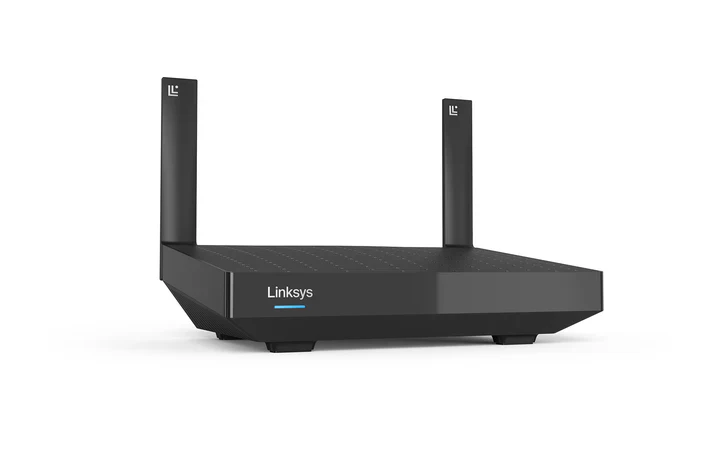
- Restart your router
- Switch to a wired connection
- Test internet speed
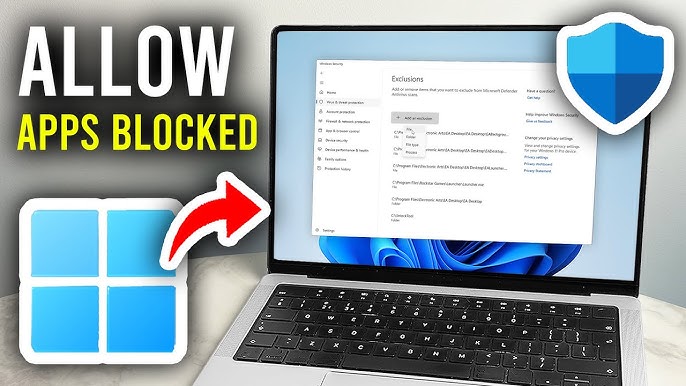
7. Disable Antivirus or Firewall Temporarily
Security software may block Zoom.
Steps:
- Disable antivirus temporarily
- Turn off firewall
- Try opening Zoom
Important: Re-enable security after testing.
8. Clear Zoom Cache
Cache files can cause launch issues.
Steps:
- Press Win + R
- Type
%appdata% - Locate Zoom folder
- Delete cache files
9. Update Windows
An outdated system can cause compatibility problems.
Steps:
- Go to Settings → Windows Update
- Click “Check for updates”
- Install updates
10. Check System Requirements
Ensure your PC meets Zoom’s requirements.
Minimum requirements include:
- Supported Windows version
- Sufficient RAM (at least 4GB recommended)
- Stable internet connection
Advanced Troubleshooting Methods
If basic fixes don’t work, try these advanced solutions.
1. Run System File Checker
Repair corrupted system files.
Steps:
- Open Command Prompt as Admin
- Type:
sfc /scannow
- Press Enter
2. Use Compatibility Mode
Run Zoom in compatibility mode.
Steps:
- Right-click Zoom shortcut
- Select Properties
- Go to Compatibility tab
- Choose an older Windows version
3. Disable Background Apps
Background apps can interfere with Zoom.
Steps:
- Open Task Manager
- Close unnecessary apps
- Restart Zoom
4. Check Graphics Drivers
Outdated drivers can cause app launch issues.
Steps:
- Open Device Manager
- Update display adapters
Tips to Prevent Zoom Issues
Prevention is key to avoiding future problems.
1. Keep Zoom Updated
Always use the latest version.
2. Maintain System Health
Regularly update Windows and drivers.
3. Avoid Overloading Your PC
Close unused apps before meetings.
4. Use Reliable Internet
Ensure stable connectivity for smooth performance.
Common Mistakes to Avoid
Ignoring Updates
Outdated software often leads to compatibility issues.
Using Unofficial Downloads
Always download Zoom from the official website.
Disabling Security Permanently
Only disable antivirus temporarily for testing.
When to Seek Professional Help
If Zoom still won’t open after trying all fixes, there may be deeper issues.
Possible causes:
- Severe malware infection
- Hardware failure
- Corrupted Windows installation
In such cases, professional assistance may be necessary.
Frequently Asked Questions
Why does Zoom not open on my PC?
It could be due to corrupted files, outdated software, or system conflicts.
Does reinstalling Zoom fix the issue?
Yes, it often resolves problems caused by corrupted installation files.
Can antivirus block Zoom?
Yes, some security programs may prevent Zoom from launching.
Conclusion
Facing issues with Zoom not opening on your Windows PC can be frustrating, especially when you need it most. However, with the right troubleshooting steps—such as reinstalling the app, updating your system, or checking your internet connection—you can quickly resolve the problem.
This Fix Zoom Not Opening on Windows PC Easily guide provides everything you need to diagnose and fix the issue efficiently. By following these steps and maintaining your system regularly, you can ensure a smooth and reliable Zoom experience.
With these proven solutions, you’ll be able to fix Zoom issues quickly and get back to your meetings without interruptions.