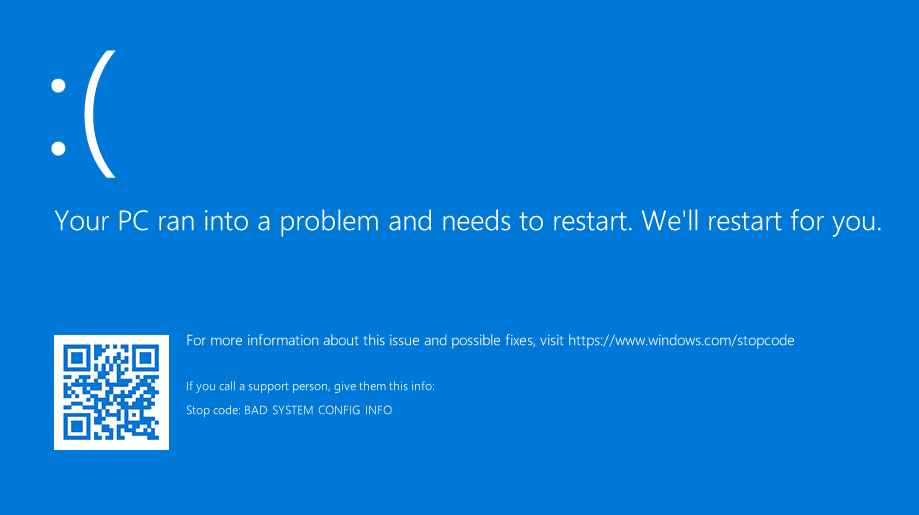
Seeing the message “Your PC ran into a problem and needs to restart” can be alarming, especially when it appears unexpectedly and disrupts your work. This issue is commonly known as the Blue Screen of Death (BSOD), and it’s one of the most frequent errors Windows users encounter.
If you’re dealing with this problem, don’t worry. In most cases, it can be fixed with simple troubleshooting steps. In this comprehensive guide, you’ll learn the causes of this error and how to fix it effectively using proven methods.
What Does “Your PC Ran Into a Problem” Mean?
This error indicates that Windows encountered a critical issue it could not recover from safely. To prevent further damage, the system shuts down and restarts automatically.
You may also see additional error codes such as:
- CRITICAL_PROCESS_DIED
- SYSTEM_SERVICE_EXCEPTION
- IRQL_NOT_LESS_OR_EQUAL
- MEMORY_MANAGEMENT
These codes help identify the root cause of the problem.
Common Causes of the Error
Understanding the cause is the first step toward fixing the issue.
1. Corrupted System Files
Damaged or missing system files can trigger system crashes.
2. Faulty Drivers
Outdated or incompatible drivers often cause BSOD errors.
3. Hardware Issues
Problems with RAM, hard drive, or other components can lead to crashes.
4. Windows Update Problems
Incomplete or failed updates may cause system instability.
5. Malware or Virus
Malicious software can interfere with system operations.
6. Software Conflicts
Newly installed programs may conflict with system processes.
Quick Fixes to Try First
Before diving into advanced solutions, try these simple steps.
Restart Your PC
Temporary glitches can often be resolved with a reboot.
Disconnect External Devices
Remove USB drives, printers, or external hardware.
Boot in Safe Mode
Safe Mode loads only essential drivers, helping identify the issue.
Method 1: Run System File Checker (SFC)
This tool scans and repairs corrupted system files.
Steps:
- Open Command Prompt as Administrator
- Type:
sfc /scannow - Press Enter
- Wait for the scan to complete
- Restart your PC
Method 2: Update Device Drivers
Outdated drivers are a major cause of BSOD errors.
Steps:
- Press Windows + X
- Select Device Manager
- Expand categories
- Right-click devices
- Click Update Driver
Method 3: Uninstall Recent Updates
If the error started after an update:
Steps:
- Open Settings
- Go to Update & Security
- Click View update history
- Select Uninstall updates
- Remove recent updates
Method 4: Check for Malware
Run a full system scan.
Steps:
- Open Windows Security
- Click Virus & Threat Protection
- Run Full Scan
Method 5: Use DISM Tool
DISM repairs Windows image files.
Steps:
- Open Command Prompt (Admin)
- Run:
DISM /Online /Cleanup-Image /RestoreHealth - Restart your PC
Method 6: Check RAM for Errors
Faulty memory can cause system crashes.
Steps:
- Press Windows + R
- Type
mdsched.exe - Restart and scan for issues
Method 7: Check Disk Errors
Hard drive issues can trigger BSOD.
Steps:
- Open Command Prompt (Admin)
- Run:
chkdsk /f /r - Restart your PC
Method 8: Disable Fast Startup
Fast startup may cause system conflicts.
Steps:
- Open Control Panel
- Go to Power Options
- Click Choose what power buttons do
- Disable Fast Startup
Method 9: Perform System Restore
Restore your system to a previous state.
Steps:
- Open Control Panel
- Go to Recovery
- Click Open System Restore
- Choose a restore point
Method 10: Reset Windows
If nothing works, reset your system.
Steps:
- Open Settings
- Go to Update & Security
- Click Recovery
- Select Reset this PC
Choose “Keep my files” if needed.
Advanced Troubleshooting
Check Event Viewer
- Press Windows + X
- Open Event Viewer
- Look for error logs
Update BIOS
Updating BIOS can fix hardware compatibility issues.
Only advanced users should attempt this.
Preventing Future Errors
Keep Windows Updated
Install updates regularly.
Update Drivers
Ensure all drivers are current.
Avoid Untrusted Software
Only install from reliable sources.
Use Antivirus Protection
Keep your system secure.
Monitor Hardware Health
Check RAM and disk regularly.
Common Mistakes to Avoid
Ignoring Error Codes
They provide clues to the problem.
Skipping Updates
Outdated systems are more prone to errors.
Installing Too Many Programs
Can cause software conflicts.
Real-World Example
Imagine working on an important project when suddenly your PC crashes with a blue screen. After running SFC and updating drivers, the issue is resolved, and your system runs smoothly again.
This shows how simple fixes can solve complex problems.
Frequently Asked Questions
Is this error serious?
It can be, but most cases are fixable.
Can I lose data?
Sometimes, so regular backups are important.
How often does this happen?
It varies depending on system condition.
Conclusion
The “Your PC ran into a problem” error in Windows 10 can be frustrating, but it’s not impossible to fix. By identifying the cause and applying the right solutions—such as updating drivers, repairing system files, or checking hardware—you can restore your system to normal.
Regular maintenance and safe usage habits will help prevent this issue in the future. Follow the steps in this guide, and you’ll be able to fix the error quickly and keep your PC running smoothly.