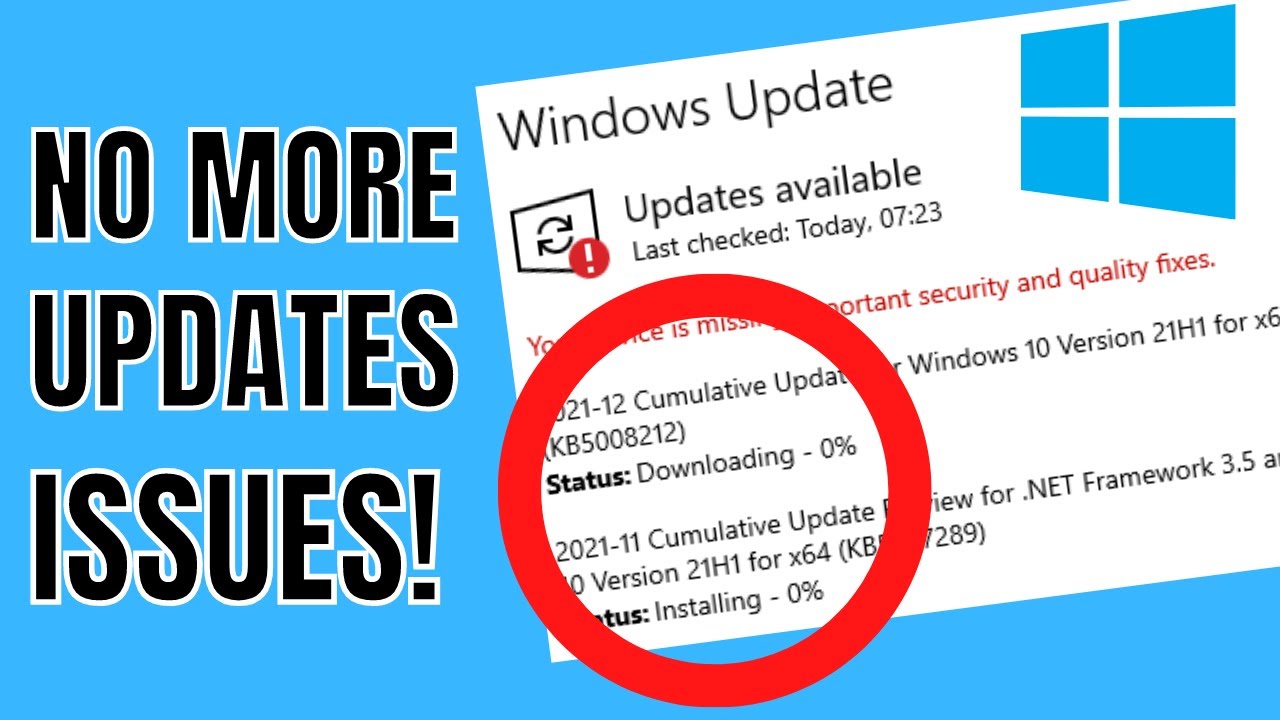
Keeping your system updated is essential for security, performance, and stability. But what happens when your update refuses to move forward? The Windows Update stuck at 0% issue is a frustrating problem that many users face.
When updates freeze at 0%, your system may fail to receive important patches, leaving it vulnerable and outdated. Fortunately, this problem is usually fixable with a few simple steps.
In this complete guide, you’ll learn why Windows Update gets stuck and how to fix it quickly.
Why Is Windows Update Stuck at 0%?
There are several reasons why updates fail to progress.
Common Causes:
- Slow or unstable internet connection
- Corrupted update files
- Windows Update service issues
- Insufficient disk space
- Software conflicts
- Firewall or antivirus interference
Signs of the Problem
- Update stuck at 0% for a long time
- No download progress
- High CPU or disk usage
- Repeated update failures
Quick Fixes to Try First
Wait for a Few Minutes
Sometimes updates take time to start.
Check Internet Connection
Ensure stable and fast internet.
Restart Your Computer
This can refresh update processes.
Method 1: Run Windows Update Troubleshooter
Steps:
- Open Settings
- Go to System → Troubleshoot
- Click Other troubleshooters
- Run Windows Update
Method 2: Restart Windows Update Services
Steps:
- Press Windows + R
- Type
services.msc - Locate:
- Windows Update
- Background Intelligent Transfer Service (BITS)
- Right-click each → Restart
Method 3: Clear Windows Update Cache
Corrupted cache files can block updates.
Steps:
- Open Command Prompt (Admin)
- Stop services:
net stop wuauserv net stop bits - Navigate to:
C:\Windows\SoftwareDistribution - Delete all files
- Restart services:
net start wuauserv
net start bits
Method 4: Check Disk Space
Low storage can stop updates.
Steps:
- Open Settings
- Go to System → Storage
- Delete unnecessary files
Method 5: Disable Antivirus Temporarily
Steps:
- Open antivirus software
- Disable real-time protection
Re-enable after update completes.
Method 6: Use DISM Tool
Steps:
- Open Command Prompt (Admin)
- Run:
DISM /Online /Cleanup-Image /RestoreHealth - Restart your PC
Method 7: Run System File Checker
Steps:
- Open Command Prompt (Admin)
- Run:
sfc /scannow
Method 8: Reset Windows Update Components
Steps:
- Stop update services
- Rename folders:
- SoftwareDistribution
- Catroot2
- Restart services
Method 9: Perform Clean Boot
Steps:
- Press Windows + R
- Type
msconfig - Disable non-Microsoft services
- Restart PC
Method 10: Manually Install Updates
Steps:
- Visit Microsoft Update Catalog
- Search for update code
- Download and install manually
Advanced Troubleshooting
Check Event Viewer
- Identify update errors
- Analyze system logs
Update Drivers
Outdated drivers may interfere with updates.
Preventing Windows Update Issues
Maintain Stable Internet
Use reliable connections.
Keep Enough Storage Space
Avoid full disk issues.
Regular System Maintenance
Clean files and optimize system.
Avoid Interrupting Updates
Do not shut down during updates.
Common Mistakes to Avoid
Force Shutdown During Update
Can corrupt system files.
Ignoring Errors
Always investigate update failures.
Disabling Updates Permanently
Leads to security risks.
Real-World Example
Imagine starting a Windows update and seeing it stuck at 0% for hours. After clearing the update cache and restarting services, the update resumes and completes successfully.
Frequently Asked Questions
How long should updates take?
Usually a few minutes to an hour.
Is it safe to stop updates?
Only if completely frozen for a long time.
Can slow internet cause this?
Yes, it’s a common cause.
Conclusion
The Windows Update stuck at 0% issue can delay important updates and compromise system performance. However, with the right approach—such as restarting services, clearing cache, and checking system health—you can resolve the issue quickly.
Regular maintenance and proper update practices will help prevent this problem in the future, ensuring your system remains secure and up to date.