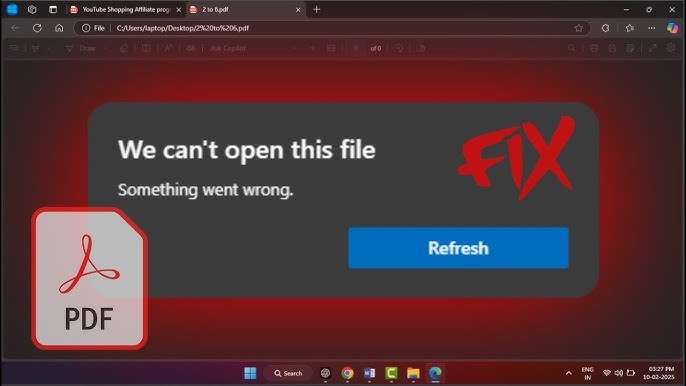
Encountering a Windows application error when opening PDF files can be frustrating, especially when you need quick access to important documents. Whether it’s a work file, school assignment, or personal record, PDF errors can disrupt productivity and cause unnecessary stress.
The good news is that these issues are usually fixable with the right approach. In this comprehensive guide, we’ll explore the causes of PDF-related application errors in Windows and provide step-by-step solutions to resolve them efficiently.
What Is a Windows Application Error When Opening PDF Files?
This error occurs when your system fails to launch or properly display a PDF document. It may appear as:
- “Application Error” message
- PDF not opening
- Program crashing
- Blank or corrupted display
These issues can affect various PDF readers and applications.
Common Causes of PDF Application Errors
Understanding the root cause helps you apply the correct fix.
1. Corrupted PDF File
The file itself may be damaged or incomplete.
2. Outdated PDF Reader
Older versions of PDF software may not support newer files.
3. Software Conflicts
Other applications may interfere with PDF readers.
4. Missing System Updates
Windows updates often include bug fixes and compatibility improvements.
5. Faulty Installation
Improper installation of PDF software can cause errors.
6. Malware or Virus
Malicious software can affect file handling.
Quick Fixes to Try First
Before diving into advanced solutions, try these simple steps.
Restart Your Computer
Clears temporary glitches affecting applications.
Open Another PDF File
Check if the issue is file-specific.
Use a Different PDF Reader
Try opening the file with another program.
Method 1: Update Your PDF Reader
Keeping software updated is essential.
Steps:
- Open your PDF reader
- Go to Help or Settings
- Check for updates
- Install the latest version
Method 2: Repair PDF Software
Many PDF programs include a repair feature.
Steps:
- Open Control Panel
- Go to Programs → Programs and Features
- Select your PDF software
- Click Repair
Method 3: Reinstall the PDF Reader
A fresh installation can fix corrupted files.
Steps:
- Uninstall the current PDF reader
- Restart your computer
- Download the latest version
- Install it again
Method 4: Set Default PDF Viewer
Incorrect default apps can cause issues.
Steps:
- Right-click a PDF file
- Select “Open with”
- Choose your preferred PDF reader
- Click “Always use this app”
Method 5: Check Windows Updates
Updating Windows can resolve compatibility issues.
Steps:
- Open Settings
- Go to Update & Security
- Click Check for updates
- Install updates
Method 6: Scan for Malware
Malware can interfere with applications.
Steps:
- Open Windows Security
- Run a full scan
- Remove any detected threats
Method 7: Disable Protected Mode (Advanced)
Some PDF readers use protected mode, which can cause errors.
Steps:
- Open your PDF reader
- Go to Preferences
- Find Security settings
- Disable protected mode temporarily
Only disable this for testing purposes.
Method 8: Check File Permissions
Restricted permissions can prevent opening files.
Steps:
- Right-click the PDF file
- Select Properties
- Go to Security tab
- Ensure full access
Method 9: Repair Corrupted PDF Files
If the file is damaged:
Options:
- Re-download the file
- Ask the sender for a new copy
- Use online repair tools
Method 10: Use Web-Based PDF Viewers
If local apps fail:
- Upload the PDF to a browser-based viewer
- Open it directly in Chrome or Edge
Advanced Troubleshooting
Check Event Viewer
Windows Event Viewer can reveal error details.
Steps:
- Press
Windows + X - Select Event Viewer
- Look for application errors
Perform System File Check
Fix corrupted system files.
Steps:
- Open Command Prompt as admin
- Run:
sfc /scannow
Preventing PDF Errors in the Future
Keep Software Updated
Regular updates prevent compatibility issues.
Use Trusted Sources
Download files from reliable websites.
Maintain System Health
Run regular scans and cleanups.
Common Mistakes to Avoid
Ignoring Error Messages
They often provide useful clues.
Using Outdated Software
Leads to compatibility problems.
Downloading Unknown Files
Increases risk of malware.
Real-World Example
Imagine receiving an important PDF for work, but it won’t open due to an application error. After updating your PDF reader and reinstalling it, the file opens perfectly—saving time and avoiding delays.
Frequently Asked Questions
Why does my PDF file not open?
It could be due to software issues or file corruption.
Can Windows open PDFs without extra software?
Yes, browsers like Edge can open PDFs.
Is reinstalling the PDF reader effective?
Yes, it often resolves persistent issues.
Tools You Can Use
Built-in Windows Tools
- Windows Security
- Event Viewer
Third-Party Tools
- PDF readers
- File repair utilities
Future of PDF Handling in Windows
Windows continues to improve PDF support with:
- Better built-in viewers
- Enhanced security
- Improved compatibility
Conclusion
Facing a Windows application error when opening PDF files can be inconvenient, but it’s usually easy to fix with the right steps. From updating your PDF reader and checking system settings to repairing files and scanning for malware, there are multiple solutions available.
By following this guide, you can quickly identify the cause and restore access to your PDF documents. Regular maintenance and safe practices will also help prevent future issues, ensuring a smooth and reliable experience when working with PDFs on Windows.