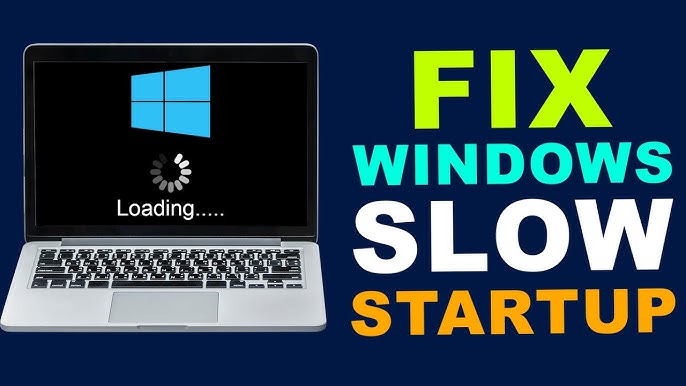
A slow startup can be incredibly frustrating. Waiting minutes for your computer to boot up wastes time and reduces productivity. The Windows 10 slow startup and boot time issue is a common problem that many users experience over time.
Fortunately, there are several effective ways to speed up your system and reduce boot time significantly. In this complete guide, you’ll learn what causes slow startup and how to fix it step by step.
Why Is Windows 10 Starting Slowly?
Over time, your system accumulates programs, files, and settings that can slow down startup.
Common Causes:
- Too many startup programs
- Outdated drivers
- Fragmented hard drive
- Malware or viruses
- Low system resources
- Fast Startup feature issues
Signs of Slow Startup
- Long boot time
- Black screen delay
- Slow login process
- Delayed app loading
Quick Fixes to Try First
Restart Your Computer
Clears temporary system issues.
Disconnect External Devices
Removes unnecessary load during boot.
Check for Updates
Ensure system is up to date.
Method 1: Disable Startup Programs
Too many startup apps slow down boot time.
Steps:
- Press Ctrl + Shift + Esc
- Open Task Manager
- Go to Startup tab
- Disable unnecessary programs
Method 2: Enable Fast Startup
Steps:
- Open Control Panel
- Go to Power Options
- Click Choose what power buttons do
- Enable Fast Startup
Method 3: Update Drivers
Steps:
- Press Windows + X
- Open Device Manager
- Update all major drivers
Method 4: Run Disk Cleanup
Steps:
- Search for Disk Cleanup
- Select system drive
- Delete temporary files
Method 5: Disable Unnecessary Services
Steps:
- Press Windows + R
- Type
msconfig - Disable non-Microsoft services
Method 6: Scan for Malware
Steps:
- Open Windows Security
- Run full scan
Method 7: Upgrade to SSD
If using HDD:
- SSD significantly improves boot speed
Method 8: Defragment Hard Drive
Steps:
- Search Defragment tool
- Optimize drive
Method 9: Increase Virtual Memory
Steps:
- Open System Properties
- Go to Advanced settings
- Adjust virtual memory
Method 10: Reset Windows
If performance is still slow:
Steps:
- Open Settings
- Go to Recovery
- Click Reset this PC
Advanced Tips for Faster Startup
Disable Background Apps
- Reduces system load
Clean Registry (Advanced)
- Remove unnecessary entries
Update BIOS
Advanced users only.
Preventing Slow Startup
Limit Startup Programs
Only enable essential apps.
Keep System Clean
Remove unnecessary files.
Update Regularly
Fix bugs and improve performance.
Use Reliable Antivirus
Prevent malware slowdown.
Common Mistakes to Avoid
Installing Too Many Apps
Clutters startup process.
Ignoring Maintenance
Leads to performance degradation.
Using Old Hardware
HDD is slower than SSD.
Real-World Example
Imagine your PC taking 3 minutes to boot. After disabling startup apps and switching to an SSD, your system boots in under 20 seconds.
Frequently Asked Questions
Why is my PC slow to start?
Usually due to startup programs or hardware.
Does SSD improve boot time?
Yes, significantly.
Is resetting Windows necessary?
Only if other fixes don’t work.
Conclusion
The Windows 10 slow startup and boot time issue can slow down your daily workflow, but it’s easy to fix with the right steps. By managing startup programs, updating drivers, and optimizing your system, you can dramatically improve boot speed.
Regular maintenance and smart usage habits will keep your system fast, responsive, and efficient for the long term.