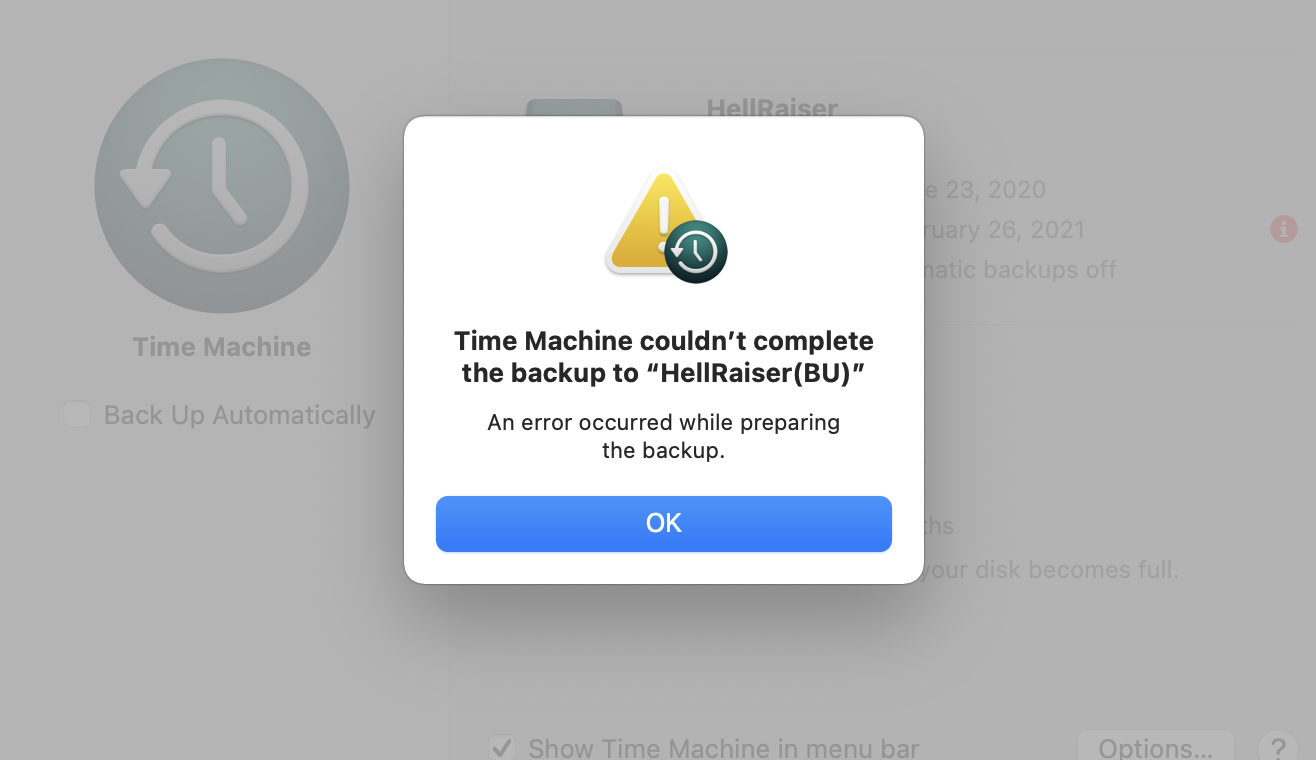
If you are a Mac user, backing up your data regularly is essential to prevent data loss. Apple’s built-in backup feature, Time Machine, is one of the easiest and most reliable tools for safeguarding your files. However, many users encounter a frustrating issue: “Time Machine could not complete the backup.”
This error can interrupt your backup process and leave your important files unprotected. In this comprehensive guide, we will explore the causes of this issue and provide step-by-step solutions to fix it effectively.
What Does “Time Machine Could Not Complete the Backup” Mean?
This error indicates that Time Machine failed to finish a scheduled or manual backup. The failure can occur due to several reasons, including disk errors, insufficient storage, corrupted files, or connection issues.
Understanding the root cause is key to resolving the problem and ensuring smooth backups in the future.
Common Causes of the Error
Before jumping into solutions, let’s identify the most common reasons behind this issue.
1. Insufficient Backup Disk Space
If your backup disk is full, Time Machine cannot store new data.
2. Corrupted Backup Files
Damaged files within the backup can interrupt the process.
3. Disk Permission Issues
Incorrect permissions may prevent Time Machine from accessing files.
4. Network Problems
For network backups, unstable connections can cause failures.
5. macOS Bugs or Glitches
Software issues can also trigger backup errors.
How to Fix Time Machine Could Not Complete the Backup
Below are proven troubleshooting methods to resolve the issue.
1. Restart Your Mac and Retry Backup
Sometimes, a simple restart can fix temporary glitches.
Steps:
- Click the Apple menu
- Select Restart
- Run Time Machine again
This clears temporary system issues that may interfere with backups.
2. Check Available Disk Space
Ensure your backup drive has enough free space.
How to check:
- Open Finder
- Select your backup disk
- Right-click and choose “Get Info”
If space is low:
- Delete old backups
- Enable automatic backup management
3. Delete Incomplete Backup Files
Incomplete backups can cause repeated failures.
Steps:
- Open your backup drive
- Navigate to
Backups.backupdb - Find files ending with
.inProgress - Delete them
After deleting, try backing up again.
4. Repair Disk Using Disk Utility
Disk errors are a common cause of backup failures.
Steps:
- Open Disk Utility
- Select your backup disk
- Click “First Aid”
- Run the repair process
This fixes file system errors that may block backups.
5. Check File Permissions
Incorrect permissions can prevent access to files.
Fix:
- Open System Settings
- Go to Privacy & Security
- Ensure Time Machine has full disk access
Granting proper permissions often resolves the issue.
6. Exclude Problematic Files
Some files may be too large or corrupted.
Steps:
- Open Time Machine settings
- Click “Options”
- Add files/folders to exclusion list
This prevents problematic files from interrupting backups.
7. Reset Time Machine Preferences
Resetting can fix configuration issues.
Steps:
- Turn off Time Machine
- Remove backup disk
- Restart your Mac
- Reconnect disk and enable Time Machine
This creates a fresh backup configuration.
8. Check Network Connection (For Network Backups)
If you use a network drive:
- Ensure stable Wi-Fi connection
- Restart your router
- Reconnect to the network
Network interruptions often cause incomplete backups.
9. Update macOS
Software updates often fix bugs affecting Time Machine.
Steps:
- Open System Settings
- Go to General → Software Update
- Install available updates
Keeping macOS updated ensures compatibility and stability.
10. Reformat the Backup Drive (Last Resort)
If nothing works, reformatting may be necessary.
Warning: This will erase all data on the backup drive.
Steps:
- Open Disk Utility
- Select the backup disk
- Click “Erase”
- Choose APFS or Mac OS Extended (Journaled)
After formatting, set up Time Machine again.
Advanced Troubleshooting
If basic fixes don’t work, try these advanced methods.
Use Terminal to Verify Backup
Run this command:
tmutil verifychecksums /Volumes/YourBackupDrive
This checks for corruption in backup files.
Reset Spotlight Index
Spotlight indexing issues can interfere with backups.
sudo mdutil -E /
This rebuilds the index and may resolve the error.
Check Logs for Errors
Use Console app to view Time Machine logs for detailed error messages. This helps identify the exact cause.
Preventing Future Backup Errors
Prevention is always better than fixing recurring issues.
1. Use a Reliable Backup Drive
Choose high-quality external drives with sufficient capacity.
2. Keep macOS Updated
Regular updates fix bugs and improve performance.
3. Avoid Interrupting Backups
Do not disconnect the drive during backup.
4. Monitor Disk Health
Run Disk Utility checks periodically.
5. Schedule Regular Backups
Ensure consistent backup routines.
Time Machine Best Practices
To maximize reliability:
- Use dedicated backup drives
- Enable automatic backups
- Keep multiple backup copies
- Test backups occasionally
These practices ensure your data remains safe.
When to Seek Professional Help
If the error persists despite all fixes, consider:
- Hardware failure (drive issues)
- Severe file system corruption
- macOS system problems
In such cases, consult Apple Support or a professional technician.
Conclusion
The “Time Machine could not complete the backup” error can be frustrating, but it is usually fixable with the right approach. From checking disk space to repairing drives and updating macOS, most issues can be resolved with simple troubleshooting steps.
By following this guide, you can restore your backup functionality and protect your valuable data from loss. Regular maintenance and proper backup habits will also help prevent this issue from recurring.
Time Machine is a powerful tool—once it runs smoothly, it provides peace of mind knowing your files are safe and recoverable at any time.