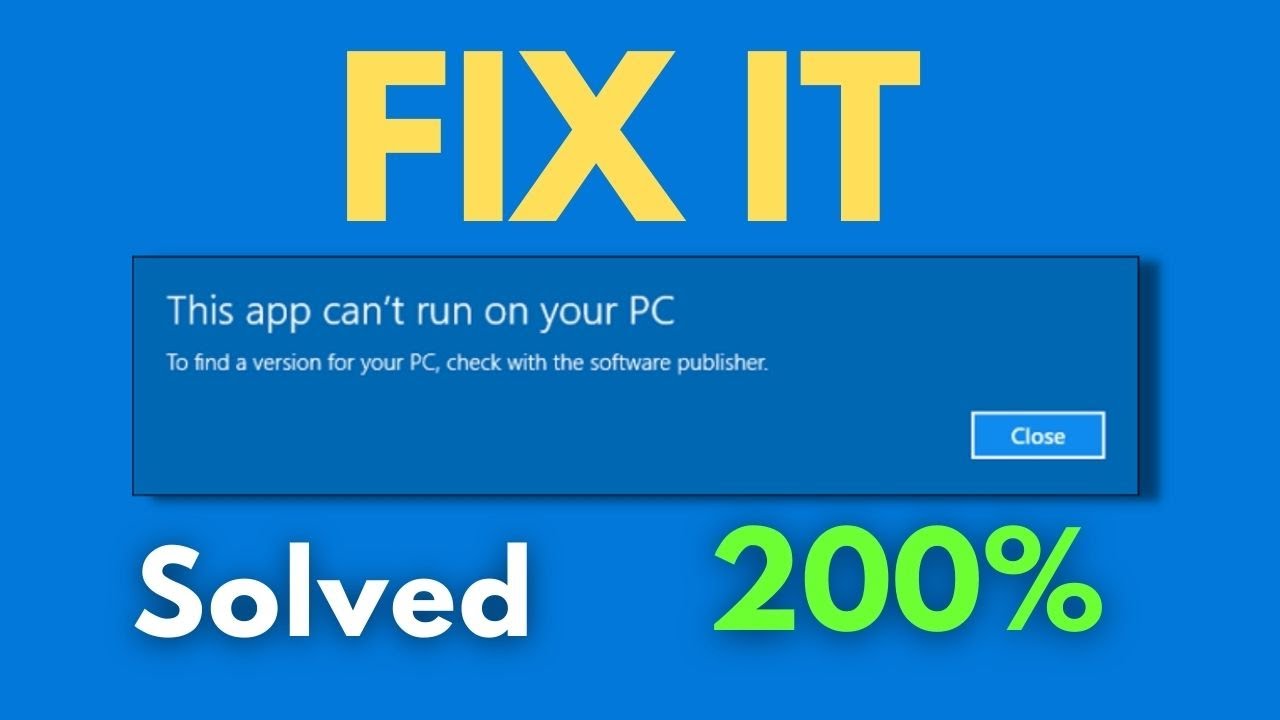
If you’ve ever tried to open a program on your computer and received the message “This app can’t run on your PC”, you’re not alone. This common Windows error can prevent you from launching applications and disrupt your workflow.
The issue can occur for various reasons, from compatibility problems to corrupted files. Fortunately, there are multiple ways to fix it quickly.
In this complete guide, you’ll learn what causes this error and how to fix it step by step.
What Does “This App Can’t Run on Your PC” Mean?
This error usually appears when Windows determines that an application is incompatible or unsafe to run on your system.
Common Scenarios:
- Opening older software on newer Windows versions
- Running apps not designed for your system architecture
- Attempting to launch corrupted files
Common Causes of the Error
1. 32-bit vs 64-bit Compatibility
Trying to run a 64-bit app on a 32-bit system (or vice versa).
2. Corrupted Application Files
Incomplete or damaged installation files.
3. Blocked by Windows Security
Windows Defender or SmartScreen may block apps.
4. Outdated Windows Version
Older systems may not support newer apps.
5. User Account Restrictions
Limited permissions can prevent apps from running.
6. Malware or Suspicious Software
Windows may block unsafe files.
Quick Fixes to Try First
Restart Your Computer
Simple but effective for temporary issues.
Re-download the Application
The file may be corrupted.
Try Another App Version
Download a compatible version.
Method 1: Check System Type (32-bit or 64-bit)
Steps:
- Press Windows + I
- Go to System → About
- Check System type
Make sure the app matches your system architecture.
Method 2: Run as Administrator
Steps:
- Right-click the app
- Select Run as administrator
This gives the app necessary permissions.
Method 3: Enable App via SmartScreen
Steps:
- Double-click the app
- Click More info
- Select Run anyway
Only do this for trusted apps.
Method 4: Check for Windows Updates
Steps:
- Open Settings
- Go to Update & Security
- Click Check for updates
Install any available updates.
Method 5: Use Compatibility Mode
Steps:
- Right-click the app
- Select Properties
- Go to Compatibility tab
- Check Run this program in compatibility mode
- Choose an older Windows version
Method 6: Create a New User Account
Steps:
- Open Settings
- Go to Accounts → Family & other users
- Add a new user
- Try running the app
Method 7: Disable Windows Defender Temporarily
Steps:
- Open Windows Security
- Go to Virus & Threat Protection
- Turn off real-time protection
Re-enable after testing.
Method 8: Check File Integrity
Steps:
- Right-click the file
- Select Properties
- Check file size and details
Re-download if needed.
Method 9: Install Required Frameworks
Some apps need additional components.
Examples:
- .NET Framework
- Visual C++ Redistributable
Download from official sources.
Method 10: Reinstall the Application
Steps:
- Uninstall the app
- Restart your PC
- Download the latest version
- Install again
Advanced Troubleshooting
Use Command Prompt (Admin)
Run system scan:
sfc /scannow
Check Event Viewer
- Press Windows + X
- Open Event Viewer
- Look for application errors
Preventing This Error in the Future
Download from Trusted Sources
Avoid unofficial websites.
Keep System Updated
Regular updates improve compatibility.
Use Correct App Versions
Always match system architecture.
Maintain System Security
Use antivirus and avoid suspicious files.
Common Mistakes to Avoid
Ignoring Compatibility
Always check app requirements.
Running Unknown Files
May harm your system.
Disabling Security Permanently
Only disable temporarily for testing.
Real-World Example
Imagine downloading a program and trying to open it, only to see the error message. After checking your system type, you realize you installed a 64-bit app on a 32-bit system. Downloading the correct version instantly solves the problem.
Frequently Asked Questions
Why does this error appear?
Usually due to compatibility or security restrictions.
Can I force the app to run?
Yes, using compatibility mode or admin access.
Is this error dangerous?
Not always, but it may indicate unsafe software.
Conclusion
The “This app can’t run on your PC” error in Windows can be frustrating, but it’s usually easy to fix. By checking compatibility, updating your system, adjusting security settings, and reinstalling the application, you can resolve the issue quickly.
Following the steps in this guide will help you run your applications smoothly and avoid similar problems in the future.