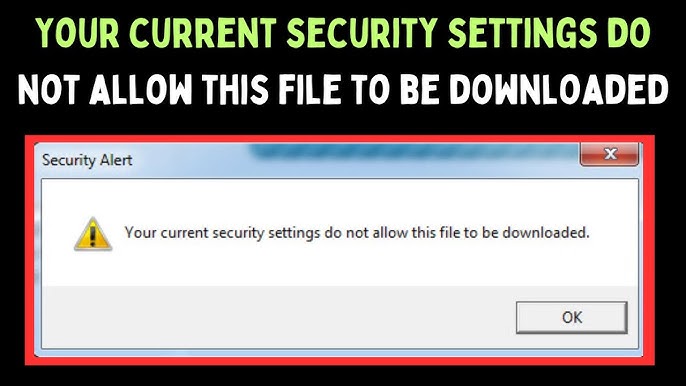
When browsing files in Windows File Explorer, you may sometimes see a warning message that says:
“The file you are attempting to preview could harm your computer.”
This alert typically appears when you try to preview files such as PDFs, documents, or other attachments using the Preview Pane in Windows File Explorer. While the message may seem alarming, it is actually a security feature designed to protect your system from potentially unsafe files.
The warning usually occurs when Windows cannot verify the safety of a file or when certain security settings restrict preview functionality. Although the alert is intended to protect users, it can become frustrating if it appears for safe files that you frequently open or preview.
In this detailed guide, you will learn what this warning means, why it appears, and how to fix it so that you can safely preview files in Windows again.
What Does the Preview Warning Mean?
The message “The file you are attempting to preview could harm your computer” is generated by Windows security features. It appears when Windows detects that previewing the file might pose a potential risk.
File previews load parts of a file into memory so you can view its contents without fully opening the file. If a file contains malicious scripts or hidden code, previewing it could theoretically execute harmful content.
Because of this risk, Windows sometimes blocks previews of files that:
- Come from the internet
- Were downloaded from email attachments
- Are stored in temporary locations
- Have restricted security permissions
- Are associated with untrusted preview handlers
This warning helps prevent malware infections and unauthorized file execution.
When Does This Warning Typically Appear?
Users most commonly encounter this message in the following situations.
Previewing Downloaded Files
Files downloaded from websites or email attachments may be marked as coming from an external source.
Opening PDF Files in Preview Pane
PDF preview handlers sometimes trigger the warning due to security restrictions.
Previewing Files From Network Locations
Files stored on shared drives or network folders may not be trusted by default.
Using Third-Party Preview Handlers
Certain programs install preview handlers that Windows may not fully trust.
Strict Security Settings
High security policies in Windows may block previews for safety.
Understanding the trigger helps determine the best solution.
How Windows File Preview Works
Windows File Explorer includes a feature called the Preview Pane, which allows users to see file contents without opening the file in its full application.
Preview Pane supports many file types such as:
- PDF files
- Word documents
- Excel spreadsheets
- Images
- Text files
- PowerPoint presentations
To display previews, Windows uses small extensions called Preview Handlers. These handlers are installed by applications like PDF readers or Office software.
If a preview handler is missing, outdated, or blocked by security settings, Windows may show the security warning.
Common Causes of the Preview Security Warning
Several factors may cause the preview error in Windows.
1. File Blocked by Windows Security
Files downloaded from the internet are often marked as blocked by Windows using an alternate data stream.
2. Outdated or Missing Preview Handlers
Applications responsible for file previews may not be installed correctly.
3. Security Settings in File Explorer
Certain Windows policies may disable preview handlers in protected modes.
4. Antivirus Restrictions
Some antivirus programs block preview functionality for files they consider suspicious.
5. Corrupted System Files
Damaged Windows components can interfere with preview features.
6. Incompatible PDF Reader
Older PDF software may not integrate properly with Windows preview functionality.
Method 1: Unblock the File
If a file was downloaded from the internet, Windows may mark it as unsafe. Removing the block can allow previews.
Steps to Unblock the File
- Right-click the file.
- Select Properties.
- In the General tab, look for the Security section.
- Check the Unblock option.
- Click Apply and then OK.
After unblocking, try previewing the file again.
Method 2: Enable Preview Pane in File Explorer
Sometimes the preview pane may be disabled.
Steps to Enable Preview Pane
- Open File Explorer.
- Click the View menu.
- Select Preview Pane.
Alternatively, press Alt + P to toggle the preview pane.
Once enabled, select a file to preview its contents.
Method 3: Update Your PDF Reader
If the warning occurs when previewing PDFs, your PDF reader may be outdated.
Updating the application ensures compatibility with Windows preview handlers.
Steps
- Open your PDF reader.
- Navigate to Help or Check for Updates.
- Install the latest update.
After updating, restart File Explorer and try again.
Method 4: Enable Preview Handlers in Windows Settings
Preview handlers can be disabled in folder options.
Steps to Enable Preview Handlers
- Open File Explorer.
- Click the three-dot menu.
- Select Options.
- Go to the View tab.
- Ensure Show preview handlers in preview pane is checked.
- Click Apply.
This allows preview extensions to function properly.
Method 5: Restart Windows Explorer
File Explorer sometimes experiences temporary glitches.
Restarting the process may fix preview issues.
Steps
- Press Ctrl + Shift + Esc to open Task Manager.
- Locate Windows Explorer.
- Right-click it.
- Select Restart.
After restarting, check if previews work again.
Method 6: Repair Corrupted System Files
Corrupted Windows files may disrupt preview features.
Using the System File Checker can repair damaged components.
Steps
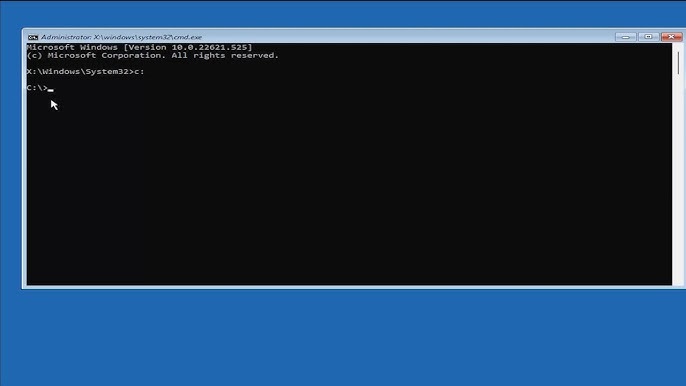
- Open Command Prompt as Administrator.
- Enter the command:
sfc /scannow
- Press Enter.
Wait for the scan to complete, then restart your computer.
Method 7: Check Antivirus Settings
Some antivirus programs block preview functionality to prevent malware.
Open your antivirus settings and look for features related to:
- File scanning
- Script protection
- Email attachment protection
Temporarily disabling certain features may allow previews to function.
Always re-enable protection after testing.
Method 8: Reset File Explorer Settings
Resetting File Explorer can resolve configuration issues.
Steps
- Open File Explorer Options.
- Go to the General tab.
- Click Restore Defaults.
- Click Apply.
Restart File Explorer afterward.
Method 9: Clear Windows Thumbnail Cache
Corrupted cache files may prevent previews from loading correctly.
Steps
- Open Disk Cleanup.
- Select your system drive.
- Check Thumbnails.
- Click OK to remove cached data.
Windows will regenerate the cache automatically.
Method 10: Reinstall the PDF Preview Handler
If the problem specifically affects PDFs, reinstalling the PDF reader may fix the preview handler.
Steps
- Uninstall the current PDF reader.
- Restart your computer.
- Install the latest version of the software.
- Enable preview features during installation.
This usually restores preview functionality.
Security Considerations When Previewing Files
While previews are convenient, they can pose security risks.
Malicious files may contain:
- Hidden scripts
- Exploits targeting preview handlers
- Embedded malware
Always follow these safety guidelines:
- Only preview files from trusted sources
- Scan files with antivirus software
- Avoid previewing unknown attachments
- Keep software updated
These steps help reduce risk.
Preventing Preview Errors in the Future
Maintaining a stable Windows environment reduces the chances of encountering preview warnings.
Best practices include:
- Regularly updating Windows
- Keeping applications current
- Running periodic system scans
- Removing unused preview extensions
- Maintaining disk health
Consistent maintenance improves overall system performance.
When the Warning Is Actually Helpful
Although the warning may appear unnecessary at times, it is an important security safeguard.
If the file originates from:
- Unknown email senders
- Suspicious websites
- Untrusted network locations
The warning could prevent a potential malware infection.
In these situations, you should avoid previewing or opening the file until it has been verified as safe.
Alternative Ways to View Files Safely
If preview functionality remains unreliable, consider alternative viewing methods.
You can:
- Open files in secure viewer applications
- Upload files to cloud viewers
- Use sandbox environments
These options reduce the risk of executing harmful content.
Conclusion
The message “The file you are attempting to preview could harm your computer” is a built-in Windows security warning designed to protect users from potentially unsafe files. Although the warning may sometimes appear for harmless files, it serves as an important safeguard against malicious content.
Fortunately, this issue can usually be resolved by unblocking the file, enabling preview handlers, updating PDF readers, restarting File Explorer, or repairing system files. By following the methods outlined in this guide, you can restore normal preview functionality while maintaining strong security protections.
Keeping your system updated, monitoring downloads, and maintaining secure browsing habits will help ensure that your Windows computer remains safe and efficient when previewing files in File Explorer.