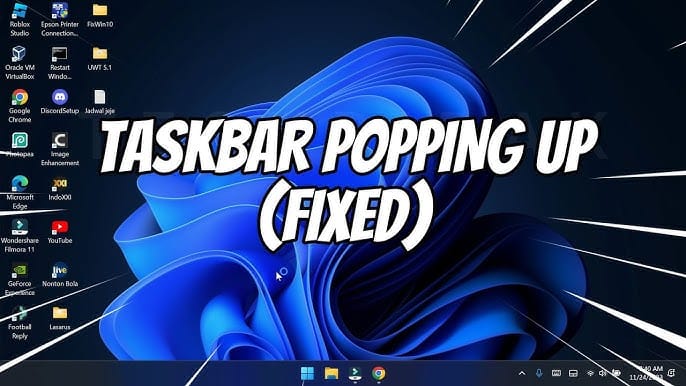
Playing games on a Windows PC should be an immersive experience, especially when running games in full-screen mode. However, some users encounter a frustrating problem where the taskbar suddenly pops up during gameplay. This issue can occur while playing games in either windowed or full-screen modes, interrupting gameplay and potentially causing players to lose focus during important moments.
The problem has been reported by users of both Windows 11 and Windows 10. When the taskbar appears unexpectedly, it can block part of the screen, minimize the game, or prevent smooth mouse movement near the bottom of the display.
Fortunately, there are several effective solutions that can resolve this issue and restore a smooth gaming experience. This guide explains why the taskbar pops up during gaming and provides practical fixes you can try.
Why the Taskbar Pops Up During Games
Before applying fixes, it helps to understand why the taskbar may appear during gameplay.
Several factors can cause this problem:
Background Applications
Some apps running in the background may trigger notifications or request attention from Windows, forcing the taskbar to appear.
Windows Explorer Glitches
The taskbar is managed by Windows Explorer, and glitches in this process can cause abnormal behavior.
Notification Alerts
System notifications from messaging apps, updates, or antivirus software can force the taskbar to show.
Game Mode Conflicts
In some cases, Windows gaming features may interfere with how full-screen applications behave.
Incorrect Taskbar Settings
Taskbar configuration settings may prevent it from hiding correctly during full-screen gameplay.
Solution 1: Restart Windows Explorer
Restarting Windows Explorer can fix many taskbar-related problems.
Steps
- Press Ctrl + Shift + Esc to open Task Manager.
- Find Windows Explorer in the list of processes.
- Right-click it and select Restart.
This refreshes the taskbar and desktop environment.
Once the process restarts, launch your game again to see if the issue is resolved.
Solution 2: Enable Auto-Hide Taskbar
Enabling the auto-hide feature prevents the taskbar from appearing unless you move the mouse to the bottom of the screen.
Steps
- Right-click the taskbar.
- Select Taskbar settings.
- Enable Automatically hide the taskbar.
This setting helps prevent interruptions during gameplay.
Solution 3: Disable Taskbar Notifications
Notifications can trigger the taskbar to appear even when games are running.
You can disable notifications temporarily.
Steps
- Open Settings.
- Go to System → Notifications.
- Turn off notifications or disable them for specific apps.
Reducing background notifications helps maintain uninterrupted gameplay.
Solution 4: Use Focus Assist
Focus Assist is a built-in feature that blocks notifications during specific activities.
Steps
- Open Settings.
- Navigate to System → Focus Assist.
- Select Alarms only or Priority only.
This prevents apps from interrupting your game with alerts.
Solution 5: Check Background Applications
Certain applications constantly demand attention from the taskbar.
Examples include:
- Messaging apps
- Game launchers
- Update utilities
- Antivirus software
Close unnecessary programs before starting your game.
Reducing background activity can prevent the taskbar from appearing unexpectedly.
Solution 6: Disable Windows Game Bar
The Xbox Game Bar can sometimes interfere with full-screen applications.
Steps
- Open Settings.
- Select Gaming.
- Click Xbox Game Bar.
- Turn off the Game Bar toggle.
Disabling this feature may prevent the taskbar from popping up.
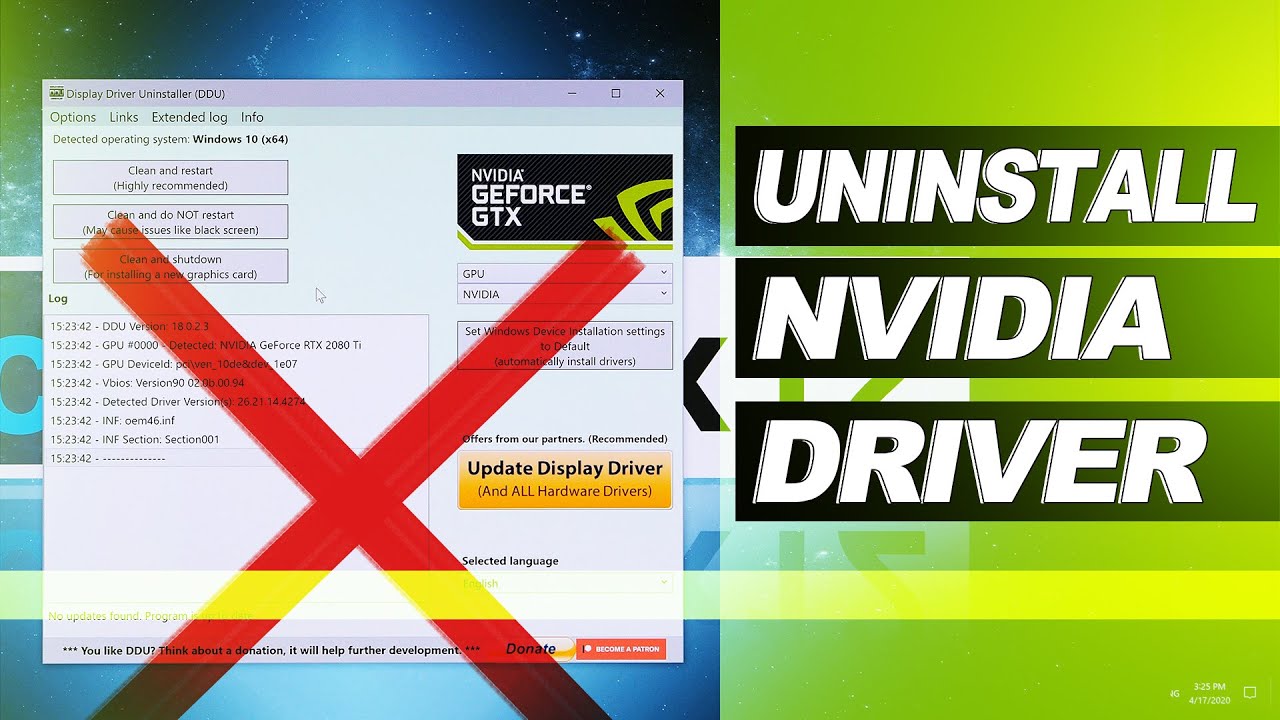
Solution 7: Update Graphics Drivers
Outdated or incompatible graphics drivers can cause display-related issues, including taskbar glitches.
Updating your GPU drivers ensures optimal performance.
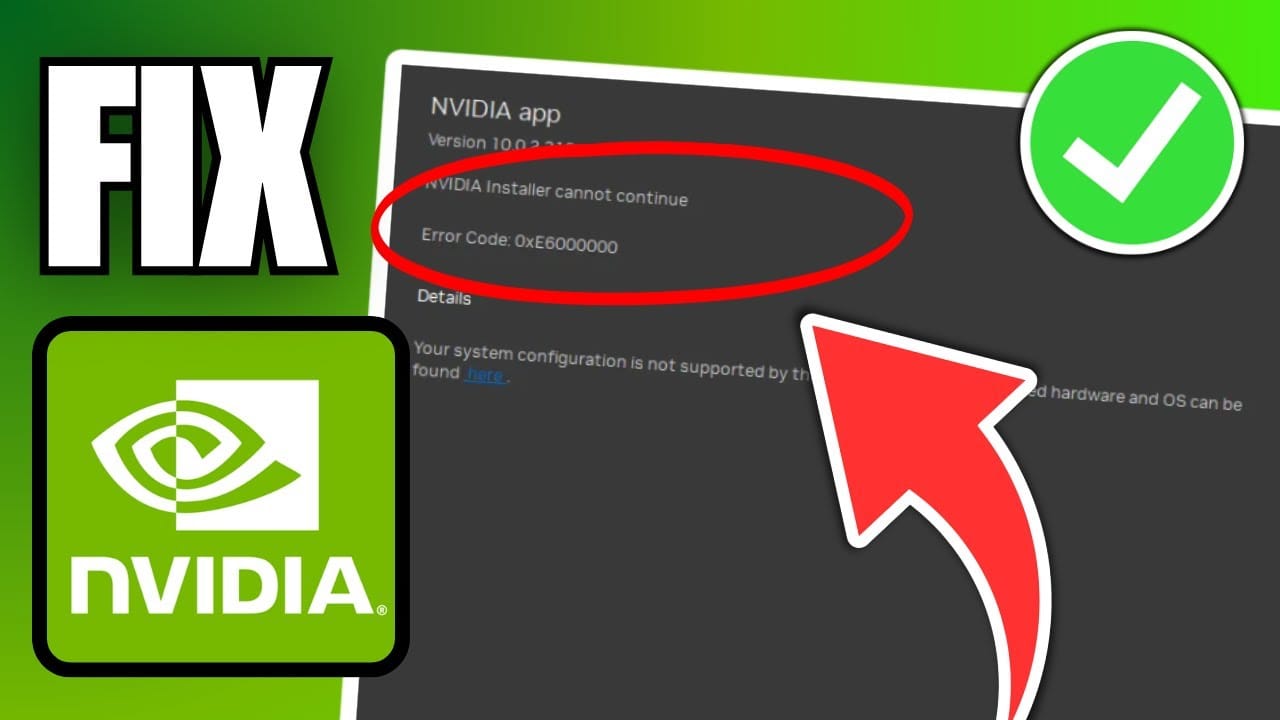
If you use an NVIDIA GPU, you can update drivers through NVIDIA App.
Alternatively, download the latest drivers directly from your GPU manufacturer’s website.
Solution 8: Change Game Display Mode
Sometimes switching display modes can fix the issue.
Try toggling between:
- Full-screen mode
- Borderless windowed mode
- Windowed mode
Many games allow this change in the graphics settings menu.
Borderless windowed mode often works better with Windows taskbar behavior.
Solution 9: Update Windows
Keeping your system updated is important for resolving bugs.
Both Windows 11 and Windows 10 receive regular updates that fix system glitches.
Steps
- Open Settings.
- Go to Windows Update.
- Click Check for updates.
- Install available updates.
Restart your computer afterward.
Solution 10: Scan for System File Corruption
Corrupted system files can also cause unusual taskbar behavior.
You can scan and repair these files using the System File Checker tool.
Steps
- Open Command Prompt as Administrator.
- Run the command:
sfc /scannow
Wait for the scan to complete and restart your PC.
Additional Tips for a Better Gaming Experience
To minimize interruptions while gaming, consider the following tips:
Enable Game Mode
Windows includes a Game Mode feature that prioritizes system resources for games.
Close Background Programs
Shut down unnecessary apps before launching games.
Disable Startup Apps
Too many startup applications can slow down your system.
Use Full-Screen Optimization
Some games run more smoothly with full-screen optimization enabled.
When the Issue Is Game-Specific
In some cases, the problem is caused by the game itself rather than Windows.
Certain games may not handle full-screen mode correctly, especially older titles.
If the issue occurs only in one game:
- Update the game
- Check the game’s graphics settings
- Verify the game files through the launcher
Game updates often include bug fixes.
Conclusion
The taskbar popping up during gameplay can be extremely frustrating, especially during intense gaming moments. This issue has been reported by users of Windows 11 and Windows 10, and it can occur in both windowed and full-screen modes.
Fortunately, the problem is usually caused by minor system glitches, background applications, or notification interruptions. By restarting Windows Explorer, disabling notifications, enabling auto-hide for the taskbar, updating drivers, and adjusting game settings, you can often resolve the issue quickly.
With the solutions outlined in this guide, you should be able to stop the taskbar from appearing unexpectedly and enjoy a smoother, uninterrupted gaming experience on your Windows PC.