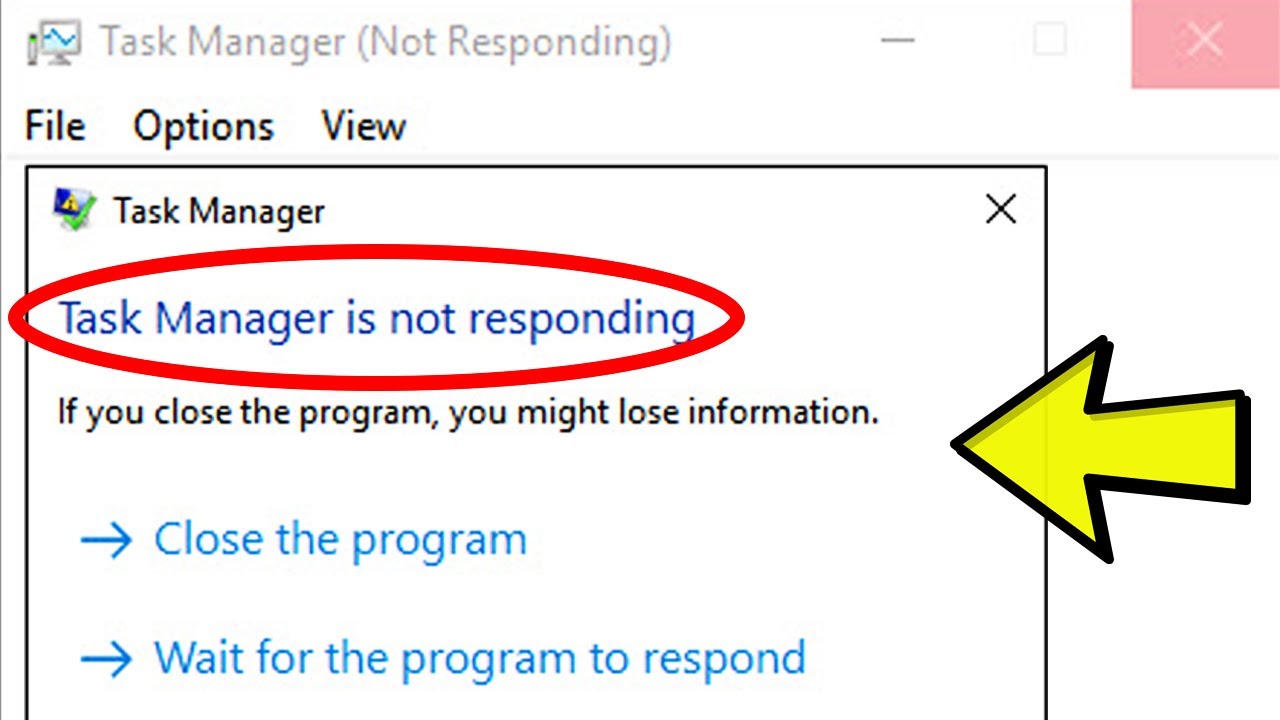
The Task Manager is one of the most important tools in Windows. It allows you to monitor system performance, close unresponsive applications, and manage startup programs. But what happens when Task Manager itself stops working?
The Task Manager not responding Windows 10 issue can be frustrating, especially when your system freezes and you can’t force-close apps. Fortunately, this problem is usually easy to fix.
In this complete guide, you’ll learn the causes and step-by-step solutions to restore Task Manager functionality.
What Is Task Manager and Why It Matters?
Task Manager is a built-in Windows utility that helps you:
- Monitor CPU, RAM, and disk usage
- End unresponsive programs
- Manage startup applications
- Track system performance
If it stops responding, managing your system becomes difficult.
Common Causes of Task Manager Not Responding
1. Corrupted System Files
Damaged system files can affect Task Manager.
2. Malware or Virus
Malicious programs may disable system tools.
3. Software Conflicts
Third-party apps can interfere with functionality.
4. Outdated Windows Version
Bugs in older versions may cause issues.
5. High System Resource Usage
Overloaded system may freeze Task Manager.
Quick Fixes to Try First
Restart Your Computer
Resolves temporary glitches.
Use Keyboard Shortcut
Press Ctrl + Shift + Esc instead of right-click menu.
Try Alternative Method
Press Ctrl + Alt + Delete → Task Manager
Method 1: Run System File Checker (SFC)
Steps:
- Open Command Prompt (Admin)
- Run:
sfc /scannow - Wait for scan to complete
- Restart your PC
Method 2: Use DISM Tool
Steps:
- Open Command Prompt (Admin)
- Run:
DISM /Online /Cleanup-Image /RestoreHealth - Restart system
Method 3: Scan for Malware
Steps:
- Open Windows Security
- Go to Virus & Threat Protection
- Run a full scan
Method 4: Restart Windows Explorer
Steps:
- Press Ctrl + Shift + Esc
- Find Windows Explorer
- Right-click → Restart
Method 5: Enable Task Manager via Registry
Steps:
- Press Windows + R
- Type
regedit - Navigate to:
HKEY_CURRENT_USER\Software\Microsoft\Windows\CurrentVersion\Policies\System - Set DisableTaskMgr to 0
Be careful when editing registry.
Method 6: Use Group Policy Editor
Steps:
- Press Windows + R
- Type
gpedit.msc - Go to:
User Configuration → Administrative Templates → System → Ctrl+Alt+Del Options - Enable Task Manager
Method 7: Update Windows
Steps:
- Open Settings
- Go to Windows Update
- Click Check for updates
Method 8: Perform Clean Boot
Steps:
- Press Windows + R
- Type
msconfig - Disable non-Microsoft services
- Restart PC
Method 9: Create New User Account
Steps:
- Open Settings
- Go to Accounts
- Add a new user
- Test Task Manager
Method 10: Reset Windows
If nothing works:
Steps:
- Open Settings
- Go to Recovery
- Click Reset this PC
Advanced Troubleshooting
Check Event Viewer
- Identify system errors
- Look for Task Manager issues
Check System Performance
- High CPU or RAM usage may cause freezing
Preventing Task Manager Issues
Keep System Updated
Regular updates fix bugs.
Avoid Suspicious Software
Malware can disable system tools.
Monitor Resource Usage
Avoid overloading your system.
Use Reliable Antivirus
Protect against threats.
Common Mistakes to Avoid
Ignoring System Warnings
Small issues can grow into bigger problems.
Editing Registry Incorrectly
May cause system instability.
Running Too Many Apps
Leads to system overload.
Real-World Example
Imagine your PC freezes, and you try to open Task Manager—but it won’t respond. After running an SFC scan and restarting Windows Explorer, Task Manager works again, allowing you to close problematic apps.
Frequently Asked Questions
Why is Task Manager not opening?
Usually due to system corruption or malware.
Can malware disable Task Manager?
Yes, some viruses block access to it.
Is resetting Windows necessary?
Only if other solutions fail.
Conclusion
The Task Manager not responding Windows 10 issue can disrupt your ability to manage your system, but it’s usually fixable with simple troubleshooting steps. By repairing system files, scanning for malware, and updating Windows, you can restore full functionality.
Regular maintenance and safe usage habits will help prevent this issue in the future, ensuring your system runs smoothly.