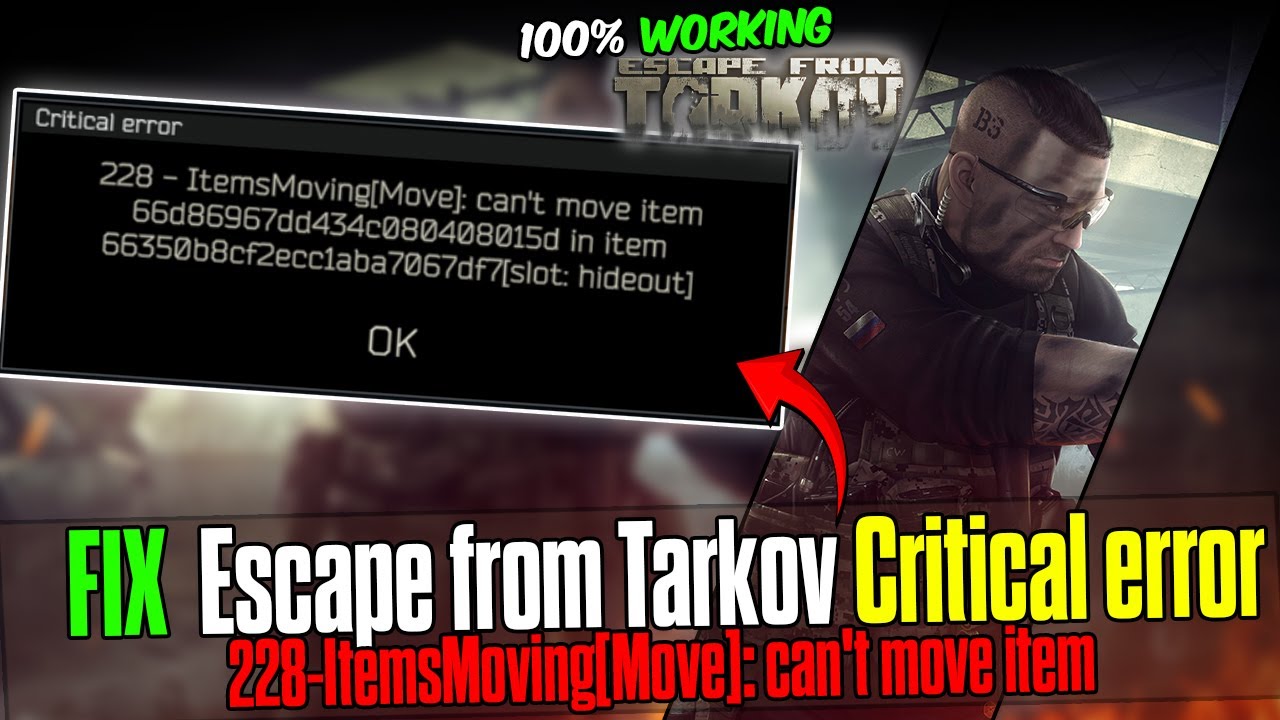
Few things are more frustrating in a hardcore game like Escape from Tarkov than losing control over your inventory. One particularly annoying issue players encounter is the “Critical error 228 – ItemMoving[Move]: Can’t move item” error. This problem typically appears when the game fails to properly synchronize inventory actions between your local client and Tarkov’s backend servers.
Because Escape from Tarkov relies heavily on server-side validation, every item movement—whether in your stash, containers, or trader interface—must be confirmed before it is finalized. If that process breaks, the game throws Error 228, preventing item transfers and sometimes even causing progress loss.
In this in-depth guide, we’ll break down what causes Error 228, how it works, and the most effective ways to fix it so you can get back to playing without interruptions.
What Is Error 228 in Escape from Tarkov?
Error 228 is a synchronization issue related to inventory management. It occurs when the server and your game client disagree on the state of your inventory.
What the Error Means
- The server rejects an item movement request
- Your local inventory does not match the server state
- The action cannot be completed
Why Inventory Sync Matters in Tarkov
Unlike many games, Escape from Tarkov uses a strict server-authoritative system.
Key Characteristics:
- All inventory changes are validated server-side
- Items exist on the server, not just your device
- Every move must be confirmed before completion
This design prevents cheating but can lead to errors if synchronization fails.
Common Causes of Error 228
Understanding the root cause helps you apply the right fix.
1. Server Desynchronization
- Temporary connection issues
- Server lag or overload
2. Corrupted Game Data
- Broken cache files
- Incomplete updates
3. Rapid Item Movement
- Moving items too quickly
- Multiple actions at once
4. Inventory Conflicts
- Duplicate items
- Invalid item states
5. Backend Server Issues
- Maintenance or downtime
- High player traffic
Symptoms of Error 228
You may notice:
- Items snapping back to original position
- Failed transfers between stash and containers
- Error message pop-ups
- Inventory freezing
Quick Fixes to Try First
Before advanced troubleshooting, try these simple steps:
- Restart the game
- Log out and back in
- Wait a few minutes and retry
- Avoid rapid item movements
Solution 1: Restart the Game Properly
A simple restart can resolve temporary sync issues.
Steps:
- Close the game completely
- Wait 1–2 minutes
- Relaunch the game
- Check inventory
Solution 2: Clear Cache Files
Corrupted cache files can cause desync issues.
Steps:
- Open the game launcher
- Find Settings
- Select Clear Cache
- Restart the launcher
Solution 3: Check Server Status
Sometimes the issue is not on your end.
What to Do:
- Check official server status
- Visit community forums
- Wait if servers are unstable
Solution 4: Slow Down Inventory Actions
Rapid movements can overwhelm synchronization.
Tips:
- Move items one at a time
- Wait for confirmation before next action
- Avoid dragging multiple items quickly
Solution 5: Verify Game Files
Corrupted files can cause errors.
Steps:
- Open the launcher
- Select your game
- Choose Verify Integrity
- Wait for completion
Solution 6: Re-log Your Account
Refreshing your session can fix sync issues.
Steps:
- Log out of the launcher
- Close the launcher
- Reopen and log in
- Launch the game
Solution 7: Check Internet Connection
A stable connection is crucial for synchronization.
Tips:
- Use a wired connection
- Restart your router
- Avoid network congestion
Solution 8: Avoid Bugged Items
Certain items may cause conflicts.
What to Do:
- Identify problematic items
- Avoid moving them temporarily
- Restart the game
Solution 9: Reinstall the Game
If all else fails, reinstalling may help.
Steps:
- Uninstall the game
- Restart your PC
- Download and reinstall
- Launch again
Advanced Fixes
Sync Reset Method
- Move items back to original positions
- Restart the game
- Reattempt movement
Clean Inventory Approach
- Organize stash slowly
- Avoid bulk actions
- Save changes frequently
Preventing Error 228
1. Maintain Stable Internet
Avoid interruptions during gameplay.
2. Keep Game Updated
Install patches and updates promptly.
3. Avoid Overloading Actions
Limit rapid inventory changes.
4. Monitor Server Health
Play during stable server conditions.
Why Tarkov Uses Server Validation
This system ensures:
- Fair gameplay
- Anti-cheat protection
- Accurate item tracking
However, it also increases reliance on stable connections.
Common Mistakes to Avoid
- Spamming item movements
- Ignoring server issues
- Skipping updates
- Using unstable networks
When to Contact Support
If the issue persists:
- Submit a support ticket
- Provide error details
- Include screenshots
Frequently Asked Questions
Is Error 228 permanent?
No, it is usually temporary.
Can I lose items?
Rarely, but possible in severe cases.
Is it a server problem?
Often yes, especially during peak times.
Does reinstalling always fix it?
Not always, but it can help.
Final Thoughts
The “Critical error 228 – ItemMoving[Move]: Can’t move item” in Escape from Tarkov is a frustrating but manageable issue. It stems from the game’s strict server-side validation system, which ensures fairness but can lead to synchronization problems.
By understanding the causes and applying the solutions outlined in this guide—such as clearing cache, verifying files, stabilizing your connection, and avoiding rapid actions—you can resolve the error and minimize its occurrence in the future.
While some instances are caused by server-side issues beyond your control, most can be fixed with simple troubleshooting steps. Staying patient and methodical is key.
With the right approach, you’ll be back to managing your inventory smoothly and focusing on what really matters—surviving the intense world of Tarkov.