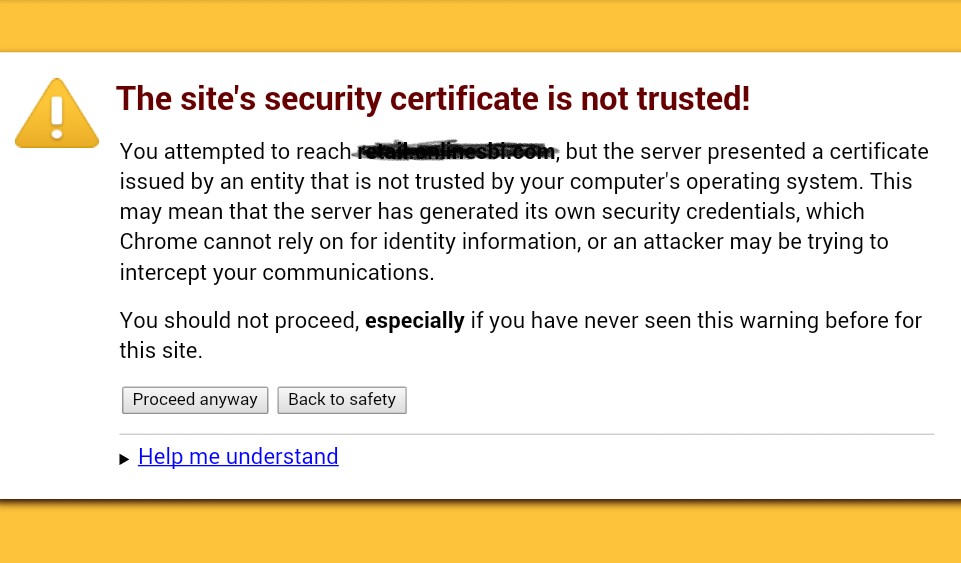
While browsing the internet, you may encounter an error message stating:
“This server could not prove that its security certificate is not trusted.”
This warning typically appears in modern browsers such as Google Chrome, Microsoft Edge, or Mozilla Firefox. It indicates that the browser cannot verify the authenticity of a website’s SSL certificate.
This issue can be alarming because it relates directly to your online security. Fortunately, in many cases, the error can be fixed with simple troubleshooting steps.
In this guide, we will explain what this error means, why it happens, and how to fix it safely.
What Does “Security Certificate Not Trusted” Mean?
Websites use SSL/TLS certificates to encrypt data and prove their identity. When you visit a secure website (HTTPS), your browser checks the certificate to ensure it is valid and issued by a trusted authority.
If the browser cannot verify the certificate, it displays a warning.
This means:
- The website’s identity cannot be confirmed
- Data transmitted may not be secure
- The connection could be intercepted
Browsers block or warn users to prevent potential security risks.
Common Causes of the Error
Several factors can trigger this message.
1. Expired SSL Certificate
Certificates have expiration dates. If a website owner fails to renew the certificate, browsers will flag it as untrusted.
2. Incorrect System Date and Time
Your computer’s clock plays a key role in certificate validation.
If your system date or time is incorrect, the browser may think the certificate is expired or invalid.
3. Self-Signed Certificate
Some websites use self-signed certificates instead of certificates issued by trusted authorities.
Browsers do not trust these certificates by default.
4. Missing Intermediate Certificates
A certificate chain must be complete. If intermediate certificates are missing, the browser cannot verify trust.
5. Antivirus or Firewall Interference
Security software may inspect HTTPS traffic and replace certificates, causing trust errors.
6. Outdated Browser
Older browser versions may not recognize newer certificate authorities.
7. Network Issues
Public Wi-Fi networks or restricted environments may interfere with secure connections.
How to Fix “Security Certificate Not Trusted” Error
Follow these solutions to resolve the issue.
Method 1: Check Your System Date and Time
Incorrect date and time settings are one of the most common causes.
Steps
- Open Settings.
- Go to Time & Language.
- Enable Set time automatically.
- Restart your browser.
Method 2: Update Your Browser
Using an updated browser ensures compatibility with modern security standards.
Steps
- Open browser settings
- Check for updates
- Install the latest version
Browsers like Google Chrome update automatically, but manual checks can help.
Method 3: Clear Browser Cache
Cached data may cause certificate conflicts.
Steps
- Open browser settings
- Go to Privacy & Security
- Clear browsing data
- Restart the browser
Method 4: Disable Antivirus HTTPS Scanning
Some antivirus programs intercept secure connections.
Steps
- Open your antivirus settings
- Locate HTTPS scanning or SSL inspection
- Disable it temporarily
Check if the issue is resolved afterward.
Method 5: Try a Different Network
Network-related issues can cause certificate errors.
Switch to:
- A different Wi-Fi network
- Mobile hotspot
- Wired connection
If the error disappears, the original network may be the cause.
Method 6: Update Operating System
Keeping your system updated ensures that trusted root certificates are current.
For example, users of Windows 11 should install the latest updates.
Steps
- Open Settings
- Go to Windows Update
- Install updates
- Restart your PC
Method 7: Proceed with Caution (Advanced Users Only)
If you trust the website and understand the risks, most browsers allow you to bypass the warning.
However, this is not recommended unless:
- You know the website is safe
- You understand the risks involved
Avoid entering sensitive information on such sites.
When the Problem Is Not on Your Side
Sometimes, the issue lies with the website itself.
Examples include:
- Expired SSL certificate
- Misconfigured server
- Missing certificate chain
In these cases, there is nothing you can fix locally.
You can:
- Wait for the website owner to resolve the issue
- Contact the website administrator
Security Risks to Consider
Ignoring certificate warnings can expose you to risks such as:
- Data interception
- Phishing attacks
- Malware infections
Always be cautious when encountering certificate errors.
Tips to Prevent Certificate Errors
To avoid similar issues in the future:
Keep Your System Updated
Regular updates ensure proper certificate validation.
Use Trusted Browsers
Modern browsers like Microsoft Edge and Mozilla Firefox offer strong security features.
Avoid Suspicious Websites
Only visit trusted and well-known websites.
Use Secure Networks
Avoid unsecured public Wi-Fi for sensitive tasks.
Conclusion
The “This server could not prove that its security certificate is not trusted” error is a security warning designed to protect users from unsafe connections. While it may seem alarming, it is often caused by simple issues such as incorrect system time, outdated browsers, or antivirus interference.
By following the steps in this guide—checking your system settings, updating your browser, clearing cache, and verifying your network—you can resolve the issue in most cases.
Always remember that certificate warnings exist for your protection. When in doubt, avoid proceeding to untrusted websites and ensure your system remains secure while browsing.