Experiencing your NVIDIA graphics driver automatically uninstalling after every reboot on Windows 11 can be frustrating—especially if you rely on your GPU for gaming, design work, or daily productivity. This issue can lead to reduced performance, missing display settings, and even system instability.
Fortunately, this problem is more common than you might think, and there are several proven solutions to fix it. In this in-depth guide, we’ll explore the causes behind this issue and provide step-by-step methods to permanently resolve it.
Understanding the Problem
When your NVIDIA driver disappears after restarting your computer, it usually means something is overriding or removing the installed driver. Windows may revert to a default display driver, or a background process might be interfering with the installation.
Common Symptoms
- NVIDIA Control Panel missing
- Screen resolution resets after reboot
- Device Manager shows Microsoft Basic Display Adapter
- Driver works temporarily but disappears after restart
If you notice these signs, your system is not retaining the installed NVIDIA driver properly.
Main Causes of the Issue
Before jumping into fixes, it’s important to understand why this happens.
1. Windows Update Overwriting Drivers
Windows 11 often installs its own drivers automatically, which can replace or remove NVIDIA drivers.
2. Corrupted Driver Installation
Incomplete or corrupted installations can cause drivers to fail after reboot.
3. Fast Startup Conflicts
The Fast Startup feature may prevent proper driver initialization.
4. Third-Party Software Conflicts
Programs like antivirus or system optimizers can interfere with driver installation.
5. Group Policy or System Restrictions
Certain settings may block driver persistence.
Solution 1: Perform a Clean Driver Installation
A clean installation ensures no leftover files cause conflicts.
Steps:
- Download the latest NVIDIA driver from the official website
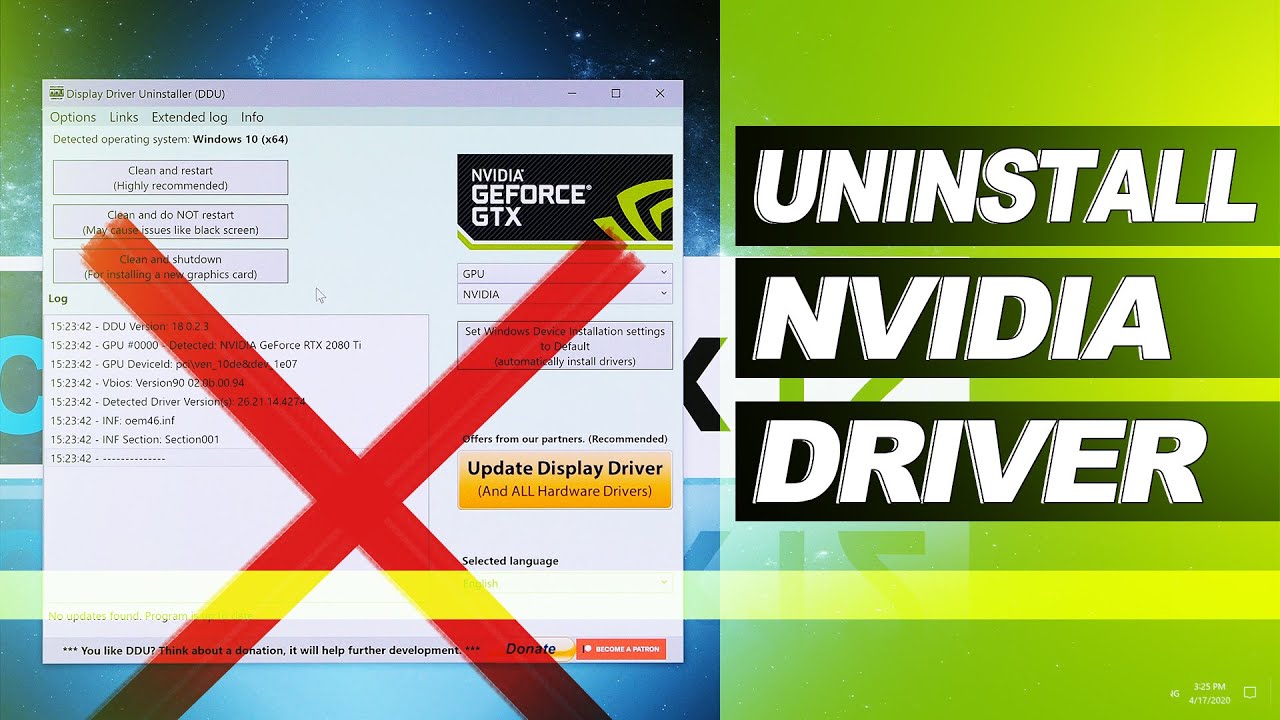
- Download Display Driver Uninstaller (DDU)
- Boot into Safe Mode
- Run DDU and select Clean and Restart
- Install the NVIDIA driver again
- Choose Custom Installation → Check Perform a clean install
This method removes all traces of previous drivers.
Solution 2: Disable Automatic Driver Updates
Prevent Windows from replacing your driver.
Steps:
- Open Control Panel
- Go to System > Advanced System Settings
- Click Hardware tab
- Select Device Installation Settings
- Choose No (your device might not work as expected)
This stops Windows from automatically installing drivers.
Solution 3: Use Group Policy Editor
For more control, disable driver updates via Group Policy.
Steps:
- Press Windows + R
- Type
gpedit.msc - Navigate to:
Computer Configuration > Administrative Templates > Windows Components > Windows Update - Enable Do not include drivers with Windows Updates
This ensures Windows Update won’t interfere.
Solution 4: Disable Fast Startup
Fast Startup can sometimes prevent drivers from loading correctly.
Steps:
- Open Control Panel
- Go to Power Options
- Click Choose what the power buttons do
- Click Change settings that are currently unavailable
- Uncheck Turn on fast startup
Restart your PC and check if the issue persists.
Solution 5: Check Device Manager Settings
Sometimes Windows disables the GPU automatically.
Steps:
- Open Device Manager
- Expand Display adapters
- Right-click your NVIDIA GPU
- Select Properties
- Ensure the device is enabled
If it shows errors, reinstall the driver.
Solution 6: Block Driver Replacement via Registry
Advanced users can prevent driver overwrites through registry edits.
Steps:
- Press Windows + R
- Type
regedit - Navigate to:
HKEY_LOCAL_MACHINE\SOFTWARE\Policies\Microsoft\Windows\WindowsUpdate - Create a new DWORD:
ExcludeWUDriversInQualityUpdate - Set value to 1
This blocks driver updates from Windows.
Solution 7: Update BIOS and Chipset Drivers
Outdated system firmware can cause compatibility issues.
Steps:
- Visit your motherboard or laptop manufacturer’s website
- Download latest BIOS update
- Install updated chipset drivers
These updates improve hardware communication.
Solution 8: Temporarily Disable Antivirus
Some antivirus tools may remove drivers mistakenly.
Steps:
- Disable antivirus temporarily
- Reinstall NVIDIA driver
- Restart system
If the issue is resolved, add an exception for the driver.
Solution 9: Check for Windows Corruption
System file corruption can affect driver stability.
Run SFC Scan:
- Open Command Prompt as Administrator
- Run:
sfc /scannow
Run DISM:
DISM /Online /Cleanup-Image /RestoreHealth
These tools repair system files.
Solution 10: Use Offline Installation
Installing drivers without internet prevents interference.
Steps:
- Disconnect from the internet
- Install NVIDIA driver
- Restart PC
- Reconnect internet
This avoids Windows downloading conflicting drivers.
Solution 11: Roll Back Windows Update
If the issue started recently, a Windows update may be the cause.
Steps:
- Open Settings
- Go to Windows Update > Update History
- Click Uninstall Updates
- Remove the latest update
Check if the driver remains after reboot.
Solution 12: Reinstall Windows (Last Resort)
If nothing works, a fresh Windows installation may be required.
Steps:
- Backup your data
- Use Windows installation media
- Perform clean install
- Install drivers before connecting to the internet
This ensures a clean environment.
Tips to Prevent Future Issues
- Always download drivers from official sources
- Avoid using multiple driver tools
- Keep Windows updated, but control driver updates
- Create system restore points before major changes
Preventive steps can save time and effort later.
Why This Issue Matters
A stable GPU driver is essential for:
- Gaming performance
- Video editing and rendering
- AI and machine learning tasks
- General system stability
Without it, your system may fall back to basic graphics, significantly reducing performance.
Conclusion
The issue of NVIDIA drivers uninstalling after reboot on Windows 11 can be annoying, but it’s usually fixable with the right approach. Whether it’s disabling automatic updates, performing a clean installation, or adjusting system settings, each method targets a specific cause.
Start with the simplest solutions like clean installation and disabling driver updates, then move to advanced fixes if needed. In most cases, one of these methods will resolve the problem permanently.
By understanding the root cause and applying the right fix, you can ensure your NVIDIA driver remains stable and your system performs at its best.