• Contact Us
  • About Us
Sunday, April 5, 2026
Pc Status
No Result
View All Result
  • Login
  • Home
  • Android
  • Apple
  • Browsers
  • Gaming
  • GPU
  • Networks
  • Microsoft Office
  • Windows
  • Software
  • Home
  • Android
  • Apple
  • Browsers
  • Gaming
  • GPU
  • Networks
  • Microsoft Office
  • Windows
  • Software
No Result
View All Result
PC Status
No Result
View All Result
Home Networks

Fix No Internet Secured Error Windows 10 Fast Guide

Learn how to fix No Internet Secured error Windows 10 with simple solutions to restore WiFi access and fix network connection issues quickly.

Karina by Karina
April 4, 2026
in Networks
0
Fix No Internet Secured Error Windows 10 Fast Guide
65
SHARES
87
VIEWS
Share on FacebookShare on Twitter

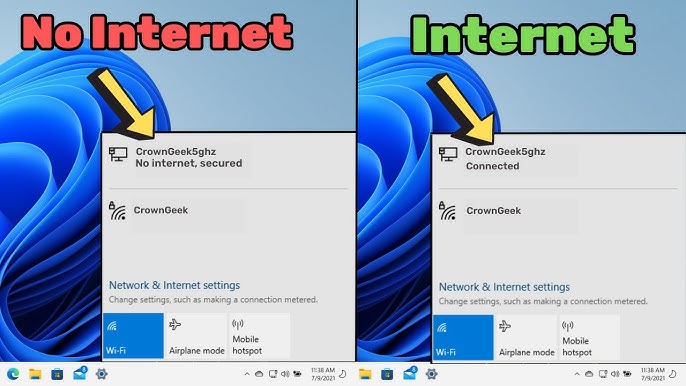
The “No Internet, Secured” error in Windows 10 is a common network issue that can be confusing and frustrating. Your computer shows that it is connected to WiFi, but you still can’t access the internet.

This problem often appears suddenly and can affect your browsing, streaming, and online work. Fortunately, the issue is usually easy to fix with a few troubleshooting steps.

READ ALSO

Fix Ethernet Not Working Windows 10 Easily Fast

How to Speed Up Internet on Windows PC Fast Guide

In this complete guide, you’ll learn what causes the No Internet Secured error Windows 10 and how to fix it quickly.

What Does “No Internet, Secured” Mean?

This message indicates that:

  • Your PC is connected to the WiFi network
  • The connection is secured (password-protected)
  • But there is no internet access

Common Causes of the Error

1. Router or Modem Issues

Temporary glitches or misconfiguration.

2. Incorrect IP Configuration

Invalid IP address assignment.

3. DNS Problems

DNS server may not respond.

4. Outdated Network Drivers

Drivers may cause connection issues.

5. VPN or Proxy Interference

VPN services can block internet access.

6. Windows Network Bugs

System glitches may affect connectivity.

Quick Fixes to Try First

Restart Your Router and PC

Simple but effective.

Forget and Reconnect WiFi

Re-enter network credentials.

Check Other Devices

Confirm if internet works elsewhere.

Method 1: Run Network Troubleshooter

Steps:

  1. Open Settings
  2. Go to Network & Internet
  3. Click Status → Network Troubleshooter
  4. Follow instructions

Method 2: Reset Network Settings

Steps:

  1. Open Settings
  2. Go to Network & Internet
  3. Click Advanced network settings
  4. Select Network reset
  5. Restart PC

Method 3: Renew IP Address

Steps:

  1. Open Command Prompt (Admin)
  2. Run:
    ipconfig /release
    ipconfig /renew
    
  3. Restart system

Method 4: Flush DNS Cache

Steps:

  1. Open Command Prompt (Admin)
  2. Run:
    ipconfig /flushdns
    
  3. Restart PC

Method 5: Change DNS Server

Steps:

  1. Open Control Panel
  2. Go to Network and Sharing Center
  3. Change adapter settings
  4. Right-click WiFi → Properties
  5. Select IPv4
  6. Use:
    • 8.8.8.8
    • 8.8.4.4

Method 6: Disable VPN

Steps:

  1. Open VPN app
  2. Disconnect from VPN
  3. Test connection

Method 7: Update Network Drivers

Steps:

  1. Press Windows + X
  2. Open Device Manager
  3. Update network adapter

Method 8: Disable IPv6

Steps:

  1. Open Network settings
  2. Go to adapter properties
  3. Uncheck IPv6
  4. Restart PC

Method 9: Reset TCP/IP Stack

Steps:

  1. Open Command Prompt (Admin)
  2. Run:
    netsh int ip reset
    
  3. Restart PC

Method 10: Disable Antivirus Temporarily

Some antivirus programs may block internet access.

Re-enable after testing.

Advanced Troubleshooting

Reset Router to Factory Settings

  • Press reset button
  • Reconfigure network

Check ISP Status

  • Contact your provider
  • Confirm no outages

Preventing This Issue

Keep Drivers Updated

Ensures stable connectivity.

Restart Router Regularly

Avoid network glitches.

Avoid Multiple VPNs

Prevents conflicts.

Maintain System Updates

Fix bugs and improve performance.

Common Mistakes to Avoid

Ignoring Router Issues

Problem may not be your PC.

Using Wrong DNS Settings

Incorrect configuration can block access.

Keeping VPN Always On

May interfere with connection.

Real-World Example

Imagine connecting to WiFi and seeing “No Internet, Secured.” After resetting network settings and renewing your IP address, your internet starts working again instantly.

Frequently Asked Questions

Why does this error happen?

Usually due to IP, DNS, or router issues.

Can VPN cause this issue?

Yes, it can block internet access.

Is this a hardware problem?

Usually not—mostly software-related.

Conclusion

The No Internet Secured error Windows 10 can be confusing, but it’s usually easy to fix. By resetting network settings, updating drivers, and checking your router, you can restore your internet connection quickly.

With proper maintenance and correct configuration, you can prevent this issue and enjoy a stable internet connection.

Share26Tweet16Pin6

Related Posts

Fix Ethernet Not Working Windows 10 Easily Fast
Networks

Fix Ethernet Not Working Windows 10 Easily Fast

April 4, 2026
How to Speed Up Internet on Windows PC Fast Guide
Networks

How to Speed Up Internet on Windows PC Fast Guide

April 4, 2026
Fix ERR_SSL_PROTOCOL_ERROR Chrome Browser Fast
Networks

Fix ERR_SSL_PROTOCOL_ERROR Chrome Browser Fast

April 4, 2026
DNS Server Not Responding Windows Fix Guide Fast
Networks

DNS Server Not Responding Windows Fix Guide Fast

April 4, 2026
Fix WiFi Connected But No Internet Windows Issue
Networks

Fix WiFi Connected But No Internet Windows Issue

April 4, 2026
Wi-Fi 6 Technology Explained: Speed, Bands, and QoS Gains
Networks

Wi-Fi 6 Technology Explained: Speed, Bands, and QoS Gains

March 30, 2026

Leave a Reply Cancel reply

Your email address will not be published. Required fields are marked *

I agree to the Terms & Conditions and Privacy Policy.

EDITOR'S PICK

DNS Server Not Responding Windows Fix Guide Fast

DNS Server Not Responding Windows Fix Guide Fast

April 4, 2026
WPA3 Security Modes Explained for Home and Business WiFi

WPA3 Security Modes Explained for Home and Business WiFi

March 30, 2026
How to Fix Mac Flashing Folder With a Question Mark

How to Fix Mac Flashing Folder With a Question Mark

March 28, 2026
Fix Android Error 403 Download Failed After Update

Fix Android Error 403 Download Failed After Update

March 29, 2026
Install Arch Linux in VirtualBox Step-by-Step Guide

Install Arch Linux in VirtualBox Step-by-Step Guide

March 31, 2026
Apple Messaging Protocols and Group Size Requirements Explained

Apple Messaging Protocols and Group Size Rules

March 28, 2026

Popular Posts

  • Switch 2 Game Upgrade Costs: What You Need to Know Now

    Switch 2 Game Upgrade Costs: What You Need to Know Now

    77 shares
    Share 31 Tweet 19
  • Do You Need Antivirus for Microsoft Surface Devices?

    73 shares
    Share 29 Tweet 18
  • Fix Your PC Ran Into a Problem Error Windows 10

    72 shares
    Share 29 Tweet 18
  • Fix iPhone Not Receiving or Making Calls Easily Now

    72 shares
    Share 29 Tweet 18
  • Tung Tung Tung Sahur Fortnite Trend Explained Guide

    71 shares
    Share 28 Tweet 18

About

Explore PC Status for expert tech guides, Windows tips, troubleshooting fixes, reviews, and insights to keep your computer running smoothly.

Follow us

Company

  • Privacy Policy
  • Cookie Policy
  • Terms & Conditions
  • Disclaimer
  • DMCA Policy
  • Affiliate Disclosure

Categories

  • Android
  • Apple
  • Browsers
  • Gaming
  • GPU
  • Microsoft Office
  • Networks
  • Software
  • Windows
  • Privacy Policy
  • Contact Us
  • Disclaimer
  • Terms & Conditions

Copyright © 2026 PC Status - All rights reserved.

No Result
View All Result
  • Home
  • Android
  • Apple
  • Browsers
  • Gaming
  • GPU
  • Networks
  • Microsoft Office
  • Windows
  • Software

Copyright © 2026 PC Status - All rights reserved.

Welcome Back!

Login to your account below

Forgotten Password?

Retrieve your password

Please enter your username or email address to reset your password.

Log In
This website uses cookies. By continuing to use this website you are giving consent to cookies being used. Visit our Privacy and Cookie Policy.