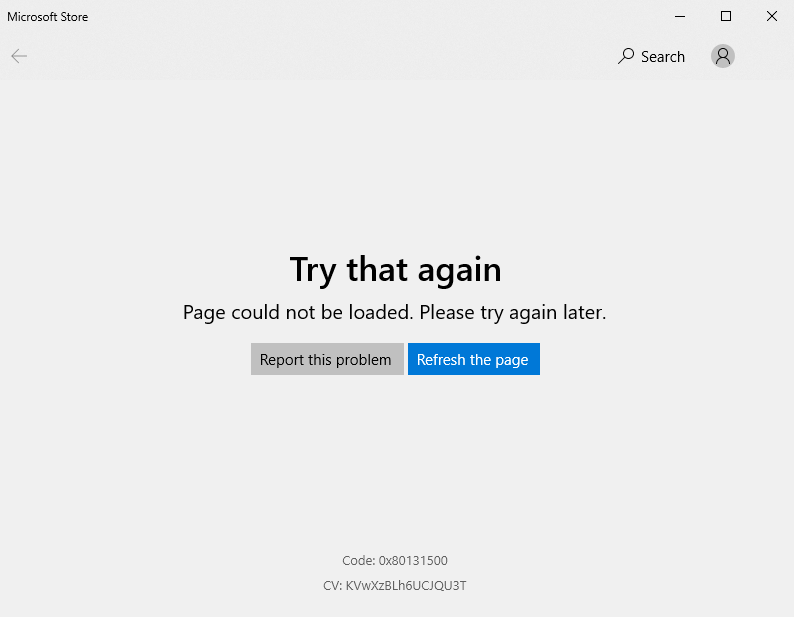
The Microsoft Store is a vital part of Windows 11, allowing users to download apps, games, and updates with ease. However, many users encounter frustrating issues where the Microsoft Store stops working, fails to open, or refuses to download apps.
If you’re facing this problem, don’t worry—you’re not alone. The good news is that most Microsoft Store issues can be resolved with simple troubleshooting steps. In this comprehensive guide, we’ll walk you through the causes and solutions to fix Microsoft Store not working on Windows 11.
Why Microsoft Store Stops Working on Windows 11
Understanding the root cause is key to fixing the issue effectively. Here are the most common reasons:
1. Corrupted Cache Files
The Microsoft Store uses cached data to speed up performance. When this cache becomes corrupted, it can prevent the app from functioning properly.
2. Internet Connection Issues
A weak or unstable internet connection can stop the Store from loading or downloading apps.
3. Incorrect Date and Time Settings
If your system clock is out of sync, it can interfere with Microsoft services.
4. Outdated Windows Version
Running an outdated version of Windows 11 can lead to compatibility issues.
5. Disabled Services
Certain Windows services are required for the Microsoft Store to work properly.
6. Corrupted System Files
Damaged system files can disrupt app functionality.
7. Account Issues
Problems with your Microsoft account can prevent access to the Store.
How to Fix Microsoft Store Not Working Windows 11
Let’s explore the most effective solutions step by step.
1. Restart Your Computer
It may sound simple, but restarting your PC can fix temporary glitches.
2. Check Your Internet Connection
Ensure you have a stable connection.
Tips:
- Restart your router
- Switch to a wired connection if possible
- Test other websites to confirm connectivity
3. Sign Out and Back Into Microsoft Store
Refreshing your account can resolve login-related issues.
Steps:
- Open Microsoft Store
- Click your profile icon
- Sign out
- Sign back in
4. Clear Microsoft Store Cache
Clearing cache is one of the most effective fixes.
Steps:
- Press Win + R
- Type
wsreset.exe - Press Enter
- Wait for the process to complete
This will reset the Store cache without deleting apps.
5. Run Windows Troubleshooter
Windows 11 includes a built-in troubleshooter.
Steps:
- Go to Settings
- Click System → Troubleshoot → Other troubleshooters
- Find “Windows Store Apps”
- Click Run
6. Check Date and Time Settings
Incorrect settings can block Microsoft services.
Steps:
- Go to Settings → Time & Language
- Enable “Set time automatically”
- Enable “Set time zone automatically”
7. Update Windows 11
Keeping your system updated is crucial.
Steps:
- Go to Settings → Windows Update
- Click “Check for updates”
- Install any available updates
8. Repair Microsoft Store
Windows allows you to repair apps without deleting data.
Steps:
- Go to Settings → Apps → Installed Apps
- Find Microsoft Store
- Click Advanced Options
- Click Repair
9. Reset Microsoft Store
If repair doesn’t work, try resetting.
Steps:
- Go to Advanced Options (same as above)
- Click Reset
Note: This may remove app data.
10. Re-register Microsoft Store
This method reinstalls the Store using PowerShell.
Steps:
- Right-click Start
- Select Windows Terminal (Admin)
- Run the following command:
Get-AppxPackage -allusers Microsoft.WindowsStore | Foreach {
Add-AppxPackage -DisableDevelopmentMode -Register "$($_.InstallLocation)\AppxManifest.xml"
}
Advanced Fixes for Persistent Issues
If the problem continues, try these advanced solutions.
1. Run System File Checker (SFC)
This tool scans and repairs corrupted system files.
Steps:
- Open Command Prompt as Admin
- Type:
sfc /scannow
- Press Enter and wait
2. Use DISM Tool
DISM repairs Windows image files.
Steps:
- Open Command Prompt as Admin
- Run:
DISM /Online /Cleanup-Image /RestoreHealth
3. Enable Required Services
Ensure critical services are running.
Steps:
- Press Win + R
- Type
services.msc - Check services like:
- Windows Update
- Background Intelligent Transfer Service
- Microsoft Store Install Service
4. Create a New User Account
A corrupted profile can cause Store issues.
Steps:
- Go to Settings → Accounts
- Create a new user
- Log in and test the Store
Tips to Prevent Microsoft Store Issues
Preventing problems is easier than fixing them.
1. Keep Windows Updated
Regular updates fix bugs and improve stability.
2. Avoid Third-Party Cleaners
These tools can delete important system files.
3. Maintain Stable Internet
Use a reliable connection for downloads.
4. Regularly Clear Cache
This keeps apps running smoothly.
Common Mistakes to Avoid
Ignoring System Updates
Outdated systems are more prone to errors.
Using Untrusted Software
Malicious apps can interfere with system processes.
Disabling Important Services
Essential services must remain active.
When to Seek Professional Help
If none of the fixes work, consider professional assistance.
Possible issues:
- Deep system corruption
- Hardware problems
- Severe malware infection
A technician can diagnose and resolve complex issues.
Frequently Asked Questions
Why is Microsoft Store not opening in Windows 11?
It could be due to cache issues, outdated software, or corrupted files.
Does resetting Microsoft Store delete apps?
No, but it may remove app data and settings.
Can antivirus software block Microsoft Store?
Yes, some antivirus programs may interfere with Store functionality.
Conclusion
The Microsoft Store is an essential feature of Windows 11, and when it stops working, it can disrupt your workflow. Fortunately, most issues can be resolved with simple troubleshooting steps such as clearing cache, updating Windows, or repairing the app.
By following this Fix Microsoft Store Not Working Windows 11 guide, you can quickly restore functionality and ensure a smooth experience when downloading and updating apps.
Regular maintenance, proper settings, and awareness of potential issues will help keep your Microsoft Store running efficiently for the long term.
With these proven solutions, you now have everything you need to fix Microsoft Store problems and enjoy a seamless Windows 11 experience.