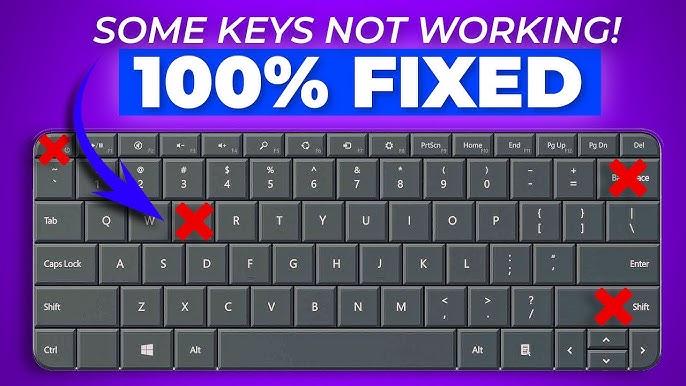
A non-working keyboard can bring your productivity to a complete halt. Whether you’re typing emails, working on documents, or browsing the web, a keyboard is essential. The laptop keyboard not working Windows 10 issue is a common problem that many users encounter.
Sometimes the keyboard may stop responding entirely, or only certain keys may not work. Fortunately, most keyboard issues can be resolved with simple troubleshooting steps.
In this complete guide, you’ll learn the causes and proven solutions to fix your laptop keyboard quickly.
Signs Your Keyboard Is Not Working
- Keys not responding
- Delayed typing input
- Certain keys not working
- Keyboard stops randomly
Common Causes of Keyboard Issues
1. Outdated or Corrupted Drivers
Keyboard drivers may malfunction.
2. Hardware Problems
Physical damage or wear.
3. Software Conflicts
Programs interfering with input.
4. Incorrect Keyboard Settings
Wrong configuration can disable keys.
5. Dirt or Debris
Dust can block key functionality.
6. Windows Update Issues
Updates may cause compatibility problems.
Quick Fixes to Try First
Restart Your Laptop
Fixes temporary glitches.
Check External Keyboard
Test with USB keyboard.
Clean the Keyboard
Remove dust and debris carefully.
Method 1: Update Keyboard Drivers
Steps:
- Press Windows + X
- Open Device Manager
- Expand Keyboards
- Right-click keyboard → Update driver
Method 2: Reinstall Keyboard Driver
Steps:
- Open Device Manager
- Right-click keyboard
- Click Uninstall device
- Restart laptop
Windows will reinstall automatically.
Method 3: Disable Filter Keys
Steps:
- Open Settings
- Go to Ease of Access
- Click Keyboard
- Turn off Filter Keys
Method 4: Check Keyboard Settings
Steps:
- Open Control Panel
- Go to Keyboard settings
- Adjust delay and repeat rate
Method 5: Run Windows Troubleshooter
Steps:
- Open Settings
- Go to Troubleshoot
- Run keyboard troubleshooter
Method 6: Check for Windows Updates
Steps:
- Open Settings
- Go to Windows Update
- Install updates
Method 7: Disable Fast Startup
Steps:
- Open Control Panel
- Go to Power Options
- Click Choose what power buttons do
- Disable Fast Startup
Method 8: Scan for Malware
Steps:
- Open Windows Security
- Run full scan
Method 9: Check BIOS Settings
- Restart laptop
- Enter BIOS
- Ensure keyboard is enabled
Method 10: Perform System Restore
Steps:
- Open Control Panel
- Go to Recovery
- Select System Restore
- Choose restore point
Hardware Troubleshooting
Check for Physical Damage
- Broken keys
- Liquid spills
Replace Keyboard
If hardware is faulty, replacement may be needed.
Preventing Keyboard Issues
Keep Drivers Updated
Ensures proper functionality.
Clean Keyboard Regularly
Prevents dust buildup.
Avoid Liquid Exposure
Protects hardware.
Install Trusted Software Only
Avoid conflicts.
Common Mistakes to Avoid
Ignoring Hardware Damage
Software fixes won’t help physical issues.
Skipping Driver Updates
Outdated drivers cause problems.
Using Incorrect Settings
Misconfiguration can disable keyboard.
Real-World Example
Imagine typing on your laptop and suddenly some keys stop working. After disabling Filter Keys and reinstalling drivers, your keyboard works perfectly again.
Frequently Asked Questions
Why is my keyboard not typing?
Usually due to driver or settings issues.
Can software cause keyboard problems?
Yes, conflicting apps can interfere.
Do I need to replace my keyboard?
Only if hardware is damaged.
Conclusion
The laptop keyboard not working Windows 10 issue can be frustrating, but it’s often easy to fix. By updating drivers, adjusting settings, and checking hardware, you can restore your keyboard quickly.
Regular maintenance and proper care will help prevent future keyboard issues and ensure smooth typing performance.