Backing up your iPhone to iCloud is one of the most important steps you can take to protect your data. iCloud backups ensure that your photos, contacts, app data, settings, and messages remain safe even if your device is lost, damaged, or replaced.
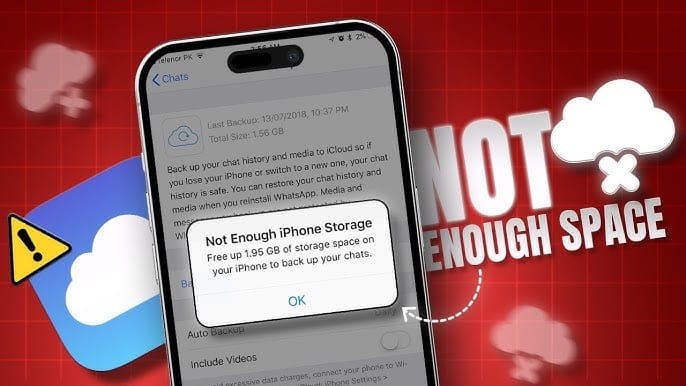
However, many users encounter a confusing issue: the iPhone displays the message “This iPhone cannot be backed up because there is not enough iCloud storage available”, even though iCloud shows some free space.
At first glance, this error seems contradictory. If there is available storage, why can’t the backup proceed?
In most cases, the problem happens because the available iCloud space is still smaller than the size of the next backup, or because old backups or app data are consuming hidden storage space.
This detailed guide explains why this error occurs and provides step-by-step solutions to fix it so you can successfully back up your iPhone again.
Why This iCloud Backup Error Happens
When you see the message stating there is not enough iCloud storage, it does not necessarily mean your storage is completely full.
Instead, the problem usually happens for one of two reasons:
- The next backup is larger than the remaining iCloud storage
- Old backups or data are taking up hidden space
Understanding these causes makes it easier to solve the problem.
Cause 1: Your Next Backup Is Larger Than Available Storage
Even if iCloud shows free space, the next backup may require more storage than what is available.
For example:
- Available iCloud storage: 1.2 GB
- Estimated backup size: 2.8 GB
In this situation, the backup will fail because the system needs enough space to store the entire backup.
Your backup size may increase because of:
- New photos or videos
- App data
- Messages with attachments
- System settings
- Files stored in apps
As your iPhone usage grows, the backup size naturally increases as well.
Cause 2: Old Backups Are Taking Up Storage
Another common cause is that previous device backups remain stored in iCloud.
If you previously owned another iPhone or restored your device multiple times, iCloud may still contain older backups.
These backups can occupy several gigabytes of storage without users realizing it.
Deleting unused backups can immediately free up space.
Cause 3: Apps Included in Backup Are Too Large
Some apps store large amounts of data that are automatically included in iCloud backups.
Examples include:
- Messaging apps
- Photo editing apps
- Game data
- Document storage apps
These apps may significantly increase backup size.
Fortunately, you can exclude large apps from the backup to reduce storage usage.
Cause 4: iCloud Photos Is Using Most Storage
If iCloud Photos is enabled, photos and videos are stored separately from device backups.
However, they still consume the same iCloud storage plan.
High-resolution photos and 4K videos can quickly fill available storage.
Even if your device backup is small, iCloud Photos may be occupying most of the space.
Cause 5: Temporary Backup Storage Requirements
Sometimes iCloud requires temporary additional storage during the backup process.
For example:
- Creating backup snapshots
- Uploading files
- Managing encryption data
Because of this, iCloud may need slightly more storage than the final backup size.
This can trigger the error even when storage seems sufficient.
How to Check Your iCloud Storage Usage
Before fixing the problem, you should check what is using your iCloud storage.
Steps to View iCloud Storage
- Open Settings on your iPhone.
- Tap your Apple ID name at the top.
- Select iCloud.
- Tap Manage Storage.
Here you will see a detailed breakdown of how your storage is being used.
Categories typically include:
- Backups
- Photos
- Messages
- iCloud Drive
- Apps using iCloud
This information helps identify what is taking up space.
Solution 1: Delete Old iCloud Backups
Removing unused backups is one of the easiest ways to free up storage.
Steps to Delete Old Backups
- Open Settings.
- Tap your Apple ID.
- Select iCloud.
- Tap Manage Storage.
- Select Backups.
- Choose a device you no longer use.
- Tap Delete Backup.
After removing old backups, try backing up your iPhone again.
Solution 2: Reduce Your Backup Size
You can reduce backup size by disabling large apps from the backup.
Steps to Exclude Apps From Backup
- Open Settings.
- Tap Apple ID.
- Select iCloud.
- Tap Manage Storage.
- Choose Backups.
- Select This iPhone.
- Turn off apps you do not need to back up.
This can significantly reduce storage usage.
Apps that store cloud-based data usually don’t need to be backed up.
Solution 3: Delete Unnecessary iCloud Data
Cleaning unnecessary files from iCloud can free up space quickly.
Consider removing:
- Old photos and videos
- Large attachments in Messages
- Files stored in iCloud Drive
- Unused app data
Deleting these items creates more space for backups.
Solution 4: Manage iCloud Photos Storage
Photos and videos often consume the most storage.
If iCloud Photos is enabled, you can reduce usage by:
- Deleting large videos
- Removing duplicate photos
- Clearing screenshots
- Moving photos to another storage service
Alternatively, you can transfer photos to a computer or external drive.
Solution 5: Upgrade Your iCloud Storage Plan
If your data continues to grow, upgrading your iCloud storage plan may be the best solution.
Apple offers several storage tiers.
Typical plans include:
- 5 GB (Free)
- 50 GB
- 200 GB
- 2 TB
Upgrading takes only a few seconds and ensures enough space for backups.
Steps to Upgrade Storage
- Open Settings.
- Tap Apple ID.
- Select iCloud.
- Tap Manage Storage.
- Choose Change Storage Plan.
Select a plan that fits your needs.
Solution 6: Perform a Manual Backup
Sometimes automatic backups fail due to temporary issues.
You can manually start a backup.
Steps to Manually Backup iPhone
- Open Settings.
- Tap Apple ID.
- Select iCloud.
- Tap iCloud Backup.
- Choose Back Up Now.
If enough storage is available, the backup will begin immediately.
Solution 7: Restart Your iPhone
Temporary system glitches can interfere with backup processes.
Restarting your device can resolve minor software issues.
Steps to Restart
- Press and hold the power button and volume button.
- Slide to power off.
- Turn the device back on after a few seconds.
Then try backing up again.
Solution 8: Sign Out and Back Into iCloud
Refreshing your iCloud connection may fix backup errors.
Steps
- Open Settings.
- Tap Apple ID.
- Scroll down and tap Sign Out.
- Restart the iPhone.
- Sign back into your account.
After signing in again, attempt the backup.
Solution 9: Update iOS
Outdated iOS versions can sometimes cause backup issues.
Installing the latest update ensures compatibility with iCloud services.
Steps to Update iOS
- Open Settings.
- Tap General.
- Select Software Update.
- Install any available updates.
After updating, perform another backup attempt.
Best Practices to Avoid Future Backup Problems
Preventing iCloud storage errors is easier than fixing them.
Follow these practices:
- Regularly delete unnecessary photos and videos
- Remove old backups
- Monitor storage usage monthly
- Exclude large apps from backups
- Transfer media to external storage
Maintaining storage prevents unexpected backup failures.
Alternative Backup Options
If iCloud storage is limited, consider alternative backup methods.
Backup Using a Computer
You can back up your iPhone using a computer.
Mac users can use Finder, while Windows users can use iTunes.
This method stores backups locally instead of in iCloud.
Backup Using Third-Party Cloud Storage
Some users store photos and documents in services such as:
- Google Drive
- Dropbox
- OneDrive
This helps reduce iCloud storage usage.
Frequently Asked Questions
Why does my iPhone backup require more storage than expected?
Backup size includes system settings, app data, and local files. Media files and messages with attachments can significantly increase backup size.
Can I delete old backups safely?
Yes. Deleting backups from devices you no longer use will not affect your current device.
How often should I back up my iPhone?
It is recommended to back up your device at least once per week or before installing major updates.
Conclusion
The error “This iPhone cannot be backed up because there is not enough iCloud storage available” can be frustrating, especially when iCloud appears to have free space. In most cases, the issue occurs because the next backup requires more storage than what is currently available or because older backups and hidden data are occupying space.
By checking your storage usage, deleting unnecessary backups, reducing backup size, and managing photos and apps, you can resolve the issue quickly. If your data continues to grow, upgrading your iCloud storage plan provides a reliable long-term solution.
Regular storage management and consistent backups ensure that your important data remains safe and easily recoverable whenever you need it.