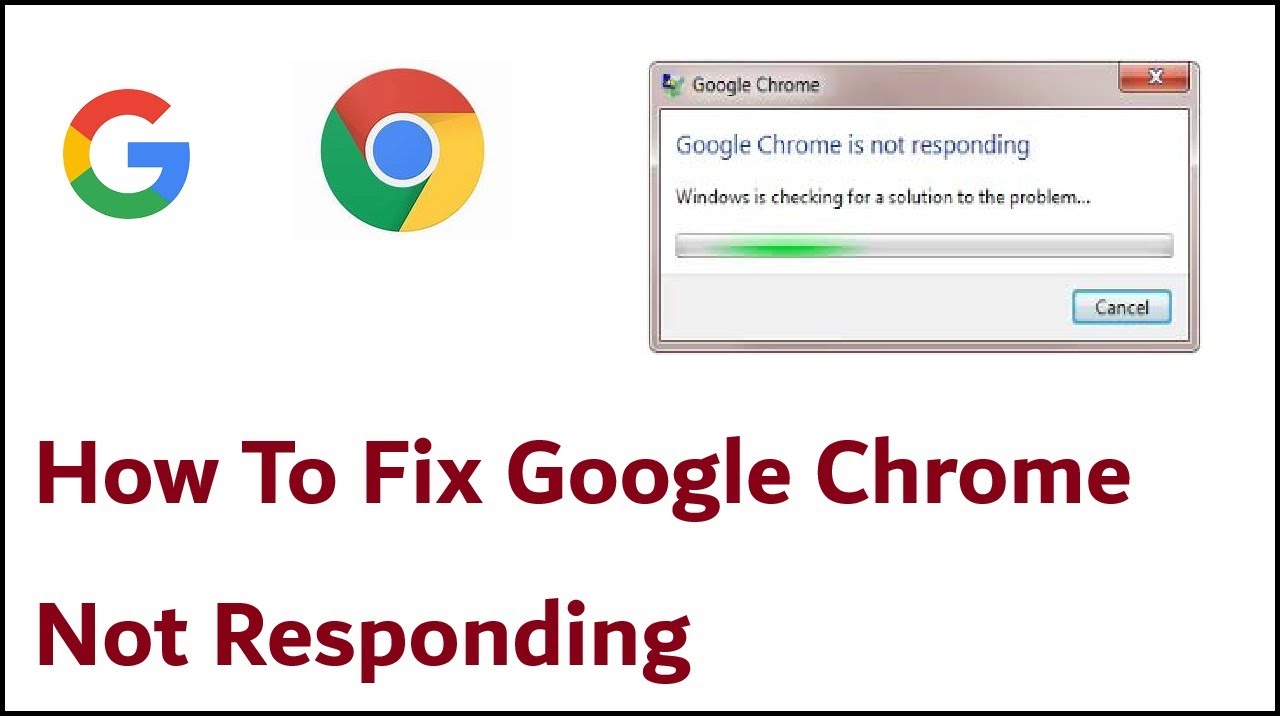
Google Chrome is one of the most popular web browsers in the world, known for its speed, simplicity, and reliability. However, like any software, it can sometimes run into issues. One of the most frustrating problems users encounter is when Google Chrome stops responding on Windows.
If you’ve ever experienced a frozen browser, unresponsive tabs, or crashes, you know how disruptive it can be. Fortunately, this issue is usually fixable with the right approach. In this comprehensive guide, we’ll explore the causes and provide step-by-step solutions to fix Google Chrome not responding on Windows.
Why Google Chrome Stops Responding
Understanding the root cause is the first step toward fixing the issue. Here are the most common reasons why Chrome may become unresponsive:
1. Too Many Open Tabs
Chrome is known for consuming a lot of RAM. Opening too many tabs can overwhelm your system.
2. Corrupted Cache and Cookies
Stored data can sometimes become corrupted, causing performance issues.
3. Problematic Extensions
Extensions can conflict with Chrome or each other, leading to crashes.
4. Outdated Browser Version
Running an old version of Chrome may result in bugs and instability.
5. Hardware Acceleration Issues
This feature can sometimes cause compatibility problems with your system.
6. Malware or Unwanted Software
Malicious programs can interfere with Chrome’s normal operation.
7. Insufficient System Resources
Low RAM or CPU usage spikes can cause Chrome to freeze.
How to Fix Google Chrome Not Responding on Windows
Let’s go through the most effective fixes step by step.
1. Restart Google Chrome Properly
Sometimes a simple restart is all it takes.
Steps:
- Close all Chrome windows
- Press Ctrl + Shift + Esc to open Task Manager
- End all Chrome processes
- Reopen Chrome
2. Restart Your Computer
Restarting your system clears temporary glitches and frees up memory.
3. Close Unnecessary Tabs
Too many tabs can slow down Chrome significantly.
Tips:
- Keep only essential tabs open
- Use bookmarks instead of leaving tabs open
- Consider tab management extensions
4. Clear Cache and Cookies
Corrupted cache data can cause Chrome to freeze.
Steps:
- Open Chrome
- Click the three-dot menu
- Go to Settings → Privacy and Security
- Click “Clear browsing data”
- Select Cached images and files + Cookies
- Click “Clear data”
5. Disable Extensions
Extensions are a common cause of browser issues.
Steps:
- Go to
chrome://extensions/ - Disable all extensions
- Restart Chrome
- Re-enable extensions one by one to find the culprit
6. Update Google Chrome
Using the latest version ensures optimal performance.
Steps:
- Click the three-dot menu
- Go to Help → About Google Chrome
- Update if available
7. Disable Hardware Acceleration
This feature can sometimes cause Chrome to crash.
Steps:
- Go to Settings
- Click “System”
- Turn off “Use hardware acceleration when available”
- Restart Chrome
8. Check for Malware
Malware can interfere with Chrome’s performance.
Options:
- Use Windows Security (Defender)
- Run a full system scan
- Remove suspicious programs
9. Reset Chrome Settings
Resetting Chrome can fix hidden configuration issues.
Steps:
- Go to Settings
- Click “Reset and clean up”
- Select “Restore settings to their original defaults”
10. Reinstall Google Chrome
If nothing works, reinstalling Chrome can resolve deep issues.
Steps:
- Uninstall Chrome from Control Panel
- Download the latest version
- Install it again
Advanced Fixes for Persistent Issues
If the problem persists, try these advanced methods.
1. Rename Default Folder
This resets your Chrome profile.
Steps:
- Press Win + R
- Type
%LOCALAPPDATA%\Google\Chrome\User Data - Rename the “Default” folder
- Restart Chrome
2. Check Windows Updates
Outdated Windows versions can cause compatibility issues.
Steps:
- Go to Settings → Update & Security
- Click “Check for updates”
3. Run Chrome in Compatibility Mode
This can fix issues on older systems.
Steps:
- Right-click Chrome shortcut
- Select Properties
- Go to Compatibility tab
- Enable compatibility mode
4. Disable Background Apps
Chrome may run background processes even when closed.
Steps:
- Go to Settings → System
- Turn off “Continue running background apps”
Tips to Prevent Chrome from Freezing
Keeping your browser running smoothly requires regular maintenance.
1. Limit Extensions
Only install necessary extensions.
2. Keep Chrome Updated
Always use the latest version.
3. Monitor Resource Usage
Use Task Manager to identify heavy processes.
4. Avoid Suspicious Websites
Malicious sites can slow down your browser.
5. Use a Reliable Antivirus
Protect your system from threats.
Common Mistakes to Avoid
Ignoring Updates
Outdated software often leads to performance issues.
Installing Too Many Extensions
More extensions increase the chance of conflicts.
Not Clearing Cache Regularly
Old data can slow down your browser over time.
When to Seek Professional Help
If Chrome continues to freeze despite trying all solutions, there may be deeper system issues.
Possible causes:
- Faulty hardware
- Corrupted Windows installation
- Severe malware infection
In such cases, professional diagnosis may be necessary.
Frequently Asked Questions
Why does Chrome keep freezing on Windows?
It is usually caused by high memory usage, faulty extensions, or corrupted cache.
Does reinstalling Chrome fix the issue?
Yes, it often resolves persistent problems by removing corrupted files.
Can low RAM cause Chrome to stop responding?
Absolutely. Chrome is resource-intensive and needs sufficient RAM to run smoothly.
Conclusion
Experiencing Google Chrome not responding on Windows can be frustrating, but it’s rarely a permanent issue. From clearing cache and disabling extensions to reinstalling the browser, there are many effective ways to restore Chrome’s performance.
By following this guide, you can quickly diagnose and fix the problem while also preventing it from happening again in the future. Regular maintenance and mindful browsing habits go a long way in ensuring a smooth and responsive browsing experience.
With the solutions provided in this Fix Google Chrome Not Responding Windows guide, you’ll be able to troubleshoot efficiently and keep your browser running at peak performance.