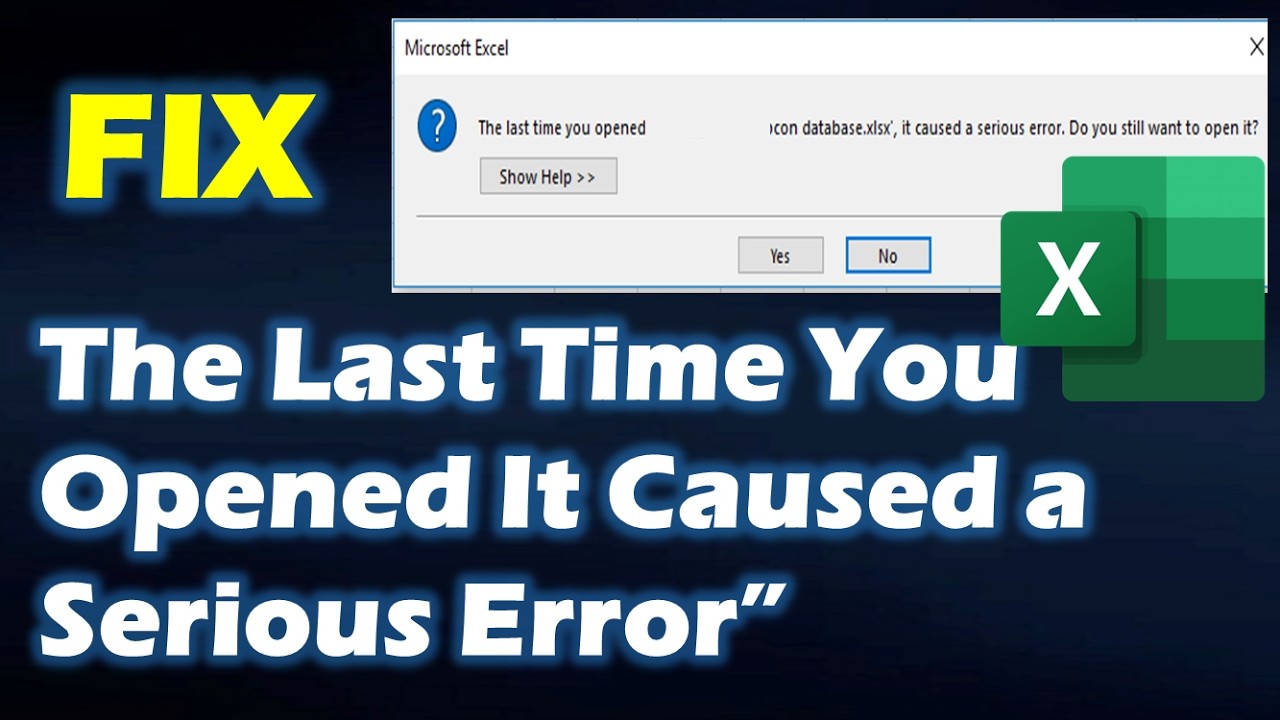
Microsoft Excel is a cornerstone of productivity for professionals, students, and businesses alike. From managing data to performing complex calculations, Excel plays a vital role in daily workflows. However, users occasionally encounter frustrating issues—one of the most common being the error message:
“Microsoft Excel: The last time you opened it caused a serious error. Do you still want to open it?”
This warning typically appears when launching Excel or opening a specific file, indicating that the application previously crashed or behaved unexpectedly. While alarming, this issue is usually fixable with the right approach.
In this comprehensive guide, we’ll explore the causes behind this error and provide step-by-step solutions to help you restore Excel to full functionality.
What Causes the “Serious Error” Message in Excel?
This error message is Excel’s way of alerting you that something went wrong during a previous session. It may have crashed, frozen, or failed to close properly.
Here are the most common causes:
- Corrupted Excel files
- Faulty add-ins
- Outdated Microsoft Office version
- Damaged installation files
- Conflicts with other software
- Graphics acceleration issues
- Registry errors
- Problematic startup files
Understanding these causes is essential for applying the correct fix.
What Happens When You Click “Yes”?
When you click “Yes” on the error message:
- Excel attempts to open in Safe Mode
- Certain features (like add-ins) are disabled
- The program tries to avoid the previous crash scenario
This temporary workaround can help you access your files, but it doesn’t solve the underlying problem.
1. Start Excel in Safe Mode
Safe Mode is the first step in diagnosing Excel issues.
Steps:
- Press Windows + R
- Type:
excel /safe - Press Enter
If Excel opens without the error, the issue is likely caused by add-ins or settings.
2. Disable Problematic Add-ins
Add-ins enhance Excel functionality but can also cause crashes.
Steps:
- Open Excel
- Go to File > Options > Add-ins
- Select COM Add-ins and click Go
- Uncheck all add-ins
- Restart Excel
Re-enable add-ins one by one to identify the culprit.
3. Update Microsoft Office
Outdated software often contains bugs that can trigger errors.
Steps:
- Open Excel
- Go to File > Account
- Click Update Options > Update Now
Updating ensures you have the latest fixes and performance improvements.
4. Repair Microsoft Office Installation
Corrupted installation files can cause repeated crashes.
Steps:
- Open Control Panel
- Go to Programs and Features
- Select Microsoft Office
- Click Change
- Choose Quick Repair or Online Repair
This process restores damaged components without affecting your files.
5. Disable Hardware Graphics Acceleration
Graphics acceleration can sometimes conflict with your system.
Steps:
- Open Excel
- Go to File > Options > Advanced
- Scroll to Display
- Check Disable hardware graphics acceleration
- Restart Excel
This often resolves freezing and crash issues.
6. Check for Corrupted Excel Files
Sometimes the issue is tied to a specific file rather than Excel itself.
Signs of file corruption:
- File won’t open
- Excel crashes when opening a specific document
- Data appears missing or scrambled
Solutions:
- Open the file on another computer
- Use Excel’s Open and Repair feature:
- Click File > Open
- Select the file
- Click the arrow next to Open
- Choose Open and Repair
7. Clear Excel Startup Folder
Files in the startup folder load automatically and may cause issues.
Steps:
- Navigate to:
C:\Users\YourUsername\AppData\Roaming\Microsoft\Excel\XLSTART - Remove or move files from this folder
- Restart Excel
8. Reset Excel Settings
Corrupted settings can lead to persistent errors.
Method:
- Rename the Excel registry key:
Steps:
- Press Windows + R
- Type
regedit - Navigate to:
HKEY_CURRENT_USER\Software\Microsoft\Office\XX.0\Excel - Rename the Excel folder
- Restart Excel
(Replace XX.0 with your Office version, e.g., 16.0 for Office 2016+)
9. Check for Conflicting Software
Other programs may interfere with Excel.
Common culprits:
- Antivirus software
- Third-party plugins
- Background applications
Fix:
- Temporarily disable antivirus
- Close unnecessary programs
- Restart Excel
10. Update Windows Operating System
System-level bugs can affect application performance.
Steps:
- Open Settings
- Go to Update & Security
- Click Check for Updates
- Install available updates
11. Reinstall Microsoft Office
If all else fails, reinstalling Office may be necessary.
Steps:
- Uninstall Microsoft Office
- Restart your computer
- Download and reinstall from the official source
This ensures a clean and stable installation.
12. Use Excel Online as a Temporary Solution
If you need immediate access to your files:
- Upload them to OneDrive
- Open using Excel Online
This bypasses desktop-related issues temporarily.
Preventing the “Serious Error” in the Future
To avoid encountering this issue again, follow these best practices:
- Keep Microsoft Office updated
- Avoid installing unnecessary add-ins
- Regularly back up your files
- Close Excel properly before shutting down
- Use reliable antivirus software
- Avoid opening corrupted or unknown files
When Should You Be Concerned?
While occasional crashes are normal, repeated errors may indicate deeper issues.
Warning signs:
- Frequent crashes on startup
- Multiple files becoming corrupted
- Excel failing to open entirely
In such cases, consider professional technical support.
Benefits of Fixing This Issue
Resolving the “serious error” message restores:
- Smooth Excel performance
- Reliable file access
- Improved productivity
- Reduced risk of data loss
Conclusion
The “Microsoft Excel: The last time you opened it caused a serious error” message can be frustrating, but it’s rarely a permanent problem. In most cases, it’s caused by add-ins, corrupted files, outdated software, or configuration issues.
By following the solutions outlined in this guide—starting with Safe Mode, disabling add-ins, updating software, and repairing installation—you can quickly identify and fix the root cause.
Excel is a powerful tool, and with proper maintenance and troubleshooting, you can ensure it continues to perform reliably for all your data needs.
With a proactive approach and regular updates, you can prevent future errors and enjoy a seamless Excel experience every time you open your files.