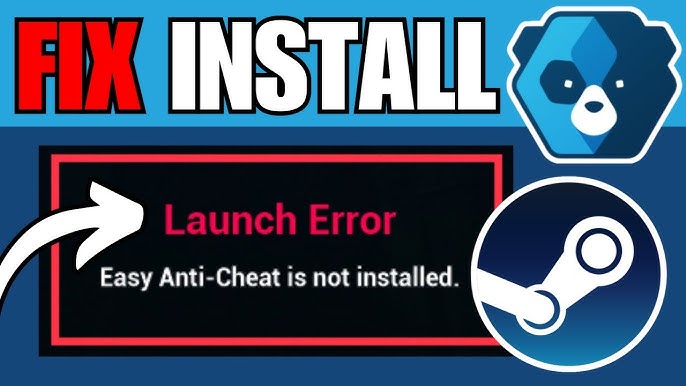
Online multiplayer games rely heavily on anti-cheat systems to maintain fairness and security. One of the most widely used solutions is EasyAntiCheat (EAC), a background service that ensures players don’t use unauthorized software during gameplay. However, many users encounter the frustrating “Failed to install EasyAntiCheat” error when launching a game.
This issue typically occurs when EasyAntiCheat cannot install its service properly or fails to initialize during game startup. Since EAC is essential for launching many online games, this error can prevent you from playing altogether.
In this comprehensive guide, we’ll explore the causes of the error and provide detailed, step-by-step solutions to fix it and get your game running again.
What Is EasyAntiCheat?
EasyAntiCheat is a software service designed to prevent cheating in online multiplayer games. It runs in the background and monitors system activity to detect suspicious behavior.
Key Functions:
- Prevents cheating software
- Ensures fair gameplay
- Protects game integrity
- Runs as a system service
Many popular games require EAC to launch, making it a critical component.
What Causes the “Failed to Install EasyAntiCheat” Error?
This error appears when EAC cannot properly install or start its service.
Common Causes:
- Missing or corrupted EAC files
- Blocked installation by antivirus or firewall
- Insufficient permissions
- Windows system issues
- Conflicts with other software
- Outdated game or OS
Understanding the cause is the first step toward fixing the problem.
How EasyAntiCheat Works
EAC installs a background service on your system. When you launch a supported game:
- The game checks for the EAC service
- EAC initializes and verifies system integrity
- If successful, the game launches
If any of these steps fail, you’ll see the error.
Quick Fix Checklist
Before diving into advanced solutions, try these quick fixes:
- Restart your computer
- Run the game as administrator
- Disable antivirus temporarily
- Update Windows
If the issue persists, follow the detailed steps below.
Solution 1: Reinstall EasyAntiCheat
Reinstalling EAC is often the most effective fix.
Steps:
- Navigate to your game installation folder
- Open the EasyAntiCheat folder
- Run EasyAntiCheat_Setup.exe
- Select your game
- Click Install or Repair Service
Solution 2: Run as Administrator
Permission issues can prevent EAC from installing.
Steps:
- Right-click the game executable
- Select Run as administrator
- Confirm the prompt
Solution 3: Verify Game Files
Corrupted game files can affect EAC.
Steps (Steam Example):
- Open Steam
- Go to Library
- Right-click the game
- Select Properties
- Click Verify Integrity of Game Files
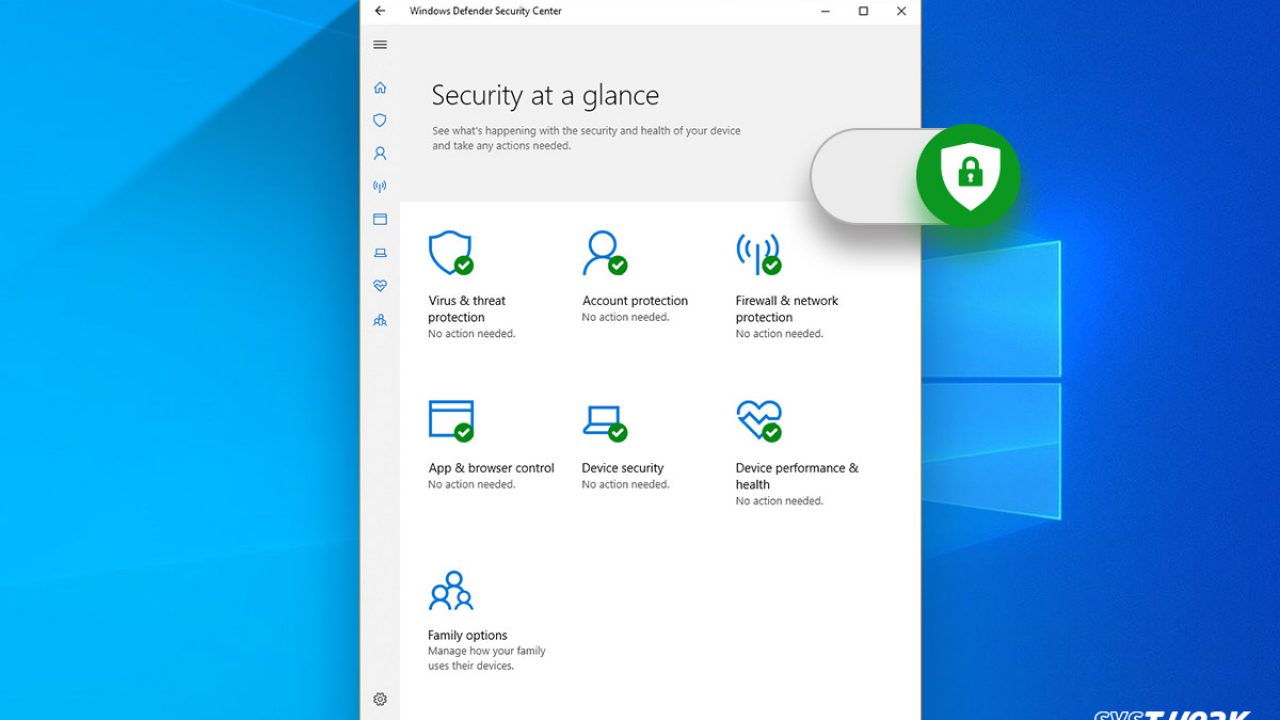
Solution 4: Disable Antivirus and Firewall
Security software may block EAC.
Steps:
- Temporarily disable antivirus
- Turn off firewall
- Launch the game
Important: Re-enable protection after testing.
Solution 5: Check EasyAntiCheat Service
Ensure the EAC service is installed and running.
Steps:
- Press Win + R
- Type
services.msc - Look for EasyAntiCheat
- Ensure it is running
Solution 6: Update Windows
Outdated system files can cause compatibility issues.
Steps:
- Open Settings
- Go to Windows Update
- Click Check for updates
- Install updates
Solution 7: Repair System Files
Corrupted Windows files can interfere with EAC.
Use System File Checker:
sfc /scannow
Steps:
- Open Command Prompt as admin
- Run the command
- Wait for completion
Solution 8: Reinstall the Game
If nothing else works, reinstalling the game may help.
Steps:
- Uninstall the game
- Restart your PC
- Reinstall the game
- Launch again
Solution 9: Check Disk for Errors
Disk issues can prevent proper installation.
Command:
chkdsk /f
Solution 10: Close Conflicting Programs
Some applications may interfere with EAC.
Examples:
- Overlay software
- Debugging tools
- Cheat engines
Advanced Fixes
Clean Boot
Perform a clean boot to eliminate software conflicts.
Steps:
- Open System Configuration
- Disable non-Microsoft services
- Restart PC
Common Error Variations
You may see different messages, such as:
- “EAC service not installed”
- “Failed to initialize EasyAntiCheat”
- “EAC not found”
All are related to service or installation issues.
Preventing Future Errors
1. Keep Software Updated
Always update your OS and games.
2. Use Trusted Antivirus Settings
Whitelist EAC if needed.
3. Avoid Modifications
Do not alter game files.
Why EAC Is Important
Without EAC:
- Games won’t launch
- Online play is blocked
- Security is compromised
When to Contact Support
If all fixes fail:
- Contact game support
- Submit error logs
- Check official forums
Frequently Asked Questions
Is EasyAntiCheat safe?
Yes, it is widely used and secure.
Can I disable EAC?
No, not for supported online games.
Does EAC affect performance?
Minimal impact on most systems.
Why does EAC fail to install?
Usually due to permissions or corrupted files.
Final Thoughts
The “Failed to install EasyAntiCheat” error can be frustrating, especially when it prevents you from launching your favorite games. However, in most cases, the issue is fixable with a few straightforward steps.
By reinstalling EAC, verifying game files, updating your system, and checking for software conflicts, you can resolve the problem and restore normal gameplay. Understanding how EAC works also helps prevent future issues and ensures a smoother gaming experience.
With the solutions outlined in this guide, you should be able to fix the error and get back to playing without interruptions. If problems persist, don’t hesitate to seek support from the game’s official channels.
Keeping your system clean, updated, and properly configured is the key to avoiding EAC errors—and enjoying uninterrupted online gaming.