• Contact Us
  • About Us
Thursday, April 9, 2026
Pc Status
No Result
View All Result
  • Login
  • Home
  • Android
  • Apple
  • Browsers
  • Gaming
  • GPU
  • Networks
  • Microsoft Office
  • Windows
  • Software
  • Home
  • Android
  • Apple
  • Browsers
  • Gaming
  • GPU
  • Networks
  • Microsoft Office
  • Windows
  • Software
No Result
View All Result
PC Status
No Result
View All Result
Home Windows

Fix Audio Not Working Windows 10 Sound Problem Fast

Learn how to fix audio not working Windows 10 with easy solutions to restore sound and fix speaker or headphone issues quickly.

Karina by Karina
April 4, 2026
in Windows
0
Fix Audio Not Working Windows 10 Sound Problem Fast
66
SHARES
88
VIEWS
Share on FacebookShare on Twitter

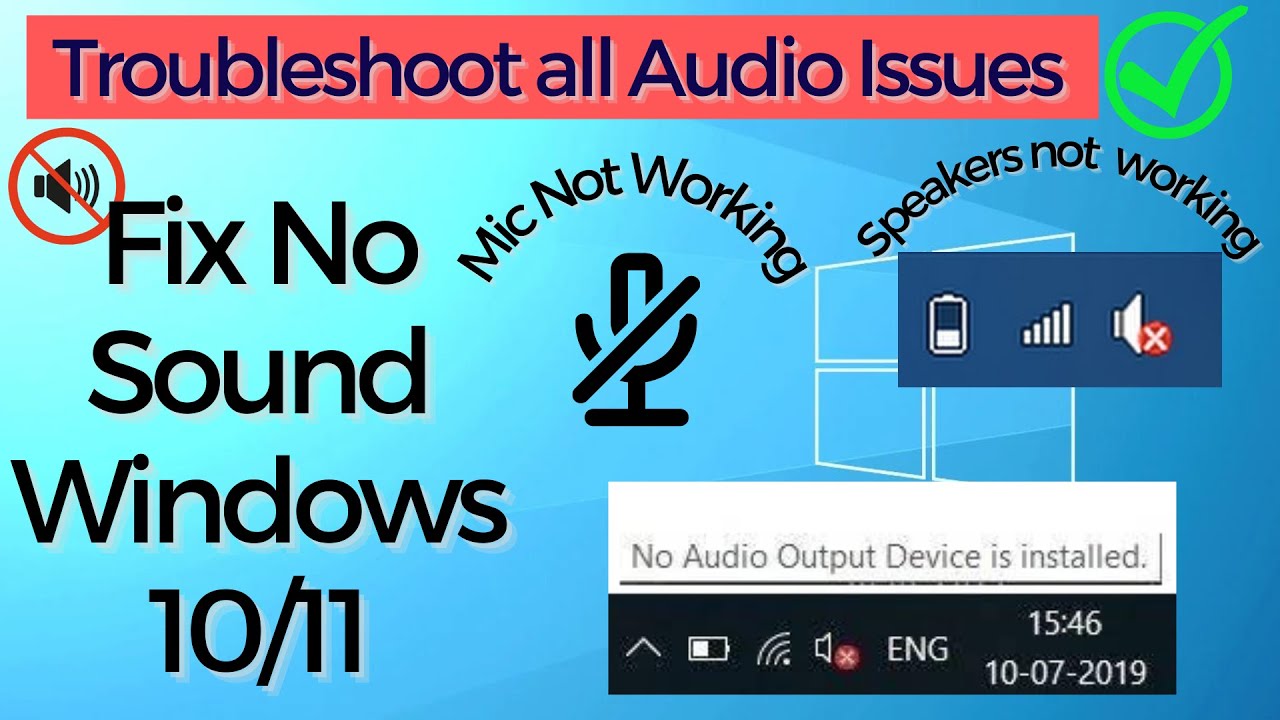
Sound is an essential part of your computing experience, whether you’re watching videos, attending meetings, or listening to music. But when your audio suddenly stops working, it can be frustrating. The audio not working Windows 10 issue is a common problem faced by many users.

Whether you have no sound at all, distorted audio, or issues with headphones, this guide will help you fix it quickly.

READ ALSO

Fix Windows 10 Freezing Randomly Problem Easily Fast

Fix Windows 10 Slow Startup and Boot Time Issue Fast

Signs of Audio Problems

  • No sound from speakers or headphones
  • Audio device not detected
  • Sound is distorted or too low
  • Volume icon shows error

Common Causes of Audio Issues

1. Muted or Low Volume

Simple but often overlooked.

2. Incorrect Playback Device

Wrong output device selected.

3. Outdated or Corrupted Drivers

Audio drivers may malfunction.

4. Disabled Audio Services

Required services may not be running.

5. Hardware Issues

Faulty speakers or headphones.

6. Windows Update Bugs

Updates may cause compatibility issues.

Quick Fixes to Try First

Check Volume Settings

Ensure volume is not muted.

Restart Your Computer

Fixes temporary glitches.

Check Headphone Connection

Ensure proper connection.

Method 1: Select Correct Playback Device

Steps:

  1. Right-click volume icon
  2. Click Open Sound settings
  3. Choose correct output device

Method 2: Run Audio Troubleshooter

Steps:

  1. Open Settings
  2. Go to System → Sound
  3. Click Troubleshoot
  4. Follow instructions

Method 3: Update Audio Drivers

Steps:

  1. Press Windows + X
  2. Open Device Manager
  3. Expand Sound, video and game controllers
  4. Update driver

Method 4: Reinstall Audio Drivers

Steps:

  1. Open Device Manager
  2. Right-click audio device
  3. Click Uninstall device
  4. Restart PC

Method 5: Restart Audio Services

Steps:

  1. Press Windows + R
  2. Type services.msc
  3. Restart:
    • Windows Audio
    • Windows Audio Endpoint Builder

Method 6: Disable Audio Enhancements

Steps:

  1. Open Sound settings
  2. Click Device properties
  3. Disable enhancements

Method 7: Check Audio Format

Steps:

  1. Open Sound settings
  2. Go to Advanced tab
  3. Change default format

Method 8: Update Windows

Steps:

  1. Open Settings
  2. Go to Windows Update
  3. Install updates

Method 9: Check Hardware Connections

  • Test different headphones or speakers
  • Check audio ports

Method 10: Set Audio Device as Default

Steps:

  1. Open Control Panel
  2. Go to Sound
  3. Set device as default

Advanced Troubleshooting

Use External Sound Card

  • Test if internal hardware is faulty

Check BIOS Settings

  • Ensure audio is enabled

Preventing Audio Issues

Keep Drivers Updated

Ensures smooth performance.

Avoid Untrusted Software

Prevents conflicts.

Maintain Hardware

Check cables and devices regularly.

Install Updates

Fix bugs and improve compatibility.

Common Mistakes to Avoid

Ignoring Simple Settings

Volume or device selection is often the issue.

Using Wrong Drivers

Incorrect drivers cause problems.

Skipping Updates

Outdated system can break audio.

Real-World Example

Imagine watching a video and suddenly there’s no sound. After selecting the correct playback device and restarting audio services, the sound returns instantly.

Frequently Asked Questions

Why is my audio not working?

Usually due to driver or settings issues.

Can drivers fix sound problems?

Yes, updating drivers often resolves issues.

Is it a hardware problem?

Sometimes, but often it’s software-related.

Conclusion

The audio not working Windows 10 issue can disrupt your experience, but it’s usually easy to fix. By checking settings, updating drivers, and troubleshooting system services, you can restore sound quickly.

Regular maintenance and proper configuration will help prevent audio issues and ensure a smooth multimedia experience.

Share26Tweet17Pin6

Related Posts

Fix Windows 10 Freezing Randomly Problem Easily Fast
Windows

Fix Windows 10 Freezing Randomly Problem Easily Fast

April 4, 2026
Fix Windows 10 Slow Startup and Boot Time Issue Fast
Windows

Fix Windows 10 Slow Startup and Boot Time Issue Fast

April 4, 2026
Fix USB Device Not Recognized Windows 10 Easily Fast
Windows

Fix USB Device Not Recognized Windows 10 Easily Fast

April 4, 2026
Fix Laptop Keyboard Not Working Windows 10 Fast
Windows

Fix Laptop Keyboard Not Working Windows 10 Fast

April 4, 2026
Fix System Service Exception Error Windows Easily
Windows

Fix System Service Exception Error Windows Easily

April 4, 2026
How to Reset Windows 10 Without Losing Data Safely
Windows

How to Reset Windows 10 Without Losing Data Safely

April 3, 2026

Leave a Reply Cancel reply

Your email address will not be published. Required fields are marked *

I agree to the Terms & Conditions and Privacy Policy.

EDITOR'S PICK

Create Stunning PPTs Fast with Gamma AI Tool Guide

Create Stunning PPTs Fast with Gamma AI Tool Guide

March 27, 2026
Optimize Android Device Performance for Faster Speed

Optimize Android Device Performance for Faster Speed

March 28, 2026
How to Speed Up Internet on Windows PC Fast Guide

How to Speed Up Internet on Windows PC Fast Guide

April 4, 2026
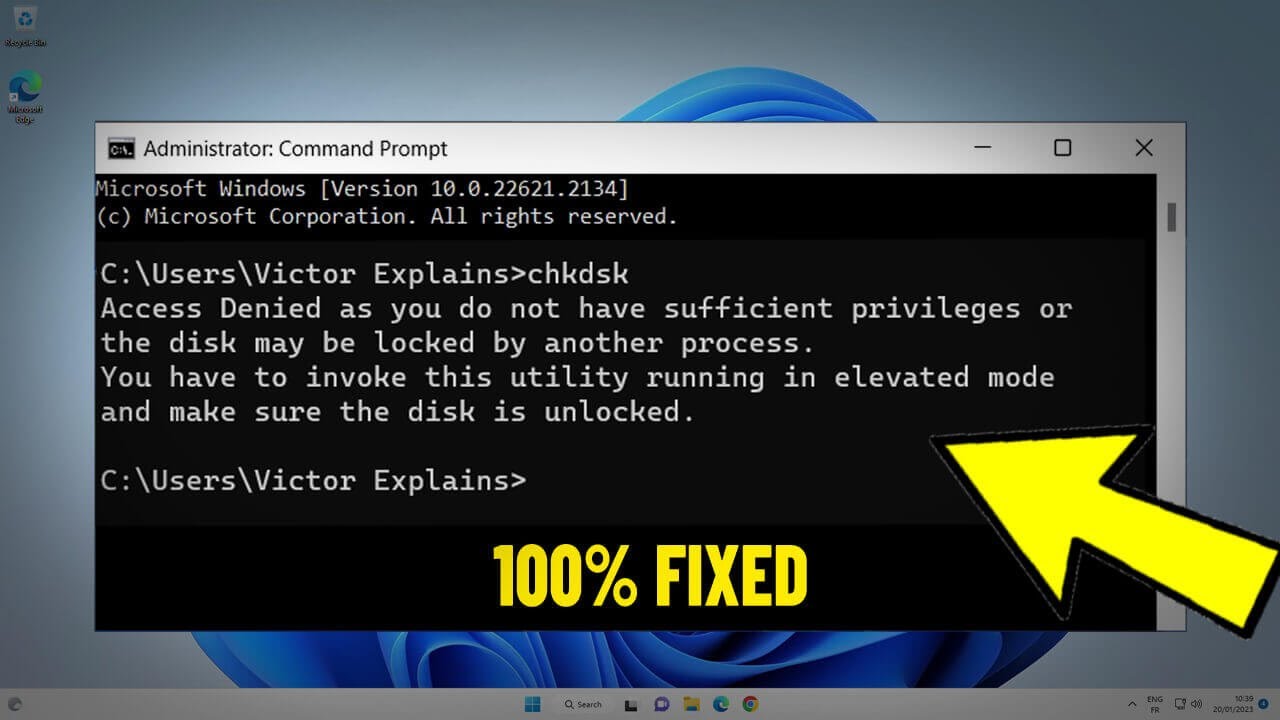
How to Run CHKDSK on Reboot to Fix Disk Errors Fast

How to Run CHKDSK on Reboot to Fix Disk Errors Fast

March 28, 2026
Fix Android Phone Not Charging Fast Guide

Fix Android Phone Not Charging Fast Guide

April 4, 2026
Fix Microsoft Store Not Working Windows 11

Fix Microsoft Store Not Working Windows 11

April 4, 2026

Popular Posts

  • Switch 2 Game Upgrade Costs: What You Need to Know Now

    Switch 2 Game Upgrade Costs: What You Need to Know Now

    77 shares
    Share 31 Tweet 19
  • Do You Need Antivirus for Microsoft Surface Devices?

    74 shares
    Share 30 Tweet 19
  • Fix iPhone Not Receiving or Making Calls Easily Now

    72 shares
    Share 29 Tweet 18
  • Fix Your PC Ran Into a Problem Error Windows 10

    72 shares
    Share 29 Tweet 18
  • How to Run CHKDSK on Reboot to Fix Disk Errors Fast

    72 shares
    Share 29 Tweet 18
Pc Status

Explore PC Status for expert tech guides, Windows tips, troubleshooting fixes, reviews, and insights to keep your computer running smoothly.

Category

Android Apple Browsers Gaming GPU Microsoft Office Networks Software Windows

Company

  • Affiliate Disclosure
  • Cookie Policy
  • Disclaimer
  • DMCA Policy
  • Privacy Policy
  • Terms & Conditions

Copyright © 2026 PC Status - All rights reserved.

No Result
View All Result
  • Home
  • Android
  • Apple
  • Browsers
  • Gaming
  • GPU
  • Networks
  • Microsoft Office
  • Windows
  • Software

Copyright © 2026 PC Status - All rights reserved.

Welcome Back!

Login to your account below

Forgotten Password?

Retrieve your password

Please enter your username or email address to reset your password.

Log In
This website uses cookies. By continuing to use this website you are giving consent to cookies being used. Visit our Privacy and Cookie Policy.