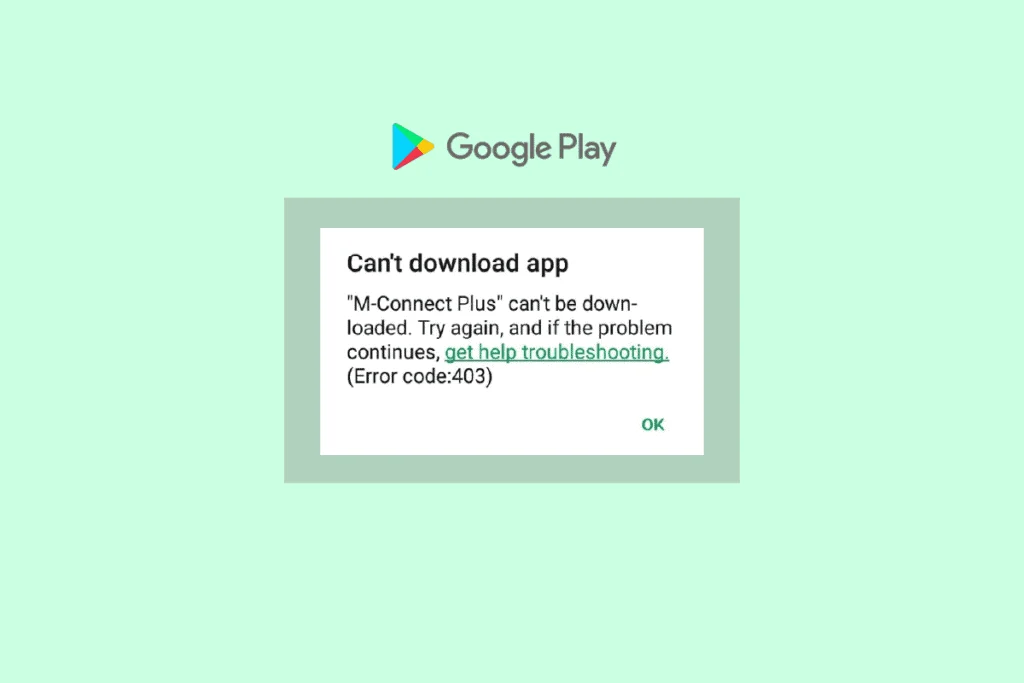
Encountering the message “could not be downloaded due to an error (403)” on your Android device can be frustrating, especially when you’re trying to update apps or install new ones. This error is commonly reported after a system update, but it can also occur due to synchronization issues, corrupted cache, or even malicious apps interfering with your device.
In this in-depth guide, we’ll explore what Android error 403 means, why it happens, and most importantly, how to fix it using proven step-by-step solutions. Whether you’re a beginner or a tech-savvy user, this guide will help you resolve the issue effectively.
What Is Android Error 403?
Error 403 is a type of HTTP status code that generally means “Forbidden”, indicating that access to a requested resource is denied. In the context of Android, it typically appears when downloading or updating apps from the Google Play Store.
The full error message often reads:
“App could not be downloaded due to an error (403).”
This means your device is unable to complete the request due to permission conflicts, account issues, or server restrictions.
Why Does Error 403 Occur on Android?
Understanding the root cause is essential before applying fixes. Below are the most common reasons:
1. System Update Conflicts
After updating Android, some system settings or cached data may become incompatible, leading to download failures.
2. Google Account Sync Issues
If your Google account is not syncing properly, it can interfere with app downloads and updates.
3. Corrupted Cache or Data
Temporary files stored by the Play Store or Google services may become corrupted.
4. Multiple Google Accounts
Using more than one account on your device can sometimes cause conflicts during app downloads.
5. Android Adware or Malicious Apps
Certain apps may inject ads or modify system behavior, disrupting normal Play Store operations.
6. Incorrect Date and Time Settings
Improper system time can affect secure connections to Google servers.
7. Network Restrictions
Some Wi-Fi networks or VPNs may block access to certain services.
Step-by-Step Fixes for Android Error 403
Let’s walk through the most effective solutions to resolve this issue.
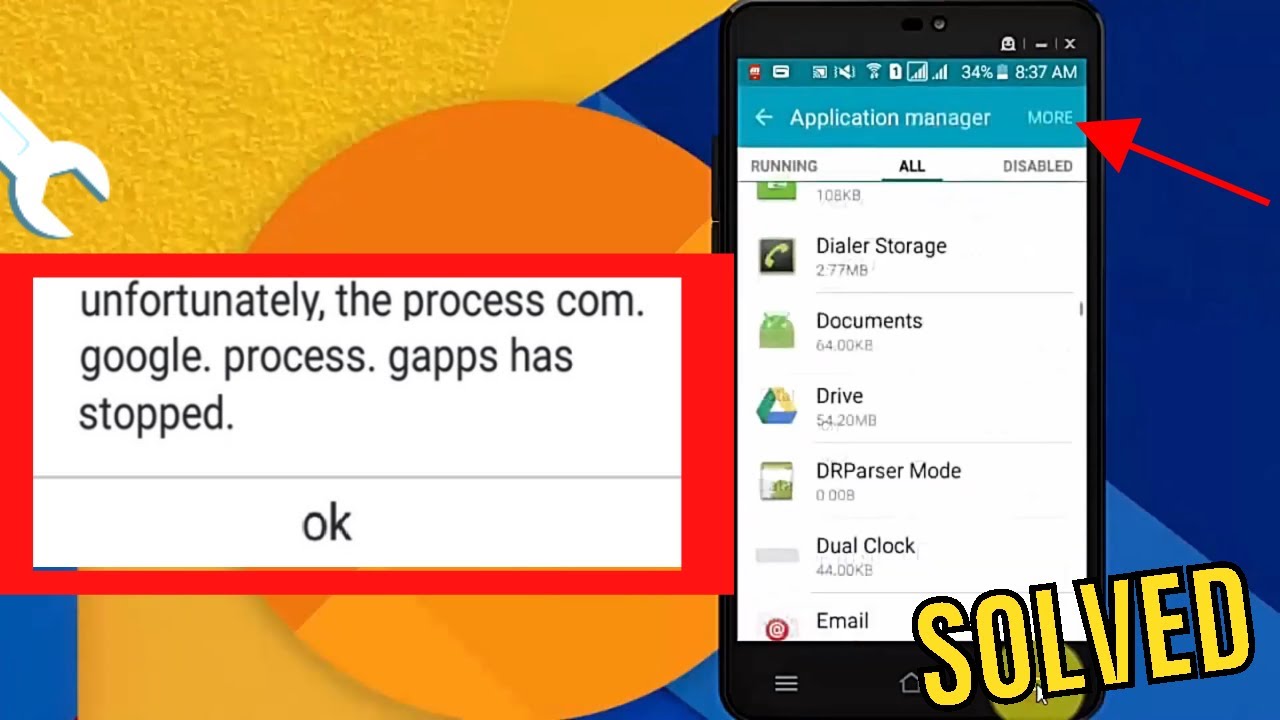
Method 1: Clear Google Play Store Cache and Data
Corrupted cache is one of the most common causes.
Steps:
- Go to Settings
- Tap Apps or Application Manager
- Find and select Google Play Store
- Tap Storage
- Click Clear Cache
- Then tap Clear Data
Repeat the same steps for:
- Google Play Services
- Google Services Framework
Restart your device and try downloading again.
Method 2: Remove and Re-Add Google Account
Sync issues can often be resolved by resetting your account.
Steps:
- Go to Settings > Accounts
- Select your Google account
- Tap Remove Account
- Restart your phone
- Go back and Add Account
- Sign in again
This refreshes account synchronization and permissions.
Method 3: Check Date and Time Settings
Incorrect time settings can block secure connections.
Steps:
- Go to Settings > Date & Time
- Enable Automatic date & time
- Enable Automatic time zone
Restart your device and test the Play Store.
Method 4: Uninstall Problematic Apps
If the issue started after installing a new app, it could be adware.
Steps:
- Go to Settings > Apps
- Look for recently installed or suspicious apps
- Tap the app and select Uninstall
Pay special attention to apps that show excessive ads or request unusual permissions.
Method 5: Use a Different Google Account
Multiple accounts can sometimes conflict.
Steps:
- Remove all Google accounts except one
- Try downloading the app
- If successful, re-add other accounts later
Method 6: Switch Network Connection
Network restrictions can cause error 403.
Try the following:
- Switch from Wi-Fi to mobile data
- Use a different Wi-Fi network
- Disable VPN or proxy settings
Method 7: Reset App Preferences
Resetting app preferences can fix permission conflicts.
Steps:
- Go to Settings > Apps
- Tap the three-dot menu
- Select Reset app preferences
This will not delete your data but will reset permissions and defaults.
Method 8: Update Google Play Services
Outdated services can cause compatibility issues.
Steps:
- Open Google Play Store
- Search for Google Play Services
- Tap Update if available
Method 9: Boot into Safe Mode
Safe Mode helps identify if a third-party app is causing the issue.
Steps:
- Press and hold the power button
- Tap and hold Power Off
- Select Reboot to Safe Mode
Try downloading apps in Safe Mode. If it works, a third-party app is likely the cause.
Method 10: Factory Reset (Last Resort)
If nothing works, resetting your device may be necessary.
Steps:
- Backup your data
- Go to Settings > System > Reset
- Tap Factory Data Reset
- Confirm and proceed
This will erase all data and restore your device to default settings.
How to Identify Android Adware
Adware is a common hidden cause of error 403.
Signs of Adware:
- Frequent pop-up ads
- Unknown apps installed automatically
- Browser redirects
- Sluggish performance
Removal Tips:
- Use trusted antivirus apps
- Avoid downloading apps from unknown sources
- Check app permissions regularly
Preventing Error 403 in the Future
To avoid encountering this issue again, follow these best practices:
Keep Your System Updated
Regular updates fix bugs and improve compatibility.
Download Apps from Trusted Sources
Always use the official Play Store.
Limit Multiple Accounts
Use only necessary Google accounts.
Maintain Device Storage
Low storage can cause app installation failures.
Use Reliable Security Apps
Protect your device from malware and adware.
Advanced Troubleshooting Tips
If you’re still facing issues, try these advanced methods:
Clear Dalvik Cache (Advanced Users)
Requires recovery mode access.
Check Hosts File (Rooted Devices)
Ensure no blocked Google domains.
Reinstall Play Store Updates
- Go to Settings > Apps > Play Store
- Tap Uninstall updates
- Restart device
Frequently Asked Questions
Is Error 403 Dangerous?
No, it’s not harmful by itself, but it may indicate underlying issues like malware or misconfiguration.
Does Factory Reset Always Fix It?
Yes, in most cases—but it should be your last option.
Can VPN Cause Error 403?
Yes, some VPNs block or reroute traffic, causing access issues.
Final Thoughts
The Android error “could not be downloaded due to an error (403)” can be annoying, but it’s usually fixable with the right approach. Whether it’s caused by a recent update, sync problems, or adware interference, the solutions outlined in this guide cover all possible scenarios.
Start with simple fixes like clearing cache and checking your account, then move on to advanced methods if needed. In most cases, the issue can be resolved without drastic measures.
If none of these solutions work, consider reaching out to your device manufacturer or support forums for further assistance. Every device is slightly different, and sometimes the issue may be specific to your setup.
By following these steps and maintaining good device habits, you can keep your Android running smoothly and avoid similar errors in the future.
If you’ve tried these solutions and still face the issue, feel free to share your experience and details—getting the right fix often depends on understanding your specific situation.