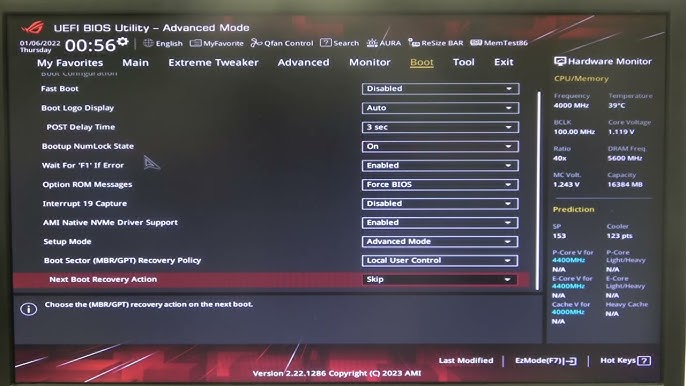
Fast Boot is a feature designed to reduce the time it takes for your computer to start up. Found in UEFI/BIOS settings, Fast Boot skips certain hardware checks and initialization steps, allowing your system to boot significantly faster. While this can improve performance, it may also create compatibility issues in some cases.
In this comprehensive guide, you’ll learn everything about Fast Boot—what it is, how it works, and how to enable or disable it in UEFI/BIOS on a Windows computer. Whether you’re optimizing performance or troubleshooting boot issues, this article covers all aspects in detail.
What Is Fast Boot?
Fast Boot is a firmware-level feature in UEFI/BIOS that accelerates the boot process by limiting the number of system checks performed during startup.
Normally, when a computer boots, it performs a Power-On Self-Test (POST), which checks hardware components like RAM, CPU, and storage devices. Fast Boot reduces or skips these checks, resulting in quicker startup times.
Difference Between Fast Boot and Windows Fast Startup
Many users confuse BIOS Fast Boot with Windows Fast Startup. While both aim to speed up boot time, they function differently.
BIOS/UEFI Fast Boot
- Works at firmware level
- Skips hardware checks
- Controlled in BIOS settings
Windows Fast Startup
- Works at operating system level
- Saves system state to a file (hibernation)
- Controlled in Windows power settings
Understanding this difference is crucial when troubleshooting boot issues.
Benefits of Enabling Fast Boot
Enabling Fast Boot can provide several advantages:
1. Faster Startup Time
Your computer boots significantly quicker by skipping unnecessary checks.
2. Improved User Experience
Less waiting time when turning on your PC.
3. Efficient System Performance
Optimized boot process leads to smoother operation.
Drawbacks of Fast Boot
Despite its benefits, Fast Boot may cause issues:
1. Limited Access to BIOS
Fast Boot may prevent you from pressing keys to enter BIOS during startup.
2. Hardware Compatibility Issues
New or external devices may not be detected properly.
3. Dual-Boot Problems
Fast Boot can interfere with systems running multiple operating systems.
4. Troubleshooting Limitations
Skipping diagnostics may hide underlying hardware problems.
When Should You Enable or Disable Fast Boot?
Enable Fast Boot If:
- Your system is stable
- You want faster boot times
- You don’t frequently access BIOS
Disable Fast Boot If:
- You need to access BIOS often
- You are installing new hardware
- You experience boot or detection issues
- You use dual-boot systems
How to Access UEFI/BIOS in Windows
Before enabling or disabling Fast Boot, you need to access BIOS.
Method 1: Using Keyboard Key
- Restart your computer
- Press a key like DEL, F2, F10, or ESC during startup
- Enter BIOS/UEFI interface
Method 2: Using Windows Settings
- Open Settings
- Go to System > Recovery
- Click Restart now under Advanced startup
- Select:
- Troubleshoot
- Advanced options
- UEFI Firmware Settings
- Click Restart
Steps to Enable Fast Boot in BIOS
Once inside BIOS, follow these steps:
Step 1: Navigate to Boot Settings
Look for tabs such as:
- Boot
- Advanced
- Startup
Step 2: Find Fast Boot Option
Locate the setting labeled:
- Fast Boot
- Ultra Fast Boot
- Quick Boot
Step 3: Enable Fast Boot
- Select the option
- Change value to Enabled
Step 4: Save and Exit
- Press F10 or choose Save & Exit
- Confirm changes
Your system will now boot faster.
Steps to Disable Fast Boot in BIOS
Disabling Fast Boot follows similar steps:
Step 1: Enter BIOS
Step 2: Go to Boot Settings
Step 3: Locate Fast Boot
Step 4: Set to Disabled
Step 5: Save and Exit
This restores full hardware checks during startup.
Fast Boot on Popular Motherboard Brands
Different manufacturers may label Fast Boot differently.
ASUS
- Found under Boot tab
- May include “Ultra Fast Boot” option
MSI
- Located in Boot settings
- Often labeled “Fast Boot”
Gigabyte
- Found under BIOS Features
- May include “Ultra Fast” option
ASRock
- Located in Boot section
- Includes multiple boot modes
Troubleshooting Fast Boot Issues
If you encounter problems, try these solutions:
Issue 1: Cannot Enter BIOS
Fix:
- Disable Fast Boot via Windows advanced startup
- Reset BIOS if necessary
Issue 2: USB Devices Not Detected
Fix:
- Disable Fast Boot
- Enable legacy USB support
Issue 3: System Won’t Boot Properly
Fix:
- Turn off Fast Boot
- Check boot order
Issue 4: Dual Boot Not Working
Fix:
- Disable Fast Boot
- Reconfigure bootloader
Advanced Tips for Managing Fast Boot
Use SSD for Better Results
Fast Boot works best with SSD storage devices.
Keep BIOS Updated
Updated firmware improves compatibility and performance.
Monitor Boot Performance
Use Windows tools to measure startup impact.
Fast Boot vs Full Boot: Which Is Better?
| Feature | Fast Boot | Full Boot |
|---|---|---|
| Speed | Faster | Slower |
| Hardware Check | Limited | Complete |
| BIOS Access | Harder | Easier |
| Compatibility | Lower | Higher |
Choose based on your needs.
Security Considerations
Fast Boot may bypass certain security checks. If security is a priority:
- Disable Fast Boot
- Enable Secure Boot
- Keep firmware updated
Frequently Asked Questions
Is Fast Boot safe?
Yes, but it may limit hardware detection and troubleshooting.
Does Fast Boot affect performance?
Only startup speed, not overall system performance.
Can I enable Fast Boot on all PCs?
Most modern systems support it, but availability varies.
Should gamers use Fast Boot?
Yes, if system stability is not affected.
Final Thoughts
Fast Boot is a powerful feature that can significantly improve your computer’s startup time. However, it’s not always the best choice for every situation. Understanding when and how to enable or disable it gives you better control over your system.
Whether you’re aiming for speed or troubleshooting hardware issues, managing Fast Boot in UEFI/BIOS is an essential skill for Windows users. By following the steps in this guide, you can confidently configure your system to suit your needs.
Take the time to experiment with settings and find the balance between performance and compatibility that works best for you.