Video conferencing, live streaming, and online collaboration have become essential in today’s digital world. However, one common frustration has been the inability to use your camera across multiple apps at the same time. For instance, if you’re in a Zoom meeting, you couldn’t simultaneously use your webcam in Microsoft Teams or OBS Studio without closing one app first.
Microsoft has addressed this issue with Multi-App Camera Support in Windows 11, a feature that allows multiple applications to access your camera feed simultaneously. This is a game-changer for content creators, professionals, and educators who rely on seamless video integration.
What Is Multi-App Camera Support?
Multi-App Camera Support is a new Windows 11 Insider Preview feature that enables your webcam to be shared across different applications at once. Instead of locking the camera to a single app, Windows now lets multiple apps stream the same feed simultaneously.
Key benefits include:
- Live streaming flexibility: Use OBS Studio while also appearing on Zoom or Teams.
- Accessibility improvements: Stream to both a sign language interpreter and your audience at the same time.
- Productivity boost: Record video while attending a meeting without interruptions.
Requirements Before Enabling
To use this feature, you’ll need:
- Windows 11 Insider Preview Build 26120.2702 or later
- A compatible webcam or camera device
- Updated drivers for your camera
- Membership in the Windows Insider Program
Step-by-Step Guide to Enable Multi-App Camera Support
1. Join the Windows Insider Program
- Go to Settings > Windows Update > Windows Insider Program.
- Sign in with your Microsoft account and select the Dev Channel to access preview builds.
2. Update to the Required Build
- Install the latest Insider Preview Build (26120.2702 or newer).
- Restart your PC after installation.
3. Open Camera Settings
- Press Win + I to open Settings.
- Navigate to Bluetooth & devices > Cameras.
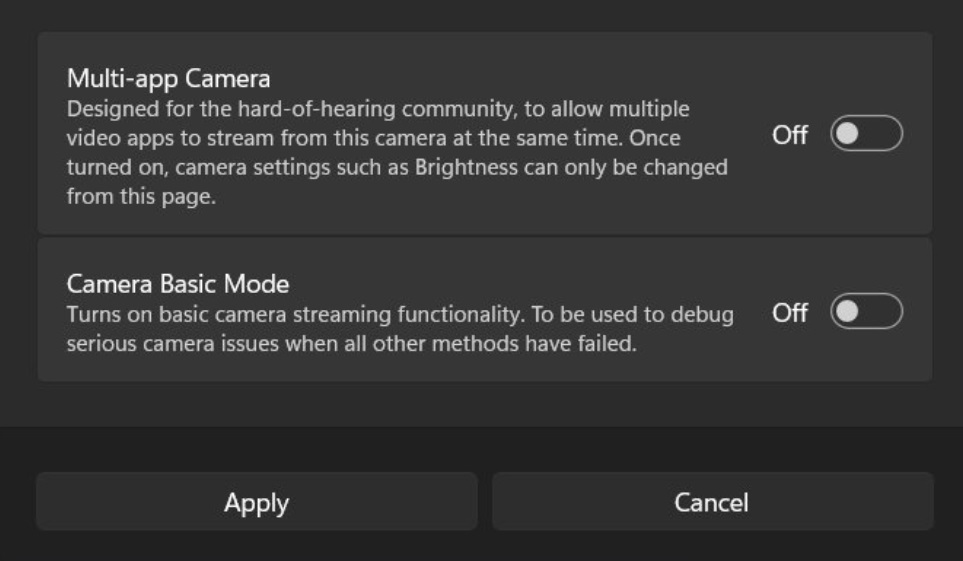
4. Enable Multi-App Camera Mode
- Select your camera from the list.
- Under Advanced Camera Options, toggle Allow multiple apps to use camera at the same time.
5. Test the Feature
- Open Zoom and Teams simultaneously.
- Confirm that both apps can access your camera feed without errors.
Use Cases for Multi-App Camera Support
- Content Creators: Stream gameplay on Twitch while recording commentary in OBS.
- Educators: Teach via Teams while recording lessons for later distribution.
- Business Professionals: Attend a Zoom meeting while simultaneously presenting on another platform.
- Accessibility: Provide real-time video feeds to interpreters and audiences simultaneously.
Troubleshooting Tips
- Camera not detected: Update drivers via Device Manager.
- Feature missing: Ensure you’re on the correct Insider Preview build.
- Lagging video: Close unnecessary background apps to free resources.
- Privacy concerns: Disable the feature when not needed to prevent unintended camera access.
Risks and Considerations
- Privacy: Multiple apps accessing your camera increases the risk of accidental exposure. Always check which apps are running.
- Performance: Running multiple video apps may consume more CPU/GPU resources.
- Stability: As this is an Insider feature, occasional bugs or crashes may occur.
Future Outlook
Microsoft is expected to roll out Multi-App Camera Support to stable Windows 11 builds in upcoming updates. This will make it widely available without requiring Insider enrollment. The feature represents a significant step toward multi-tasking efficiency and accessibility in video communication.
Conclusion
Enabling Multi-App Camera Support in Windows 11 is straightforward and highly beneficial for professionals, creators, and educators. By joining the Insider Program and adjusting a simple setting, you can unlock the ability to use your camera across multiple apps simultaneously.
This feature not only enhances productivity but also opens new possibilities for streaming, teaching, and collaboration. As Microsoft continues to refine Windows 11, Multi-App Camera Support is set to become a standard tool for anyone relying on video communication.