

Ransomware has evolved into one of the most dangerous cyber threats in the modern digital landscape, and Cryptolocker remains one of the most infamous examples. What started as a Windows-based threat has now transformed into more sophisticated variants capable of targeting multiple platforms—including Android devices.
While many victims focus on removing Cryptolocker after infection, cybersecurity experts consistently emphasize a simple truth: prevention is far more effective than cure. Once ransomware encrypts your files, recovery becomes difficult, costly, and sometimes impossible.
In this in-depth guide, we’ll explore how Cryptolocker works, how it has evolved, and most importantly, how you can prevent it from infecting your devices.
What Is Cryptolocker Ransomware?
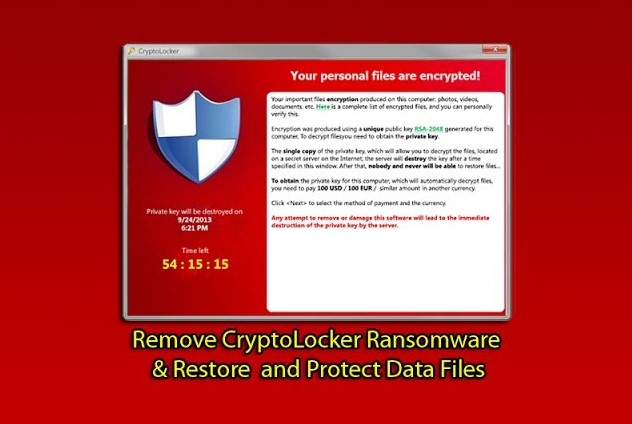
Cryptolocker is a type of ransomware that encrypts files on an infected device and demands payment (usually in cryptocurrency) in exchange for the decryption key.
Once inside your system, it silently locks your documents, photos, and other important data. A ransom message then appears, warning that your files will be permanently lost if payment is not made within a certain time frame.
How Cryptolocker Has Evolved
Originally discovered targeting Windows systems, Cryptolocker has undergone significant changes over time.
Key Evolutions:
- Stronger encryption algorithms
- Faster infection rates
- Distribution through advanced phishing campaigns
- Ability to evade antivirus detection
- Expansion to mobile platforms like Android
Modern variants are no longer limited to traditional computers. Smartphones, tablets, and even cloud-connected systems are now potential targets.
Why Cryptolocker Is So Dangerous
Cryptolocker is particularly threatening due to its efficiency and impact.
Major Risks:
- Permanent data loss
- Financial damage from ransom payments
- Business disruption
- Identity theft risks
- Spread across networks
Even if you pay the ransom, there’s no guarantee your files will be restored.
How Cryptolocker Spreads
Understanding how ransomware spreads is essential for prevention.
Common Infection Methods:
1. Phishing Emails
Malicious attachments or links disguised as legitimate communications.
2. Fake Software Downloads
Trojanized apps or cracked software often carry hidden malware.
3. Exploit Kits
Attackers exploit vulnerabilities in outdated systems or software.
4. Malicious Websites
Drive-by downloads can infect your device without interaction.
5. USB Drives and External Media
Infected removable devices can spread ransomware offline.
Signs of a Cryptolocker Infection
Early detection can sometimes limit damage.
- Files suddenly become inaccessible
- File extensions change unexpectedly
- Ransom note appears on screen
- System performance drops
- Antivirus disabled without your action
If you notice any of these signs, disconnect your device from the internet immediately.
Prevention: The Best Defense
Preventing Cryptolocker ransomware requires a proactive, layered security approach.
1. Keep Your System Updated
Outdated systems are easy targets.
What to update:
- Operating system
- Browsers
- Installed software
- Security patches
Enable automatic updates whenever possible.
2. Use Reliable Antivirus Software
A strong antivirus can detect and block ransomware before it executes.
Features to look for:
- Real-time protection
- Ransomware-specific shields
- Web protection
- Behavioral analysis
Keep your antivirus definitions updated regularly.
3. Backup Your Data Regularly
Backups are your ultimate safety net.
Best Practices:
- Use both cloud and offline backups
- Schedule automatic backups
- Store backups on external drives not always connected
If ransomware strikes, you can restore your data without paying.
4. Be Cautious with Emails
Phishing remains the most common attack vector.
Tips:
- Avoid opening unknown attachments
- Verify sender addresses
- Do not click suspicious links
- Watch for urgent or threatening language
When in doubt, delete the email.
5. Avoid Pirated Software
Cracked software is a major infection source.
Risks:
- Hidden malware
- Lack of updates
- Security vulnerabilities
Always download software from official sources.
6. Disable Macros in Documents
Malicious macros can execute ransomware.
Steps:
- Disable macros by default
- Only enable for trusted documents
7. Use Strong Passwords
Weak passwords can lead to unauthorized access.
Best Practices:
- Use long, complex passwords
- Avoid reuse across accounts
- Use a password manager
8. Enable Firewall Protection
Firewalls block unauthorized connections.
Types:
- Built-in OS firewall
- Network firewall
- Hardware firewall
Ensure your firewall is always active.
9. Secure Your Android Devices
Since Cryptolocker variants now target mobile platforms, Android users must stay vigilant.
Android Safety Tips:
- Download apps only from Google Play Store
- Avoid APK files from unknown sources
- Keep Android OS updated
- Use mobile security apps
- Review app permissions carefully
10. Limit User Permissions
Ransomware often requires elevated privileges.
Recommendations:
- Use standard accounts for daily tasks
- Restrict admin access
- Enable User Account Control (UAC)
What to Do If You’re Infected
Even with precautions, infections can still happen.
Immediate Actions:
1. Disconnect from Network
Prevent spread to other devices.
2. Do Not Pay the Ransom
There’s no guarantee of recovery.
3. Use Antivirus Tools
Run a full system scan to remove malware.
4. Restore from Backup
If available, restore your files safely.
5. Seek Professional Help
Cybersecurity experts may assist in recovery.
Why Prevention Matters More Than Removal
Removing Cryptolocker after infection is extremely difficult.
Challenges:
- Strong encryption is nearly impossible to break
- Decryption tools may not exist
- Data loss can be permanent
- Recovery costs can be high
Prevention eliminates these risks entirely.
Advanced Security Strategies
For users who want maximum protection:
Use Network Segmentation
Isolate systems to prevent spread.
Implement Intrusion Detection Systems
Monitor unusual activity.
Use Application Whitelisting
Allow only trusted programs to run.
Monitor Logs Regularly
Detect suspicious behavior early.
Common Myths About Ransomware
“Antivirus Alone Is Enough”
False—layered security is essential.
“Only Large Companies Are Targeted”
Individuals are frequent victims.
“Paying Guarantees Recovery”
No guarantee attackers will provide keys.
Future of Cryptolocker and Ransomware
Ransomware continues to evolve rapidly.
Trends:
- AI-powered attacks
- Targeting IoT devices
- More mobile-focused threats
- Double extortion tactics
Staying informed is key to staying protected.
Frequently Asked Questions
Can Cryptolocker infect Android?
Yes, modern variants can target Android devices through malicious apps.
Is it possible to decrypt files for free?
Sometimes, but not always. It depends on the variant.
How often should I back up data?
Ideally daily or weekly, depending on usage.
What is the safest way to browse?
Use secure browsers, avoid suspicious sites, and keep software updated.
Final Thoughts
Cryptolocker ransomware has grown from a simple Windows threat into a multi-platform menace capable of devastating individuals and organizations alike. Its ability to encrypt files and demand payment makes it one of the most feared types of malware.
However, the core principle remains unchanged: prevention is better than cure.
By adopting strong cybersecurity habits—such as regular backups, cautious browsing, updated systems, and reliable antivirus protection—you can significantly reduce your risk of infection.
In a world where cyber threats are constantly evolving, staying proactive is your best defense. Don’t wait until it’s too late—secure your devices today and keep your data safe from ransomware attacks.
Stay vigilant, stay informed, and prioritize prevention over recovery.







