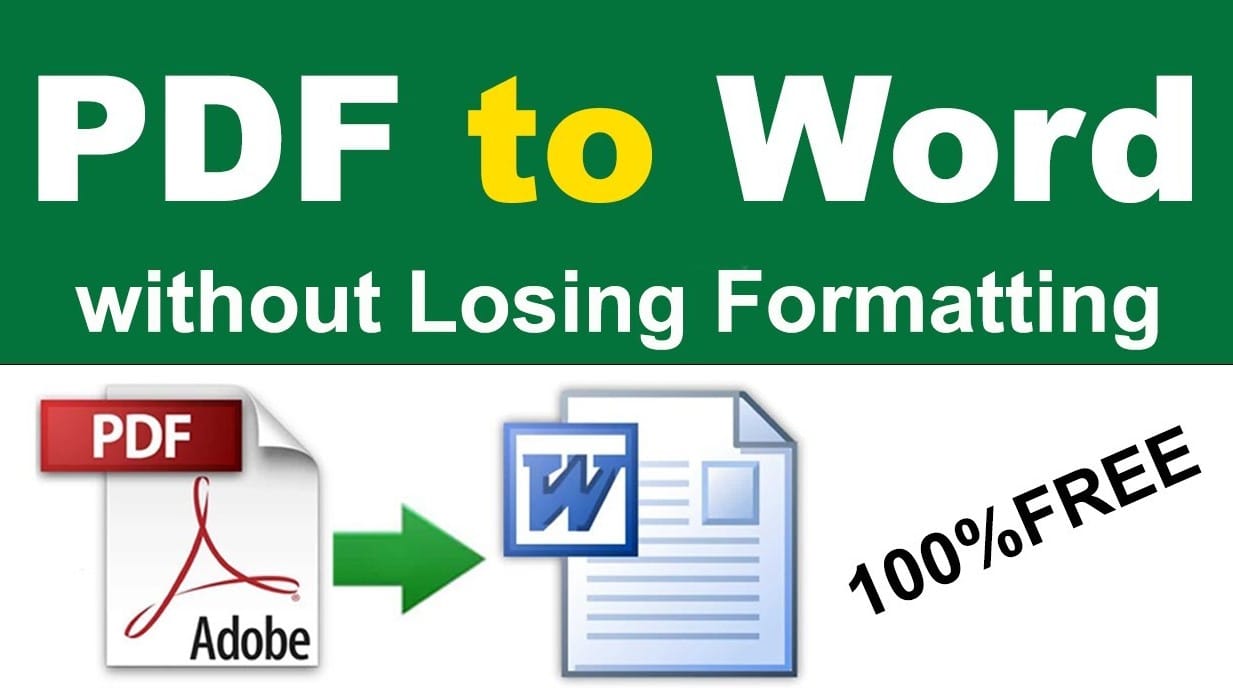
PDF files are widely used for sharing documents because they preserve formatting across different devices and operating systems. Whether it’s contracts, reports, academic papers, or invoices, PDFs ensure that the layout and design remain consistent when viewed by others. However, one common challenge users face is editing the content inside a PDF.
Unlike Word documents, PDFs are not designed for easy editing. If you need to modify text, update information, or reuse content from a PDF file, converting it into a Word document is often the best solution.
Fortunately, there are several reliable ways to convert a PDF into an editable Word document while preserving the original formatting. In this guide, we will explore multiple methods for converting PDF files to Word quickly and efficiently.
What Is a PDF File?
A PDF (Portable Document Format) is a file format designed to present documents in a consistent way across different devices and platforms.
The format was originally created by Adobe and is commonly used for documents that should not easily be modified.
PDF files support many elements, including:
- Text formatting
- Images and graphics
- Tables and charts
- Hyperlinks
- Digital signatures
Although these features make PDFs ideal for sharing documents, they also make editing more difficult.
Why Convert PDF to Word?
There are several situations where converting a PDF to a Word document becomes necessary.
Editing Content
Many users need to change text, update data, or add information. Converting to Word makes editing simple.
Reusing Text
Copying large sections of text from a PDF can be messy. Conversion helps preserve formatting.
Updating Documents
Business documents such as contracts or proposals often require updates.
Academic and Office Work
Students and professionals frequently convert PDFs to Word to edit assignments, reports, or presentations.
Word files created with Microsoft Word allow easy formatting, editing, and collaboration.
Method 1: Convert PDF to Word Using Microsoft Word
One of the easiest ways to convert a PDF to Word is by using Microsoft Word itself.
Recent versions of Word include built-in support for opening and converting PDF files.
Steps
- Open Microsoft Word.
- Click File → Open.
- Browse and select your PDF file.
- Word will display a message explaining that the file will be converted.
- Click OK to continue.
After a few seconds, the PDF content will appear as an editable Word document.
Advantages
- No extra software required
- Fast conversion
- Simple editing afterward
Limitations
Complex layouts may not convert perfectly.
Method 2: Use Adobe Acrobat for Conversion
Another reliable method is using Adobe Acrobat Reader DC or the full Adobe Acrobat application.
Adobe tools often provide better formatting accuracy since the company created the PDF format.
Steps
- Open the PDF file in Adobe Acrobat.
- Click Export PDF.
- Select Microsoft Word as the export format.
- Choose Word Document (.docx).
- Click Export.
The software will create a Word document version of your PDF.
Advantages
- High accuracy
- Preserves formatting better
- Handles complex layouts
Method 3: Convert PDF to Word Online
Online converters allow users to convert files without installing software.
Many websites offer quick PDF conversion tools.
Typical steps include:
- Upload the PDF file.
- Select Convert to Word.
- Wait for the conversion process.
- Download the Word document.
Advantages
- Works on any device
- No installation required
- Fast processing
Limitations
- Internet connection required
- File privacy concerns for sensitive documents
For confidential documents, offline tools are recommended.
Method 4: Use Google Docs
Another free solution is using Google Docs.
Google Docs can open and convert PDF files automatically.
Steps
- Upload the PDF file to Google Drive.
- Right-click the file.
- Select Open with Google Docs.
- The file will open as an editable document.
After editing, you can download it as a Word file.
Advantages
- Completely free
- Works in a browser
- Allows collaboration
Method 5: Use Dedicated PDF Converter Software
Several standalone programs specialize in converting PDF files.
These tools often provide advanced features such as:
- Batch conversion
- OCR support for scanned documents
- Layout preservation
- Image extraction
Dedicated software can be especially useful for businesses that regularly process large numbers of documents.
Converting Scanned PDFs to Word
Some PDFs are actually scanned images rather than editable text.
To convert these documents, you need Optical Character Recognition (OCR) technology.
OCR analyzes images and converts them into readable text.
Many modern PDF tools include OCR features that can extract text from scanned documents and convert them into editable Word files.
Without OCR, scanned PDFs cannot be converted properly.
Tips for Preserving Formatting
Formatting problems are common when converting PDFs to Word. However, you can reduce errors by following these tips.
Use High-Quality Source Files
The cleaner the original PDF, the better the conversion result.
Avoid Scanned PDFs When Possible
Text-based PDFs convert much more accurately.
Review the Converted Document
After conversion, check:
- Paragraph spacing
- Tables and charts
- Fonts and styles
- Image placement
Making minor adjustments ensures the final document looks correct.
Common Problems During Conversion
Users may encounter several issues when converting PDFs.
Broken Formatting
Tables or images may shift positions.
Missing Fonts
Some fonts used in the PDF may not exist on your system.
Incorrect Line Breaks
Paragraphs may appear split or merged.
Image Distortion
Images might lose quality or alignment.
These issues can usually be fixed with manual editing.
When You Should Convert PDF to Word
PDF-to-Word conversion is useful in many scenarios.
Examples include:
- Editing contracts
- Updating reports
- Reusing document templates
- Modifying presentations
- Extracting research content
Professionals, students, and businesses all benefit from easy document editing.
Security Considerations
Before converting sensitive documents, consider security risks.
Online converters may store uploaded files temporarily.
For confidential documents such as legal agreements or financial records, offline tools are usually safer.
Additionally, always verify that converted files do not contain hidden metadata or unintended information.
Best Practices for Managing PDF and Word Documents
Efficient document management helps avoid frequent conversions.
Consider these practices:
- Save original files in editable formats
- Keep backups of important documents
- Use version control when editing files
- Store documents securely in cloud storage
Following these practices reduces the need for repeated conversions.
Conclusion
Converting a PDF to a Word document is often necessary when you need to edit, update, or reuse content from a static file. Although PDFs are designed to preserve formatting and prevent changes, several reliable tools allow users to transform them into editable Word documents quickly.
Methods such as using Microsoft Word, Adobe Acrobat Reader DC, or Google Docs make the conversion process simple and accessible. Depending on your needs, you can choose between offline software or online converters.
By selecting the right method and reviewing the final document for formatting accuracy, you can easily convert PDFs into fully editable Word files while maintaining the original structure of the document.