Even though modern browsers dominate today’s internet landscape, many users and organizations still rely on Internet Explorer for legacy systems and enterprise environments. With that continued usage comes an important responsibility—ensuring safe browsing and protecting sensitive data from malicious websites.
Unsafe websites can expose users to malware, phishing scams, and data theft. Fortunately, Internet Explorer provides built-in tools to detect, block, and report suspicious websites. Understanding how to use these tools effectively can significantly improve your online safety.
In this comprehensive guide, you’ll learn how to check for unsafe websites in Internet Explorer, report them to Microsoft, and adopt best practices for secure browsing.
Why Website Safety Matters
Every time you visit a website, you potentially expose your system to risks. Cybercriminals create malicious websites designed to:
- Steal personal information
- Install malware or spyware
- Redirect users to harmful pages
- Exploit browser vulnerabilities
Recognizing and reporting these threats helps protect not only you but also other users across the internet.
Common Types of Unsafe Websites
Before learning how to report unsafe sites, it’s important to understand what makes a website dangerous.
Phishing Websites
These mimic legitimate websites to trick users into entering sensitive information like passwords or credit card details.
Malware-Hosting Sites
These sites automatically download malicious software onto your device.
Scam Websites
Fake offers, giveaways, or urgent alerts designed to deceive users.
Exploit Sites
Websites that take advantage of browser vulnerabilities to gain unauthorized access.
Signs of an Unsafe Website
You should be cautious if you notice:
- Suspicious URLs or misspellings
- Lack of HTTPS encryption
- Pop-ups asking for personal information
- Unexpected downloads
- Security warnings from your browser
Internet Explorer Security Features
Internet Explorer includes several built-in tools to help detect unsafe websites.
SmartScreen Filter
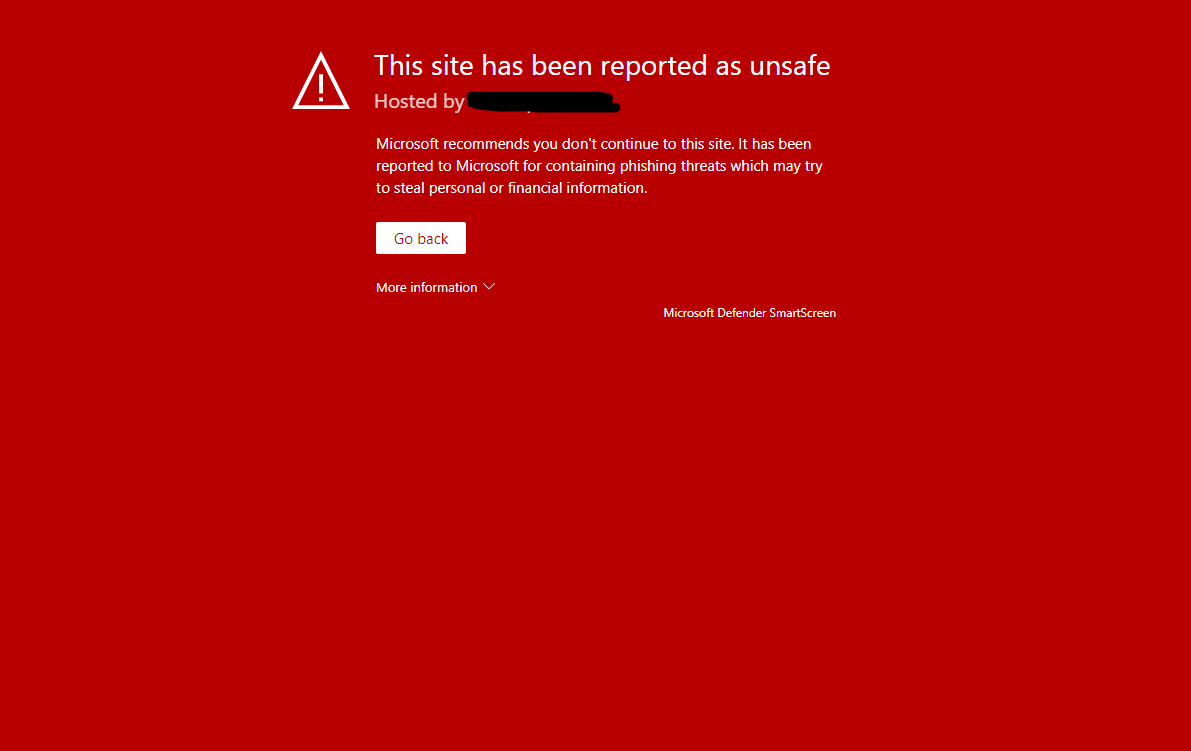
SmartScreen is one of the most important security features.
What It Does:
- Blocks phishing websites
- Prevents malicious downloads
- Warns users about unsafe content
Security Zones
Internet Explorer categorizes websites into zones:
- Internet
- Local Intranet
- Trusted Sites
- Restricted Sites
Each zone has different security settings.
Protected Mode
This limits the ability of malicious websites to make system changes.
How to Check for Unsafe Websites
Method 1: Use SmartScreen Filter
Steps:
- Open Internet Explorer
- Click the Tools icon (gear icon)
- Select “Safety”
- Click “Turn on SmartScreen Filter”
Once enabled, SmartScreen will automatically check websites against Microsoft’s database.
Method 2: Look for Security Indicators
Check the address bar:
- HTTPS with a padlock icon
- No security warnings
- Valid certificates
Method 3: Analyze Website Behavior
Be cautious if a website:
- Redirects unexpectedly
- Loads slowly with unusual activity
- Displays excessive pop-ups
How to Report Unsafe Websites in Internet Explorer
Reporting malicious websites helps improve security for everyone.
Step-by-Step Guide
Step 1: Open Internet Explorer
Navigate to the suspicious website.
Step 2: Access Safety Menu
- Click the Tools (gear) icon
- Select “Safety”
Step 3: Report Website
- Click “Report Unsafe Website”
- This will open a Microsoft reporting page
Step 4: Fill Out the Form
Provide details such as:
- Website URL
- Type of threat (phishing, malware, etc.)
- Additional comments
Step 5: Submit Report
Click submit to send the report to Microsoft.
What Happens After You Report a Website?
Once submitted:
- Microsoft analyzes the website
- Adds it to SmartScreen database if confirmed unsafe
- Protects other users from accessing it
This process helps strengthen global cybersecurity.
Additional Ways to Check Website Safety
Use Online Security Tools
Several tools can analyze website safety:
- URL scanners
- Virus detection services
- Reputation checkers
Check Domain Information
Look up domain registration details to verify legitimacy.
Use Antivirus Software
Modern antivirus programs can detect malicious websites in real time.
Best Practices for Safe Browsing
Keep Internet Explorer Updated
Ensure you’re using the latest version available for your system.
Enable All Security Features
- SmartScreen Filter
- Protected Mode
- Security Zones
Avoid Clicking Suspicious Links
Especially from emails or unknown sources.
Do Not Download Unknown Files
Always verify the source before downloading.
Use Strong Passwords
Protect your accounts from unauthorized access.
Limitations of Internet Explorer
While Internet Explorer provides useful security tools, it has limitations:
- No longer actively developed
- Less secure than modern browsers
- Vulnerable to newer threats
Alternatives to Internet Explorer
For better security, consider using modern browsers such as:
- Microsoft Edge
- Google Chrome
- Mozilla Firefox
These browsers offer advanced security features and regular updates.
Why Reporting Unsafe Websites Is Important
Your report contributes to:
- Safer browsing for others
- Improved threat detection
- Faster response to cyber threats
Cybersecurity is a shared responsibility.
Common Mistakes to Avoid
Ignoring Browser Warnings
Always take warnings seriously.
Visiting Suspicious Links
Avoid clicking unknown or shortened URLs.
Disabling Security Features
Keep all protections enabled at all times.
Frequently Asked Questions
Is Internet Explorer still safe to use?
It can be used in controlled environments, but modern browsers are safer.
What is SmartScreen Filter?
A security feature that blocks malicious websites and downloads.
Can I report phishing websites?
Yes, Internet Explorer allows you to report them directly to Microsoft.
Does reporting guarantee removal?
No, but it helps Microsoft investigate and take action.
Final Thoughts
While Internet Explorer may be considered outdated, it still includes essential tools for identifying and reporting unsafe websites. By understanding how to use features like SmartScreen Filter and knowing how to report malicious sites, you can enhance your online safety and contribute to a more secure internet.
However, due to its limitations, users are encouraged to transition to modern browsers for improved protection. Regardless of the browser you use, staying vigilant and following safe browsing practices remains the most effective defense against online threats.
Remember, cybersecurity is not just about protecting yourself—it’s about protecting the entire digital community. Reporting unsafe websites is a small action that can make a big difference.
Stay alert, browse smart, and help keep the web safe for everyone.