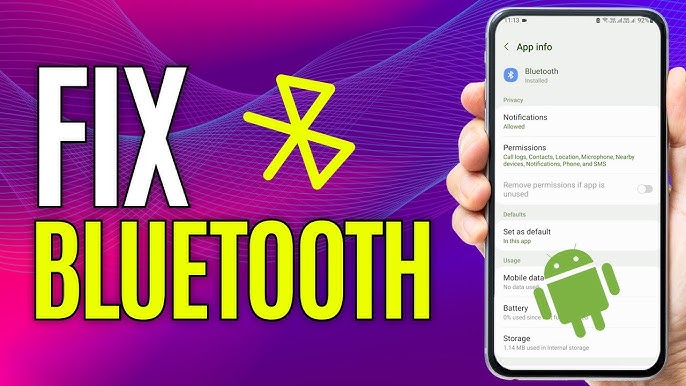
Bluetooth technology is an essential feature in modern Android smartphones, allowing users to connect wirelessly to headphones, speakers, smartwatches, car systems, and more. However, when Bluetooth stops working, it can disrupt your daily routine—whether you’re trying to listen to music, transfer files, or connect to your car.
If you’re dealing with Bluetooth not working on your Android phone, you’re not alone. This is a common issue that can arise due to software glitches, outdated firmware, interference, or hardware problems. Fortunately, most Bluetooth issues can be resolved with a few simple troubleshooting steps.
In this comprehensive guide, we’ll walk you through the most effective ways to fix Bluetooth problems on Android devices.
Common Bluetooth Problems on Android
Before diving into solutions, let’s look at the most common Bluetooth issues users face:
- Bluetooth won’t turn on
- Device not pairing
- Frequent disconnections
- Audio lag or poor sound quality
- Paired device not showing
- Bluetooth keeps crashing
Identifying the specific issue helps narrow down the right fix.
1. Restart Your Android Phone
A simple restart can resolve many temporary glitches affecting Bluetooth.
Steps:
- Press and hold the power button
- Tap Restart
- Wait for the phone to reboot
This refreshes system processes and often restores Bluetooth functionality.
2. Turn Bluetooth Off and On Again
Sometimes Bluetooth just needs a quick reset.
Steps:
- Go to Settings
- Tap Bluetooth
- Turn it off, wait 10 seconds, then turn it back on
Try reconnecting your device afterward.
3. Check Device Compatibility
Not all Bluetooth devices are fully compatible with every Android phone.
Tip:
- Ensure both devices support the same Bluetooth version or profiles
- Check manufacturer compatibility lists
4. Forget and Re-Pair the Device
Corrupted pairing data can prevent proper connection.
Steps:
- Go to Settings > Bluetooth
- Tap the gear icon next to the device
- Select Forget
- Re-pair the device
This creates a fresh connection and resolves many pairing issues.
5. Check Airplane Mode
Airplane mode disables all wireless connections, including Bluetooth.
Steps:
- Swipe down to open Quick Settings
- Ensure Airplane Mode is turned off
If it’s already off, try toggling it on and off once.
6. Clear Bluetooth Cache and Data
Clearing cache removes temporary files that may cause issues.
Steps:
- Go to Settings > Apps
- Tap Show System Apps
- Find Bluetooth
- Tap Storage
- Select Clear Cache and Clear Data
Restart your phone after this step.
7. Update Android Software
Outdated software can cause Bluetooth bugs.
Steps:
- Open Settings
- Tap System > Software Update
- Check for updates and install
Updates often include bug fixes and performance improvements.
8. Reset Network Settings
This resets Wi-Fi, mobile data, and Bluetooth settings.
Steps:
- Go to Settings > System
- Tap Reset Options
- Select Reset Wi-Fi, Mobile & Bluetooth
Note: You’ll need to reconnect to Wi-Fi and re-pair Bluetooth devices.
9. Check for Interference
Bluetooth signals can be disrupted by other wireless devices.
Tips:
- Move away from crowded wireless environments
- Turn off nearby unused Bluetooth devices
- Avoid obstacles between devices
10. Charge Your Devices
Low battery levels can affect Bluetooth performance.
Solution:
- Ensure both your phone and the connected device are sufficiently charged
11. Test with Another Device
To identify whether the problem lies with your phone or the accessory:
Steps:
- Try connecting your phone to a different Bluetooth device
- Try connecting your Bluetooth accessory to another phone
This helps isolate the issue.
12. Disable Battery Saver Mode
Battery-saving features can restrict Bluetooth functionality.
Steps:
- Go to Settings > Battery
- Turn off Battery Saver
13. Enable Location Services
Some Android versions require location services for Bluetooth scanning.
Steps:
- Open Settings
- Tap Location
- Turn it on
14. Boot into Safe Mode
Safe Mode helps determine if third-party apps are causing issues.
Steps:
- Press and hold the power button
- Tap and hold Power Off
- Select Safe Mode
If Bluetooth works in Safe Mode, uninstall recently installed apps.
15. Check App Permissions
Some apps require Bluetooth permissions to function properly.
Steps:
- Go to Settings > Apps
- Select the app
- Tap Permissions
- Ensure Bluetooth access is enabled
16. Reset App Preferences
This restores default settings for all apps without deleting data.
Steps:
- Go to Settings > Apps
- Tap the three-dot menu
- Select Reset App Preferences
17. Update Bluetooth Device Firmware
Some Bluetooth accessories have firmware updates.
Examples:
- Wireless earbuds
- Smartwatches
- Speakers
Check the manufacturer’s app for updates.
18. Factory Reset (Last Resort)
If nothing works, a factory reset may fix deep system issues.
Steps:
- Backup your data
- Go to Settings > System > Reset
- Select Factory Data Reset
This will erase all data and restore your phone to default settings.
Preventing Future Bluetooth Issues
To avoid Bluetooth problems in the future:
- Keep your Android device updated
- Avoid installing untrusted apps
- Regularly clear cache files
- Keep devices within range
- Maintain sufficient battery levels
When to Seek Professional Help
If Bluetooth still doesn’t work after trying all solutions, the issue may be hardware-related.
Signs of hardware issues:
- Bluetooth won’t turn on at all
- No devices are detected
- Frequent crashes even after reset
In such cases, visit an authorized service center for diagnosis.
Conclusion
Bluetooth not working on an Android phone can be frustrating, but most issues are easy to fix with the right approach. From simple restarts to advanced troubleshooting like resetting network settings or clearing cache, these solutions cover all common causes.
By following this step-by-step guide, you can quickly restore Bluetooth functionality and reconnect your devices without hassle. Whether you’re pairing headphones, transferring files, or connecting to your car, a properly working Bluetooth system ensures a seamless experience.
If problems persist, don’t hesitate to seek professional assistance, as hardware faults may require expert repair.
With consistent maintenance and updates, your Android phone’s Bluetooth should remain reliable and efficient for everyday use.