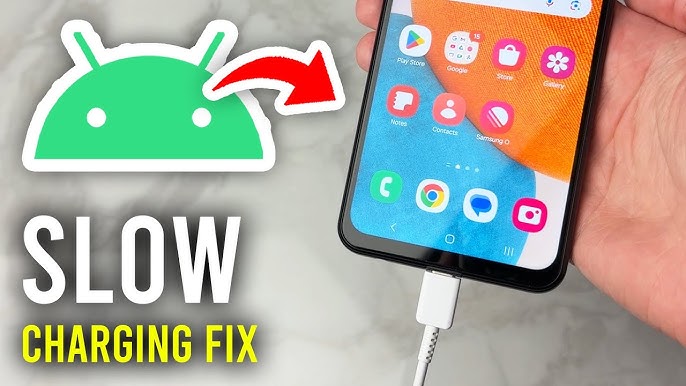
Fast charging has become one of the most essential features in modern smartphones. Whether you’re rushing out the door or need a quick battery boost, waiting hours for your Android phone to charge can be frustrating. If your device suddenly stops charging quickly, you’re not alone—this is a common issue with a variety of possible causes.
In this comprehensive guide, we’ll explore why your Android phone is not charging fast and provide practical, easy-to-follow solutions to restore optimal charging speed.
Why Fast Charging Matters
Fast charging technology allows your phone to gain hours of battery life in just minutes. Most modern Android devices support some form of rapid charging, making it a crucial feature for productivity and convenience.
When this function stops working, it often indicates an underlying issue that could worsen over time if left unresolved.
Common Reasons Your Android Phone Is Not Charging Fast
Before diving into fixes, it’s important to understand what might be causing the problem. Here are the most common reasons:
1. Faulty Charging Cable
Charging cables wear out over time. Fraying, bending, or internal damage can reduce charging efficiency.
2. Incompatible Charger
Not all chargers support fast charging. Using a low-power adapter can significantly slow down charging speed.
3. Dirty Charging Port
Dust, lint, and debris can block proper connection between the charger and your phone.
4. Background Apps Consuming Power
Apps running in the background can drain battery faster than it charges.
5. Software Glitches
Bugs or outdated software can interfere with charging optimization.
6. Battery Health Issues
An aging or damaged battery may no longer support fast charging.
7. Overheating
Phones automatically slow charging to prevent damage when temperatures rise.
How to Fix Android Phone Not Charging Fast
Now let’s go step-by-step through effective solutions.
1. Check Your Charging Cable and Adapter
Start with the basics.
- Use the original cable and adapter that came with your phone
- Inspect for visible damage
- Try a different cable or charger to compare performance
Pro Tip: Always use certified accessories for optimal charging speed.
2. Clean the Charging Port
A dirty port is one of the most overlooked causes.
Steps to clean safely:
- Turn off your phone
- Use a toothpick or soft brush to remove debris
- Avoid using metal objects
- Blow gently to clear dust
Even a small amount of lint can prevent proper connection.
3. Enable Fast Charging Settings
Some Android phones allow you to toggle fast charging.
How to check:
- Go to Settings
- Tap Battery or Device Care
- Look for “Fast Charging” or “Super Fast Charging”
- Ensure it is turned ON
4. Close Background Apps
Too many apps running can slow charging speed.
What to do:
- Open recent apps
- Close unused applications
- Restart your phone to clear processes
5. Turn On Airplane Mode
Airplane mode reduces power consumption dramatically.
- Swipe down and enable Airplane Mode
- Plug in your charger
This allows your phone to charge faster by minimizing battery usage.
6. Avoid Using Your Phone While Charging
Using your device while charging slows down the process.
Activities like:
- Gaming
- Streaming videos
- Video calls
These consume more power than your charger can supply.
7. Check for Software Updates
Manufacturers often release updates that improve battery performance.
Steps:
- Go to Settings
- Tap Software Update
- Download and install if available
8. Use a Wall Socket Instead of USB
Charging from a laptop or car USB port is much slower.
- Always use a wall outlet
- Avoid low-power USB sources
9. Monitor Phone Temperature
Heat can reduce charging speed significantly.
Tips to prevent overheating:
- Remove phone case while charging
- Avoid direct sunlight
- Charge in a cool environment
10. Replace the Battery (If Necessary)
If your phone is older, the battery may be degraded.
Signs of battery issues:
- Rapid battery drain
- Phone heating up quickly
- Charging inconsistencies
In such cases, replacing the battery may restore fast charging.
Advanced Troubleshooting Tips
If basic fixes don’t work, try these advanced solutions.
1. Boot into Safe Mode
Safe mode disables third-party apps.
- Press and hold power button
- Tap and hold “Power Off”
- Select Safe Mode
If fast charging works in safe mode, an app is causing the issue.
2. Reset Settings
Resetting system settings can fix hidden issues.
- Go to Settings
- Tap System
- Select Reset Options
- Choose Reset Settings (not factory reset)
3. Factory Reset (Last Resort)
If all else fails, a factory reset may fix deep software problems.
Warning: This will erase all data.
- Back up your data first
- Go to Settings → System → Reset → Factory Data Reset
Tips to Maintain Fast Charging
Prevention is better than repair. Follow these tips to keep your phone charging quickly:
- Use high-quality chargers
- Avoid overcharging overnight frequently
- Keep charging port clean
- Update software regularly
- Avoid extreme temperatures
Myths About Fast Charging
Let’s clear up some common misconceptions.
Myth 1: Fast Charging Damages Battery
Modern phones are designed to handle fast charging safely.
Myth 2: All Chargers Are the Same
Different chargers have different power outputs.
Myth 3: Charging Overnight Is Always Bad
Most phones stop charging once they reach 100%.
When to Seek Professional Help
If none of the fixes work, it might be time to consult a technician.
Possible hardware issues:
- Damaged charging IC
- Faulty motherboard
- Broken charging port
Professional diagnosis can save time and prevent further damage.
Conclusion
Dealing with an Android phone that is not charging fast can be frustrating, but in most cases, the issue is easy to fix. Whether it’s a faulty cable, a dirty charging port, or background apps draining power, simple troubleshooting steps can restore your device’s fast charging capability.
By understanding the root causes and applying the solutions in this guide, you can ensure your phone charges efficiently and stays ready when you need it most.
Frequently Asked Questions
Why is my phone charging slowly even with a fast charger?
It could be due to a damaged cable, overheating, or background apps consuming power.
Can a bad battery affect charging speed?
Yes, degraded batteries often charge slower and less efficiently.
Does wireless charging support fast charging?
Some devices support fast wireless charging, but it’s usually slower than wired charging.
By following this Fix Android Phone Not Charging Fast Guide, you’ll not only solve current charging issues but also prevent future problems, ensuring your device performs at its best every day.