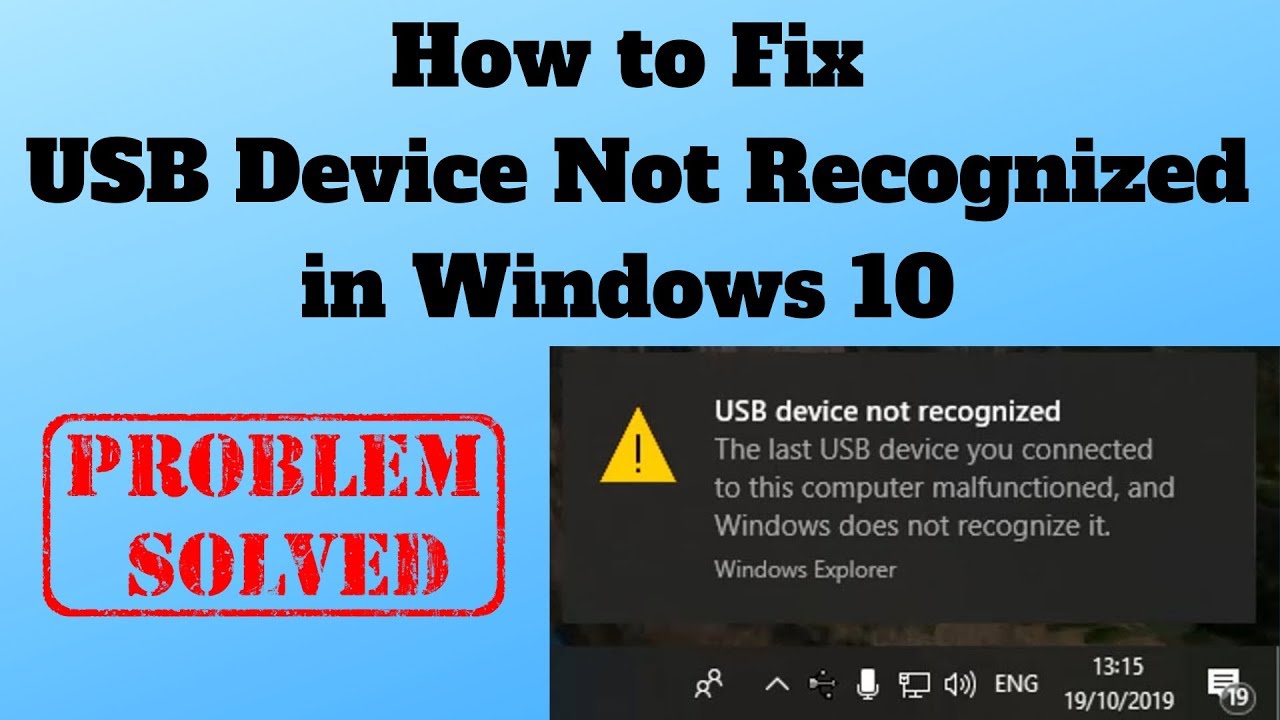
Plugging in a USB device and seeing the message “USB device not recognized” can be frustrating—especially when you rely on USB drives, keyboards, or external devices for daily tasks. This issue is quite common in Windows 10 and can happen for various reasons.
The good news is that most USB problems can be fixed with simple troubleshooting steps. In this complete guide, you’ll learn what causes the USB device not recognized Windows 10 error and how to fix it quickly.
What Does “USB Device Not Recognized” Mean?
This error occurs when Windows fails to detect or communicate with a connected USB device.
Common Causes of the Issue
1. Faulty USB Port
Damaged or loose ports may not detect devices.
2. Corrupted or Outdated Drivers
USB drivers may not function properly.
3. Power Supply Issues
Insufficient power can affect USB devices.
4. Hardware Problems
Damaged USB device or cable.
5. Windows System Errors
Temporary bugs or glitches.
6. USB Controller Issues
Problems with motherboard USB controller.
Quick Fixes to Try First
Try Another USB Port
Switch ports to check if one is faulty.
Restart Your Computer
Resolves temporary glitches.
Test on Another Device
Check if USB device works elsewhere.
Method 1: Update USB Drivers
Steps:
- Press Windows + X
- Open Device Manager
- Expand Universal Serial Bus controllers
- Update drivers
Method 2: Uninstall USB Device
Steps:
- Open Device Manager
- Right-click USB device
- Click Uninstall device
- Restart PC
Windows will reinstall drivers automatically.
Method 3: Disable USB Power Saving
Steps:
- Open Device Manager
- Expand USB controllers
- Right-click USB Root Hub
- Go to Power Management tab
- Uncheck “Allow computer to turn off…”
Method 4: Run Hardware Troubleshooter
Steps:
- Open Settings
- Go to Troubleshoot
- Run Hardware and Devices troubleshooter
Method 5: Update Windows
Steps:
- Open Settings
- Go to Windows Update
- Install updates
Method 6: Check Power Supply
- Use powered USB hub
- Avoid low battery usage
Method 7: Disable Fast Startup
Steps:
- Open Control Panel
- Go to Power Options
- Disable Fast Startup
Method 8: Scan for Hardware Changes
Steps:
- Open Device Manager
- Click Action
- Select Scan for hardware changes
Method 9: Update Chipset Drivers
- Download from manufacturer website
- Install latest version
Method 10: Reset BIOS Settings
Advanced users only.
- Reset BIOS to default
Advanced Troubleshooting
Check Device Compatibility
- Ensure device supports Windows 10
Use Different Cable
- Replace damaged USB cable
Check for Physical Damage
- Inspect ports and device
Preventing USB Issues
Keep Drivers Updated
Ensures proper functionality.
Avoid Overloading USB Ports
Too many devices can cause issues.
Use Quality Devices
Cheap hardware may fail.
Safely Remove USB Devices
Prevents corruption.
Common Mistakes to Avoid
Ignoring Hardware Problems
Software fixes won’t help damaged devices.
Using Faulty Cables
Can block connection.
Skipping Updates
Outdated system causes compatibility issues.
Real-World Example
Imagine plugging in a USB flash drive and seeing the “not recognized” error. After reinstalling USB drivers and disabling power saving, the device works perfectly again.
Frequently Asked Questions
Why is my USB not detected?
Usually due to driver or hardware issues.
Can power issues affect USB?
Yes, insufficient power can prevent detection.
Do I need to replace my USB device?
Only if it’s physically damaged.
Conclusion
The USB device not recognized Windows 10 issue can interrupt your workflow, but it’s usually easy to fix. By updating drivers, checking hardware, and adjusting power settings, you can restore USB functionality quickly.
With proper maintenance and careful usage, you can prevent USB issues and ensure smooth device connectivity.