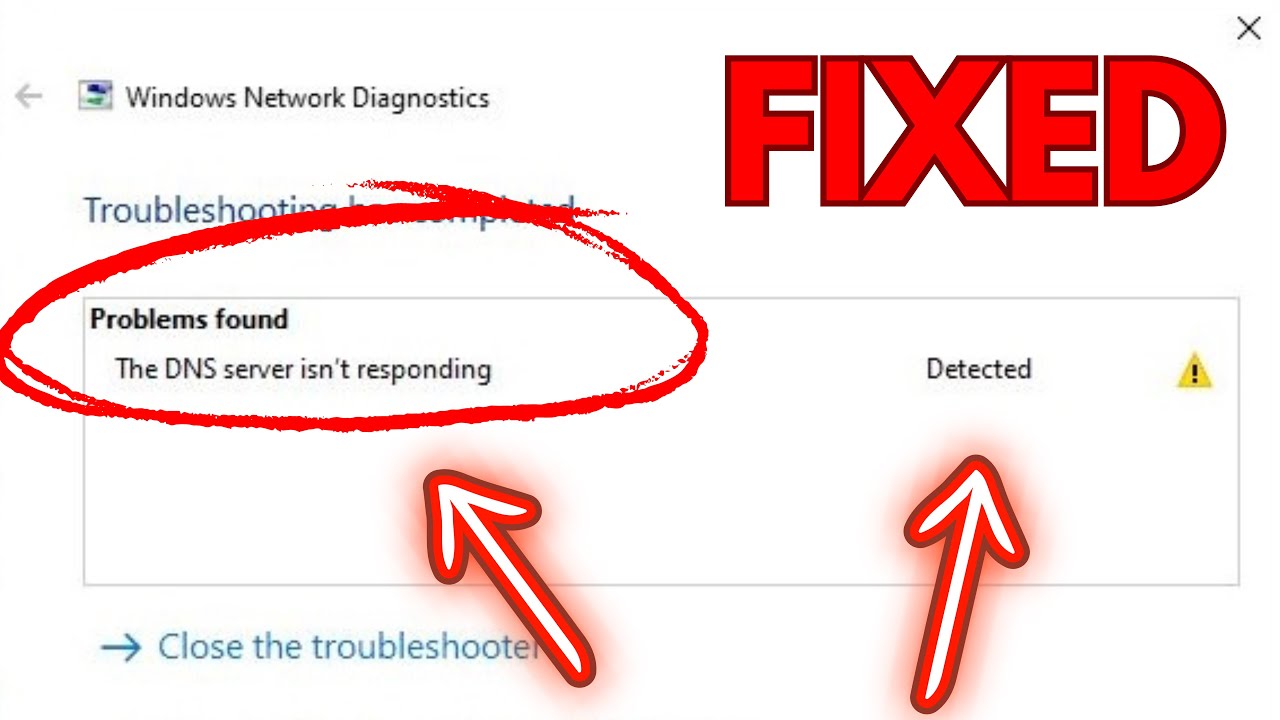
The “DNS server not responding” error is one of the most common internet issues on Windows computers. When this happens, your browser cannot connect to websites—even if your internet seems to be working.
This issue can be frustrating, especially when you need immediate access to the web. The good news is that the problem is usually easy to fix with a few simple steps.
In this complete guide, you’ll learn what causes the DNS server not responding Windows error and how to fix it quickly.
What Is a DNS Server?
DNS (Domain Name System) acts like a translator between website names and IP addresses.
For example:
- You type a website name
- DNS converts it into an IP address
- Your browser connects to the website
If DNS fails, websites won’t load.
What Does “DNS Server Not Responding” Mean?
This error means your computer cannot communicate with the DNS server, so it cannot resolve website addresses.
Common Causes of the Error
1. Network Connection Issues
Unstable or weak internet connection.
2. Incorrect DNS Settings
Wrong DNS configuration can block access.
3. Outdated Network Drivers
Drivers may not function properly.
4. Router or Modem Problems
Temporary glitches can affect DNS.
5. Firewall or Antivirus Blocking
Security software may block DNS requests.
6. ISP Issues
Your internet provider may have DNS outages.
Quick Fixes to Try First
Restart Your Router
Turn it off for 30 seconds, then restart.
Restart Your Computer
Refreshes system and network.
Try Another Browser
Check if the issue is browser-related.
Method 1: Run Network Troubleshooter
Steps:
- Open Settings
- Go to Network & Internet
- Click Status → Network Troubleshooter
- Follow instructions
Method 2: Flush DNS Cache
Steps:
- Open Command Prompt (Admin)
- Run:
ipconfig /flushdns - Restart your PC
Method 3: Change DNS Server Address
Switch to public DNS servers.
Steps:
- Open Control Panel
- Go to Network and Sharing Center
- Click Change adapter settings
- Right-click network → Properties
- Select Internet Protocol Version 4
- Enter:
- Preferred DNS: 8.8.8.8
- Alternate DNS: 8.8.4.4
Method 4: Restart DNS Client Service
Steps:
- Press Windows + R
- Type
services.msc - Find DNS Client
- Restart the service
Method 5: Update Network Drivers
Steps:
- Press Windows + X
- Open Device Manager
- Expand Network adapters
- Update drivers
Method 6: Disable Antivirus or Firewall Temporarily
Some security programs may block DNS.
Re-enable after testing.
Method 7: Reset TCP/IP Stack
Steps:
- Open Command Prompt (Admin)
- Run:
netsh int ip reset - Restart PC
Method 8: Disable Proxy Settings
Steps:
- Open Settings
- Go to Network & Internet → Proxy
- Turn off proxy
Method 9: Restart Router and Reset Settings
- Reset router if needed
- Update firmware
Method 10: Contact ISP
If all else fails:
- Check for outages
- Ask for DNS configuration help
Advanced Troubleshooting
Use Command Prompt Tools
Run:
ipconfig /release
ipconfig /renew
Try Safe Mode with Networking
- Helps identify software conflicts
Preventing DNS Issues
Keep Drivers Updated
Ensures stable connection.
Use Reliable DNS Servers
Public DNS like Google DNS works well.
Maintain Network Equipment
Keep router updated.
Avoid Suspicious Software
Prevents network interference.
Common Mistakes to Avoid
Using Incorrect DNS Settings
Can completely block internet access.
Ignoring Router Issues
Problem may not be your PC.
Disabling Security Permanently
Only disable temporarily.
Real-World Example
Imagine trying to browse the internet, but no websites load. After changing your DNS server to Google DNS, everything starts working again instantly.
Frequently Asked Questions
What causes DNS errors?
Usually network or configuration issues.
Is DNS important?
Yes, it’s essential for accessing websites.
Can DNS affect speed?
Yes, faster DNS can improve browsing speed.
Conclusion
The DNS server not responding Windows error can block your internet access, but it’s usually easy to fix. By flushing DNS cache, updating drivers, and adjusting network settings, you can restore your connection quickly.
Regular maintenance and proper configuration will help prevent this issue in the future, ensuring a smooth browsing experience.