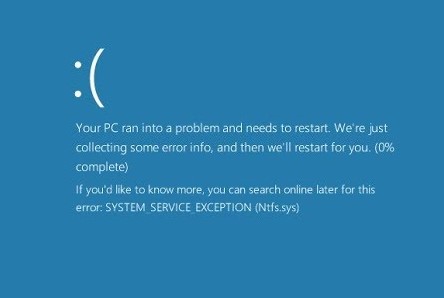
The System Service Exception error is a common Blue Screen of Death (BSOD) issue in Windows that can suddenly crash your computer and interrupt your work. It usually appears with a blue screen and forces your system to restart, often without warning.
This error can be frustrating, but the good news is that it’s usually fixable. In this complete guide, you’ll learn what causes the System Service Exception error in Windows and how to fix it step by step.
What Is System Service Exception Error?
The System Service Exception error occurs when a system process running in the background fails or behaves unexpectedly. Windows stops the system to prevent further damage.
Common Causes of the Error
1. Corrupted System Files
Damaged Windows files can trigger system crashes.
2. Faulty or Outdated Drivers
Graphics and network drivers are common culprits.
3. Incompatible Software
Newly installed programs may conflict with system processes.
4. Malware or Virus
Malicious software can disrupt system operations.
5. Memory (RAM) Issues
Faulty RAM can cause system instability.
6. Windows Update Problems
Incomplete or buggy updates may lead to errors.
Quick Fixes to Try First
Restart Your Computer
Temporary glitches may be resolved.
Disconnect External Devices
Remove USB devices and peripherals.
Boot into Safe Mode
Helps identify problematic drivers or software.
Method 1: Update Device Drivers
Outdated drivers are a leading cause.
Steps:
- Press Windows + X
- Open Device Manager
- Update drivers (especially GPU and network)
- Restart your PC
Method 2: Run System File Checker (SFC)
Steps:
- Open Command Prompt (Admin)
- Run:
sfc /scannow - Wait for completion
- Restart PC
Method 3: Use DISM Tool
Steps:
- Open Command Prompt (Admin)
- Run:
DISM /Online /Cleanup-Image /RestoreHealth - Restart system
Method 4: Check RAM for Errors
Steps:
- Press Windows + R
- Type
mdsched.exe - Restart and scan
Method 5: Run CHKDSK Command
Steps:
- Open Command Prompt (Admin)
- Run:
chkdsk /f /r - Restart PC
Method 6: Uninstall Problematic Software
Steps:
- Open Control Panel
- Go to Programs
- Uninstall recently installed apps
Method 7: Disable Antivirus Temporarily
Sometimes antivirus may conflict with system processes.
Re-enable after testing.
Method 8: Update Windows
Steps:
- Open Settings
- Go to Windows Update
- Install updates
Method 9: Perform System Restore
Steps:
- Open Control Panel
- Go to Recovery
- Click System Restore
- Select a restore point
Method 10: Reset Windows
If the error persists:
Steps:
- Open Settings
- Go to Recovery
- Click Reset this PC
Advanced Troubleshooting
Check Event Viewer
- Identify crash logs
- Analyze system errors
Update BIOS
Only for advanced users.
Check Graphics Drivers
- Reinstall GPU drivers if needed
Preventing System Service Exception Error
Keep Drivers Updated
Regular updates prevent compatibility issues.
Install Trusted Software
Avoid unreliable programs.
Maintain System Health
Run regular scans and updates.
Avoid Overloading System
Too many apps can cause instability.
Common Mistakes to Avoid
Ignoring Early Warning Signs
Frequent crashes indicate deeper issues.
Skipping Driver Updates
Outdated drivers cause many errors.
Using Unverified Software
Can lead to conflicts and crashes.
Real-World Example
Imagine your PC crashes repeatedly with the System Service Exception error. After updating your graphics driver and running system scans, the issue disappears and your system becomes stable again.
Frequently Asked Questions
Is this error serious?
It can be, but most cases are fixable.
Can drivers cause this error?
Yes, especially outdated or faulty ones.
Will resetting Windows fix it?
Yes, if other methods fail.
Conclusion
The System Service Exception error in Windows can be disruptive, but it is usually caused by manageable issues like outdated drivers, corrupted files, or software conflicts. By following the step-by-step solutions in this guide, you can fix the problem and restore your system’s stability.
Regular maintenance, updates, and safe usage habits will help prevent this error from occurring in the future, ensuring a smoother computing experience.