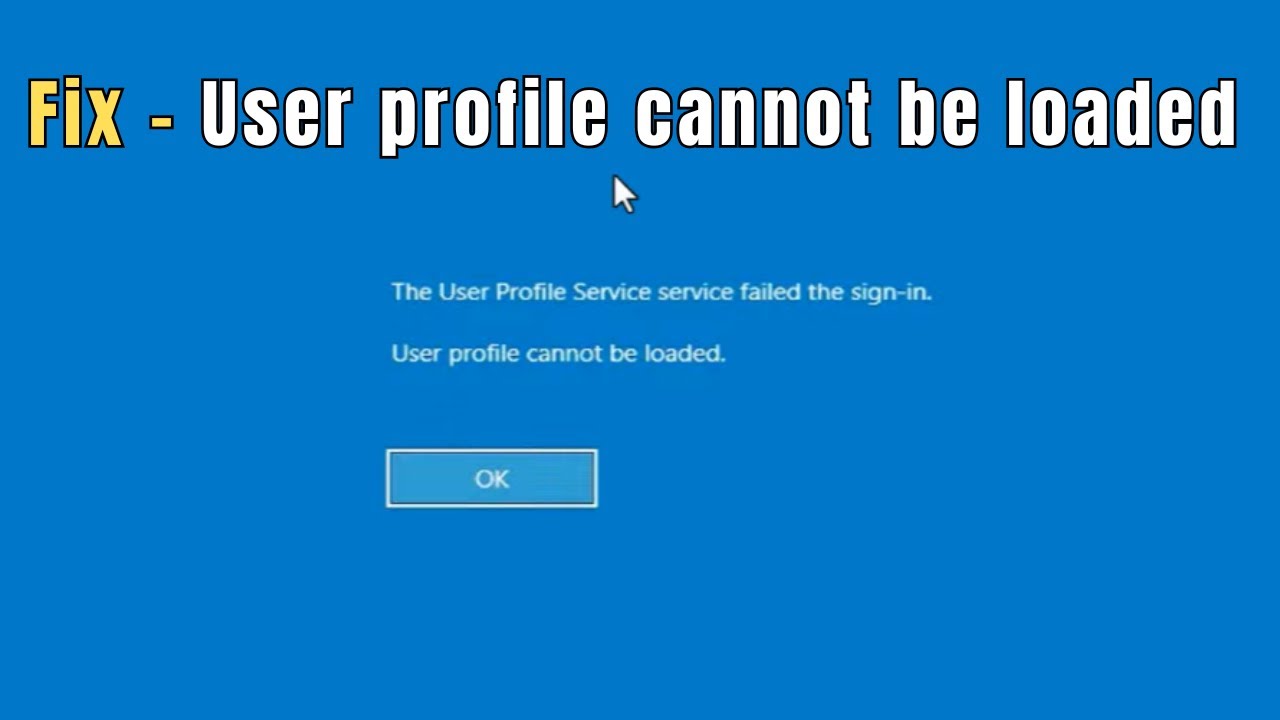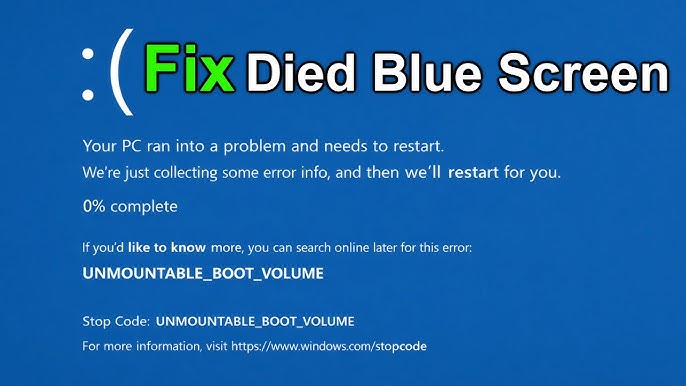
The Blue Screen of Death (BSOD) is one of the most dreaded errors in Windows. It appears suddenly, crashes your system, and often restarts your computer without warning. If you’ve encountered this issue, you’re not alone—many users face BSOD errors at some point.
The good news is that most BSOD problems are fixable with the right approach. In this complete guide, you’ll learn what causes the Blue Screen of Death and how to fix it step by step.
What Is the Blue Screen of Death?
The Blue Screen of Death is a critical system error that occurs when Windows encounters a problem it cannot recover from safely. To prevent damage, the system stops and displays a blue screen with an error message.
Common BSOD Error Codes
You may see different error codes, such as:
- CRITICAL_PROCESS_DIED
- IRQL_NOT_LESS_OR_EQUAL
- SYSTEM_SERVICE_EXCEPTION
- MEMORY_MANAGEMENT
- PAGE_FAULT_IN_NONPAGED_AREA
These codes help identify the cause of the issue.
Main Causes of BSOD Errors
1. Corrupted System Files
Missing or damaged files can crash the system.
2. Faulty Drivers
Outdated or incompatible drivers are a common cause.
3. Hardware Problems
Issues with RAM, hard drive, or GPU.
4. Overheating
High temperatures can trigger system crashes.
5. Malware or Viruses
Malicious programs can affect system stability.
6. Software Conflicts
Newly installed programs may interfere with system processes.
Quick Fixes to Try First
Restart Your PC
Temporary glitches can be resolved easily.
Disconnect External Devices
Remove USB devices and peripherals.
Boot into Safe Mode
Loads only essential drivers.
Method 1: Update Device Drivers
Steps:
- Press Windows + X
- Open Device Manager
- Update all major drivers
- Restart your PC
Method 2: Run System File Checker (SFC)
Steps:
- Open Command Prompt (Admin)
- Run:
sfc /scannow - Wait for completion
- Restart your PC
Method 3: Use DISM Tool
Steps:
- Open Command Prompt (Admin)
- Run:
DISM /Online /Cleanup-Image /RestoreHealth - Restart system
Method 4: Check RAM for Errors
Steps:
- Press Windows + R
- Type
mdsched.exe - Restart and scan
Method 5: Check Disk for Errors
Steps:
- Open Command Prompt (Admin)
- Run:
chkdsk /f /r - Restart PC
Method 6: Uninstall Recent Software
If the problem started after installing a program:
Steps:
- Open Control Panel
- Go to Programs
- Uninstall recent apps
Method 7: Update Windows
Steps:
- Open Settings
- Go to Windows Update
- Install updates
Method 8: Disable Overclocking
Overclocking can cause instability.
- Reset BIOS settings to default
Method 9: Check for Malware
Steps:
- Open Windows Security
- Run full scan
Method 10: Perform System Restore
Steps:
- Open Control Panel
- Go to Recovery
- Select System Restore
- Choose a restore point
Advanced Troubleshooting
Check Event Viewer
- Identify crash logs
- Analyze system errors
Update BIOS
Advanced users only.
Reset Windows
If all else fails:
- Go to Settings → Recovery
- Click Reset this PC
Preventing BSOD Errors
Keep Drivers Updated
Outdated drivers cause instability.
Maintain Hardware Health
Check RAM and disk regularly.
Avoid Overheating
Ensure proper cooling.
Install Trusted Software Only
Avoid malicious programs.
Common Mistakes to Avoid
Ignoring Warning Signs
Frequent crashes should be addressed early.
Installing Unknown Drivers
Can cause compatibility issues.
Skipping Updates
Leads to system instability.
Real-World Example
Imagine your computer suddenly crashes with a blue screen while working. After updating drivers and running system scans, the issue is resolved, and your system runs smoothly again.
Frequently Asked Questions
Is BSOD dangerous?
It can be, especially if caused by hardware issues.
Can I fix BSOD myself?
Yes, most issues can be fixed with basic troubleshooting.
Does BSOD cause data loss?
Sometimes, so backups are recommended.
Conclusion
The Blue Screen of Death (BSOD) may seem serious, but it is often fixable with simple troubleshooting steps. By updating drivers, repairing system files, checking hardware, and maintaining your system, you can eliminate most causes of BSOD errors.
With proper care and regular maintenance, you can keep your Windows system stable and avoid future crashes.