If your computer becomes extremely slow, freezes frequently, or takes forever to open programs, there’s a high chance you’re dealing with the 100% disk usage Windows 10 issue. This is one of the most common performance problems faced by Windows users, and it can make even a powerful PC feel unusable.
The good news? You don’t need to be a tech expert to fix it.
In this complete guide, you’ll learn what causes 100% disk usage and how to fix it step by step to restore your PC’s performance.
What Is 100% Disk Usage in Windows 10?
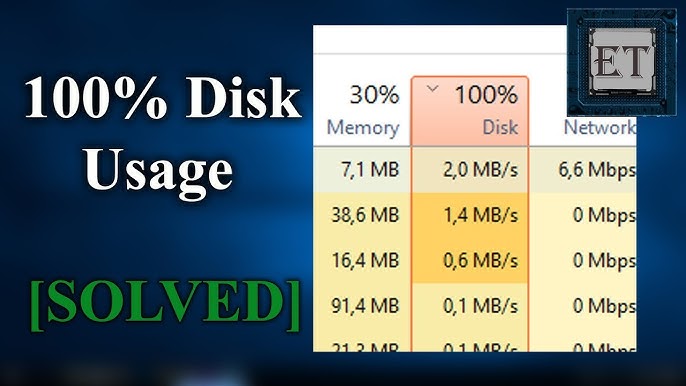
Disk usage refers to how much your hard drive is being used. When it reaches 100%, it means your system is constantly reading/writing data, leaving little room for other processes.
Symptoms:
- Slow system performance
- Programs taking long to open
- Frequent freezing
- High disk usage in Task Manager
How to Check Disk Usage
Steps:
- Press Ctrl + Shift + Esc
- Open Task Manager
- Click on the Processes tab
- Check the Disk column
If it shows 100%, you have the issue.
Common Causes of 100% Disk Usage
1. Windows Search Service
Can overload disk due to indexing.
2. Superfetch (SysMain)
Preloads apps but may cause excessive disk usage.
3. Background Apps
Multiple apps running simultaneously.
4. Malware or Virus
Malicious processes can use disk resources.
5. Outdated Drivers
Especially storage drivers.
6. Windows Updates
Background updates may overload disk.
Quick Fixes to Try First
Restart Your Computer
Clears temporary processes.
Close Unnecessary Programs
End tasks in Task Manager.
Check Startup Apps
Disable unnecessary startup programs.
Method 1: Disable Windows Search
Steps:
- Press Windows + R
- Type
services.msc - Find Windows Search
- Right-click → Properties
- Click Stop
- Set Startup type to Disabled
Method 2: Disable SysMain (Superfetch)
Steps:
- Open Run (
Windows + R) - Type
services.msc - Locate SysMain
- Right-click → Properties
- Click Stop
- Set to Disabled
Method 3: Update Device Drivers
Steps:
- Press Windows + X
- Open Device Manager
- Expand Disk drives
- Right-click your drive
- Click Update driver
Method 4: Scan for Malware
Steps:
- Open Windows Security
- Go to Virus & Threat Protection
- Run a full scan
Method 5: Disable Startup Programs
Steps:
- Open Task Manager
- Go to Startup tab
- Disable unnecessary apps
Method 6: Reset Virtual Memory
Steps:
- Open Control Panel
- Go to System → Advanced system settings
- Click Performance → Settings
- Go to Advanced tab
- Click Change under Virtual Memory
- Set custom size or auto-manage
Method 7: Check Disk Errors
Steps:
- Open Command Prompt (Admin)
- Run:
chkdsk /f /r - Restart your PC
Method 8: Fix StorAHCI.sys Issue
Steps:
- Open Device Manager
- Expand IDE ATA/ATAPI controllers
- Open properties of AHCI Controller
- Go to Details → Device Instance Path
- Modify registry settings accordingly
Advanced users only.
Method 9: Disable Background Apps
Steps:
- Open Settings
- Go to Privacy
- Click Background apps
- Turn off unnecessary apps
Method 10: Upgrade to SSD (Best Solution)
If you’re using an HDD:
- Consider upgrading to SSD
- SSD significantly improves performance
- Reduces disk usage issues
Advanced Troubleshooting
Use Resource Monitor
- Press Windows + R
- Type
resmon - Check disk activity
Perform Clean Boot
- Helps identify software conflicts
- Disable all non-Microsoft services
Preventing 100% Disk Usage
Keep Windows Updated
Install updates regularly.
Limit Startup Programs
Only allow essential apps.
Use Antivirus
Prevent malware infections.
Monitor Disk Health
Use tools to check drive condition.
Common Mistakes to Avoid
Disabling Critical Services
Only disable recommended services.
Ignoring Hardware Issues
Old HDDs may need replacement.
Running Too Many Apps
Overloads system resources.
Real-World Example
Imagine opening your laptop and everything slows down—apps won’t open, and the system freezes. After disabling SysMain and Windows Search, disk usage drops from 100% to 10%, and your PC runs smoothly again.
Frequently Asked Questions
Is 100% disk usage bad?
Yes, it can slow down your system significantly.
Can SSD fix this issue?
Yes, SSDs greatly reduce disk usage problems.
Should I disable SysMain permanently?
Only if it causes issues on your system.
Conclusion
The 100% disk usage Windows 10 problem can make your PC frustratingly slow, but it’s completely fixable. By disabling unnecessary services, updating drivers, scanning for malware, and optimizing system settings, you can significantly improve performance.
If the problem persists, upgrading to an SSD is the most effective long-term solution. Follow the steps in this guide, and your system will run faster and smoother in no time.